

Responsibility area: Maintain Costing Master Data
Table of contents


1. Objective and Scope
1.1. Objective of this Operation
The purpose of this procedure is to explain how to create internal orders for :
Environmental cash-out follow-up (recurring & non recurring)
1.2. Scope
Worldwide
2. Definitions
See Finance Glossary
3. Tasks description
3.1. I get informed of the necessity to create a new internal order
The request is submitted through the workflow PRS in the category Miscellaneous request or using Service One.
Prepare all information available for the creation of the internal order:
Internal order master are displayed with KO03 - Display Internal Order
List of fields to be filled when creating an internal order:
- Description
- Business area (only in PF1)
- Profit center
- Responsible CCtr
- External order no.
- Settlement Rule

Once all the information has been gathered, you can start the creation of the internal order.
3.2. I create the internal order
STEP 1
Log is in English to start with the creation of the profit center in English.

Start the transaction using the menu path or transaction code 

STEP 2
Start the creation of the new internal order
- Enter the Controlling area
- Enter the Order Type
- Enter a reference order if I want to use an existing internal order as a model.
The selection of the correct Order Type is very important when creating the Order, as it will have impact in several reports, namely in Co$ta and Capex reports.

STEP 3
Enter information gathered previously
- Description of the order
- Company code
- Business Area (only in PF1)
- Plant code (Optional)
- Profit center
- Responsible CCtr
- External order no.
Other fields can be informed when requested

The message  is displayed

STEP 4
Click on 

STEP 5
- Enter the account assignment category that can be :
- CTR Cost center
- G/L G/L account
- ORD Order
- WBS WBS element - Enter the settlement receiver
- Enter the percentage
- Settlement type : FUL
And go back to the initial screen

STEP 7
Go to the tab "Control data" and check that the system status is REL SETC if not use the arrows  or
or  to change the status
Save the Internal order by clicking 

STEP 8
A message is displayed with the codification of the order

STEP 9
If you want to update the description in another language, you must log in the language requested

3.3. I assign the internal order to an order group (optional)
If requested you can assigne the internal order to an order group
STEP 1
Start the transaction using the menu path or transaction code KOH2
Double-click 

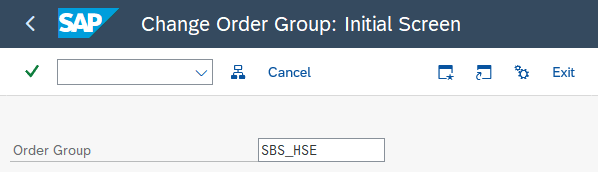
Change Order Group : Initial Screen

STEP 2
Enter the group you want to update and
STEP 3
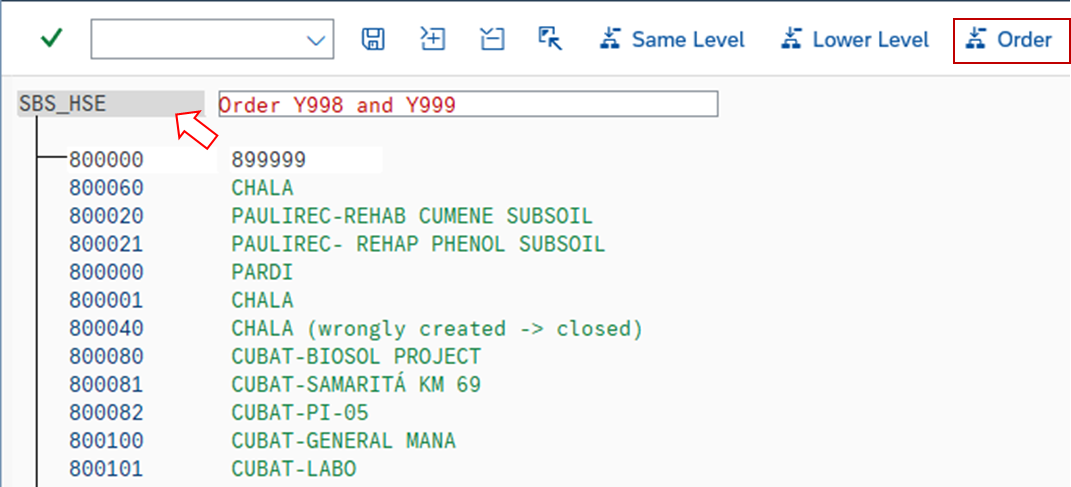
Click on the group you want to include a new order and click 
STEP 4
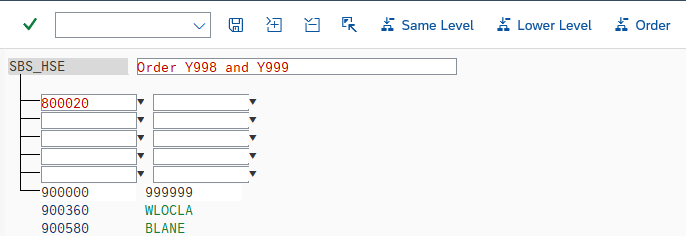
Enter the code of the internal order to be included in the group and 
There is a message at the bottom of the page
 You can leave the transaction
STEP 5
If you want to update the description in another language, you must log in the language requested

3.4. I inform the requester
Once the order is created, inform the requester through the PRS workflow or Service One