

Create Admin User (if doesn't exist yet) First Name: Admin Last Name: User email: david.browaeys-ext@syensqo.com please confirm email with Dina Mendez for production username: admin.user@syensqo.com<sandbox_suffix> Profile: System Administrator Complete account verification. ALL schedule jobs must be running as the admin user. so execute all the below as admin user. |
Install pkg-core for System Admin Only:
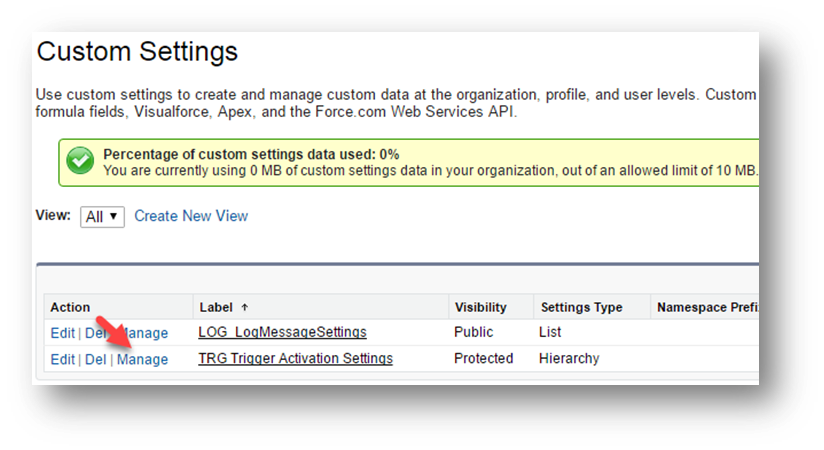
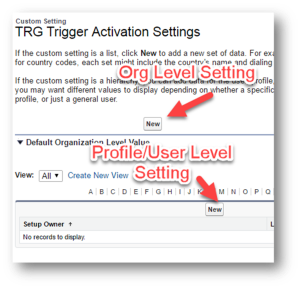
Once the package is installed, you must configure the TRG_TriggerActivationSettings__c. To do so, you must go to Setup | Develop | Custom Settings | Manage TRG Trigger Activation Settings.
2. Log Messages Setup the Apex Batch to delete log: If you want to automatically delete the logs after a certain number of days, follow the below steps. In order to do so follow the following steps:
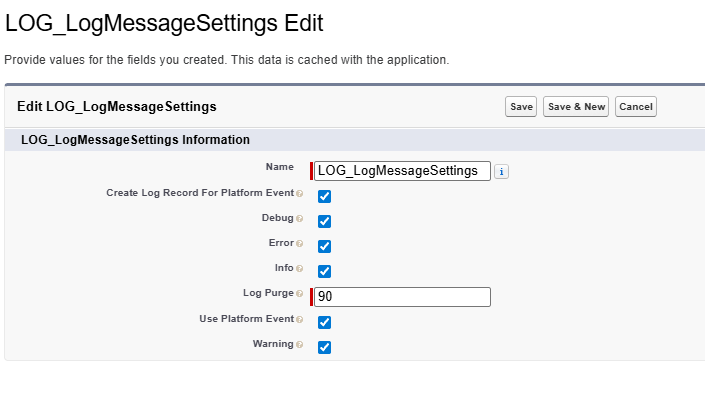
You can see your scheduled job in Monitoring | Scheduled Jobs Once the package is installed, you must configure the LOG_LogMessageSettings. To do so, you must go to Setup | Develop | Custom Settings | Manage LOG_LogMessageSettings. Then click on New and Enter as follow
3. Unit of Work Once the package is installed, you must configure the UTL_UnitOfWorkSettings. To do so, you must go to Setup | Develop | Custom Settings | Manage UTL_UnitOfWorkSettings. Click on New and Save directly |
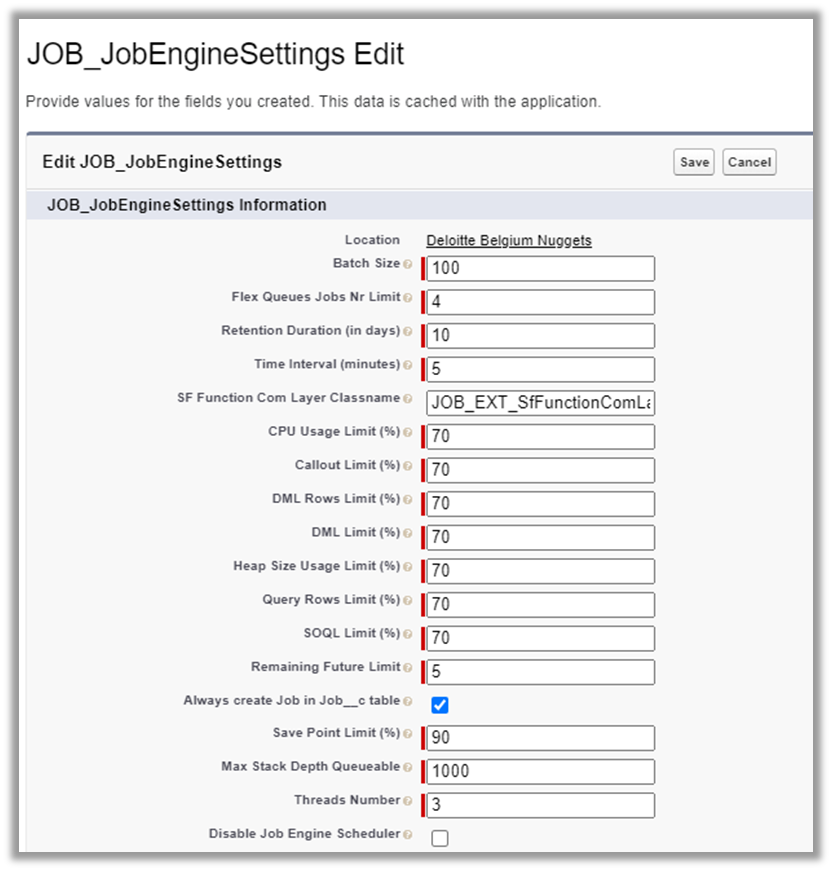
Install Job Engine for System Admin Only: Deploy to PROD Navigate to the JOB_JobEngineSettings__c hierarchical custom setting and be sure to create an instance for your organization. Click on new for the organization and fill up as follow In order to initiate the Job Engine, access to the Job Engine application and click on the Job Engine Setup tab. If the Job Engine is already scheduled, you will see when is the next scheduled time at the screen and no further action is needed. If the batch is not scheduled, simply click on the Schedule Job button.
In order to apply the retention policy defined in the custom settings (see section 2), the cleansing job must be scheduled on a daily basis. In order to do so follow the following steps:
|
Install Integration Framework for System Admin Only: |
Install UI LIbrary for Admin only |
Install Transformation Engine for Admin only Deploy to PROD Setup the Custom Settings Once the package is installed, you must configure the TRG_TriggerActivationSettings__c. To do so, you must go to Setup | Develop | Custom Settings | Manage TRG Trigger Activation Settings. Assign Mapping Node Record Types & Page Layout
The Mapping Node object has several record type. However record type access and page layout assignment are managed at the Profile Level. So once the unlock package is deployed, there is a high chance that assignment is not setup correctly.
For each admin profiles (that will have to setup and configure the transformation engine configurations), be sure to add the access to all the record types:
Assign to each Mapping Node record type, its corresponding page layout.
Assign for each record type, its associated page layout. Do it for all the profiles, |
Install Extended Integration Framework for Admin only |



Overview
Content Tools
Tasks