
HR - Accessing Employee Files in My HR Services
INTRODUCTION
The Employee File workspace enables Human Resource professionals to access and manage the documents of the employees in their scope. Please note that due to legal constraints, Bulgaria and Russia are out of scope.
ACCESSING THE EMPLOYEE FILE WORKSPACE
Employee file access is open to Employees, Managers and HR professionals. Your HR access to the Employee Files is based on your role in HR and scope.
Employee File tile in My HR Services will lead you to your own workspace.

To access Employee files for employees in your scope click on Employee File item in the Home menu:

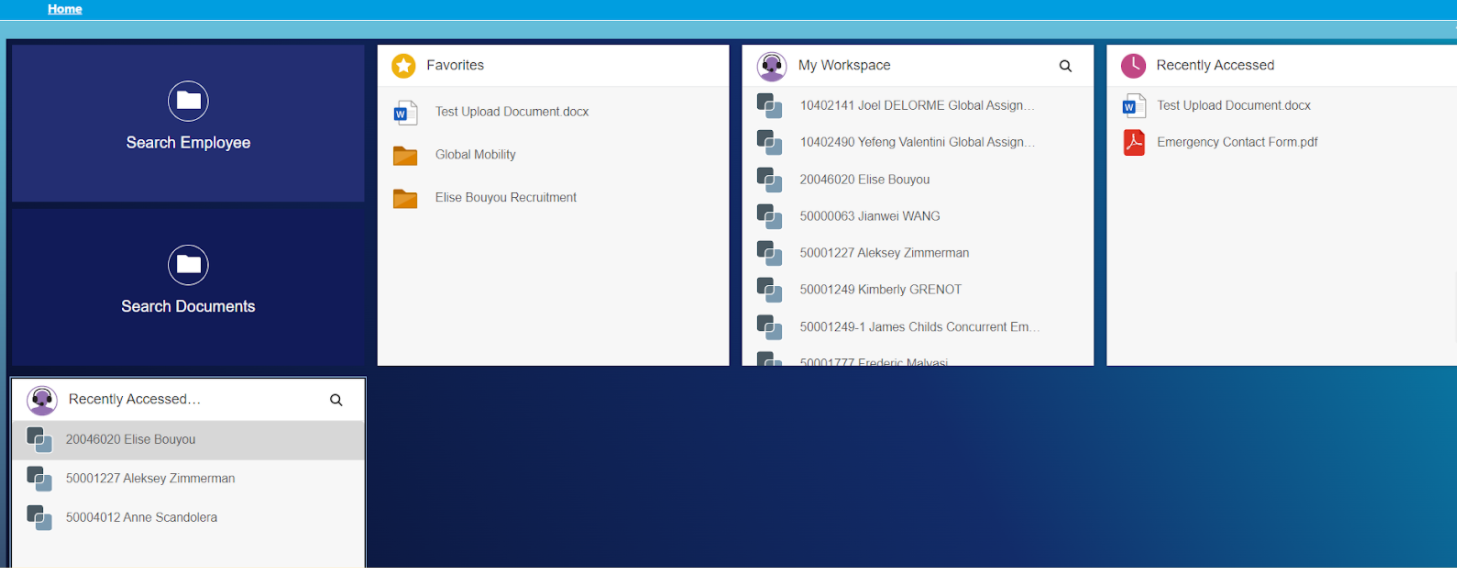
This will lead you to the Employee File Workspace as shown below. Here you can search for an employee, search for a document, view Favorites, and access employee documents for those in your scope. This space also displays recently accessed employee files and documents.
If you identify any issues, have any questions or need general support, please either submit a request through ServiceOne or call our HR Operations colleagues.
DOCUMENT FOLDER STRUCTURE
Documents are organized by main categories and sub-categories. Simply click on the folder to open and see what documents are inside.
WORKSPACE FUNCTIONALITIES
Content & Access Rights for HR
The content you can see and the actions you can take with content varies based on your HR role.
Search Functionality
This can be used to locate the file of a specific employee or to locate specific documents. As an HR you can access the Employee Files for all employees in your scope based on your authorization in SuccessFactors.
Search Employees
You can search for an employee’s file using Employee ID, Last Name, First Name or User Name as shown below.
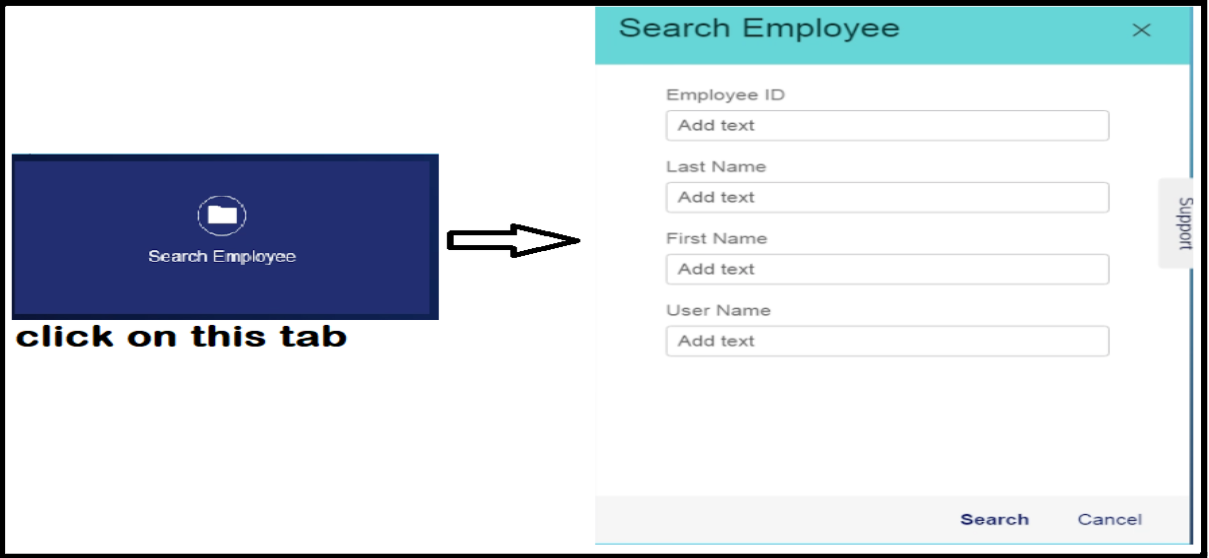
- In the Search for Employee dialog, you must specify at least one search criteria.
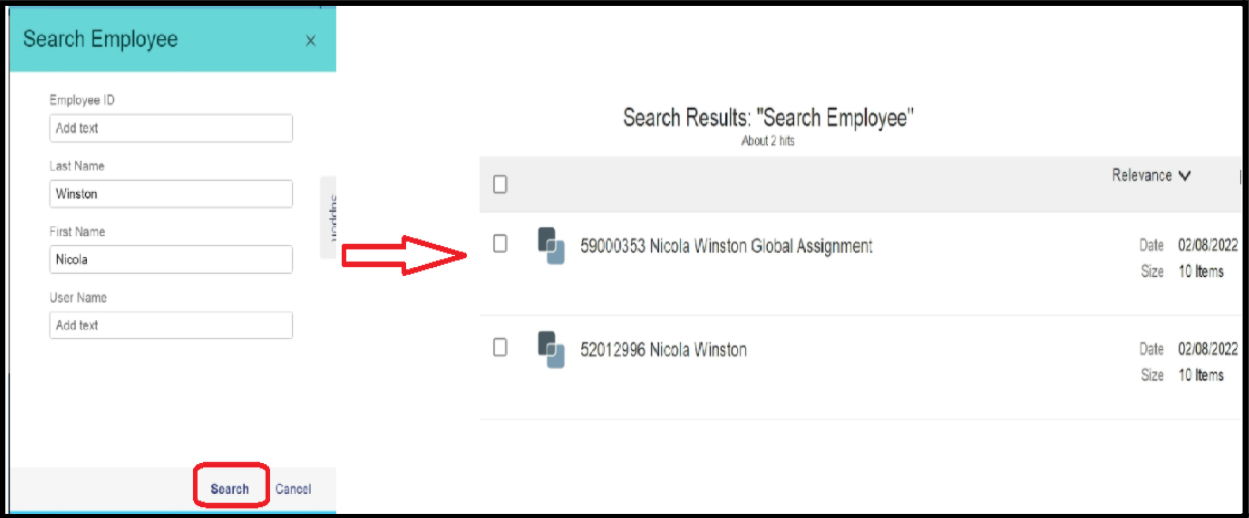
- Click the Search button at the bottom right and it will take you to the Search Result page as shown below.
- You are able to further refine your search by completing open fields in the box on the left.
Search Documents
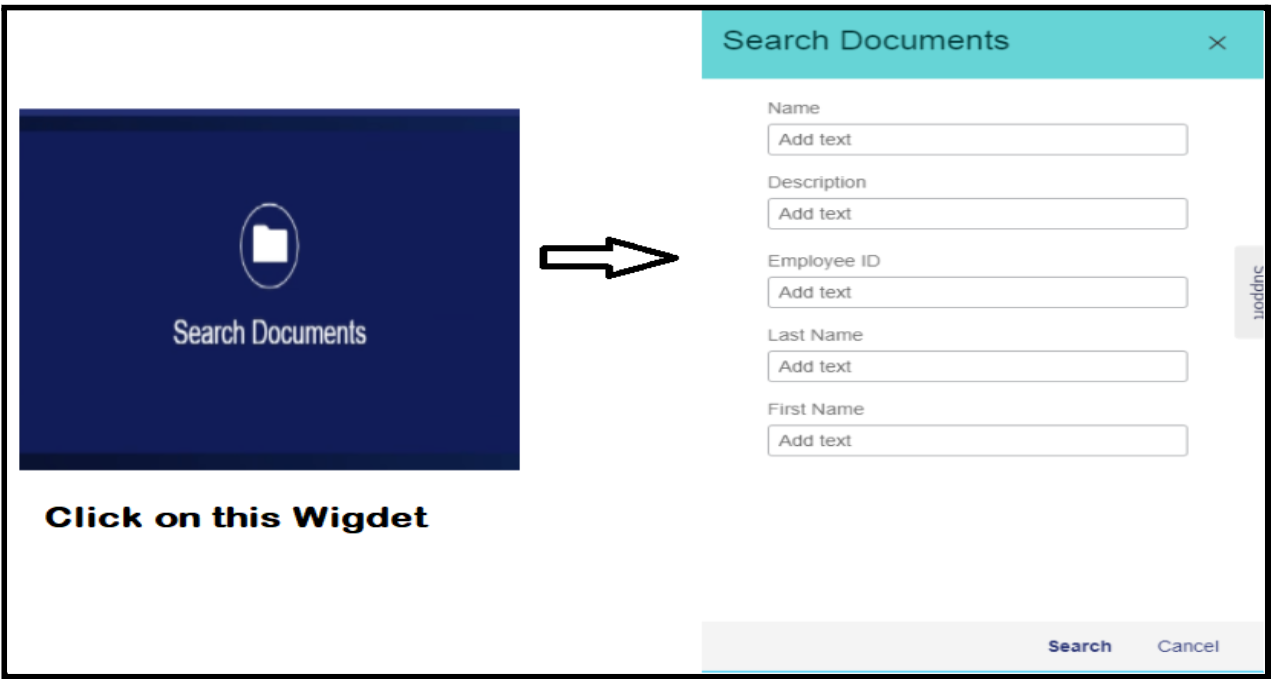
You can search for a particular document of an Employee using the available fields in the search box and then selecting the Search button at the bottom right corner of the screen.
- Name - This searches based on the name of the document and works with one or multiple words used in the name.
- Description - If a document received a description upon upload, you can search using a keyword from this description.
- Employee ID, Last Name, and First Name enable you to search for all documents associated with the criteria you enter in one of these fields.
- You are able to further refine your search by completing open fields in the box on the left.
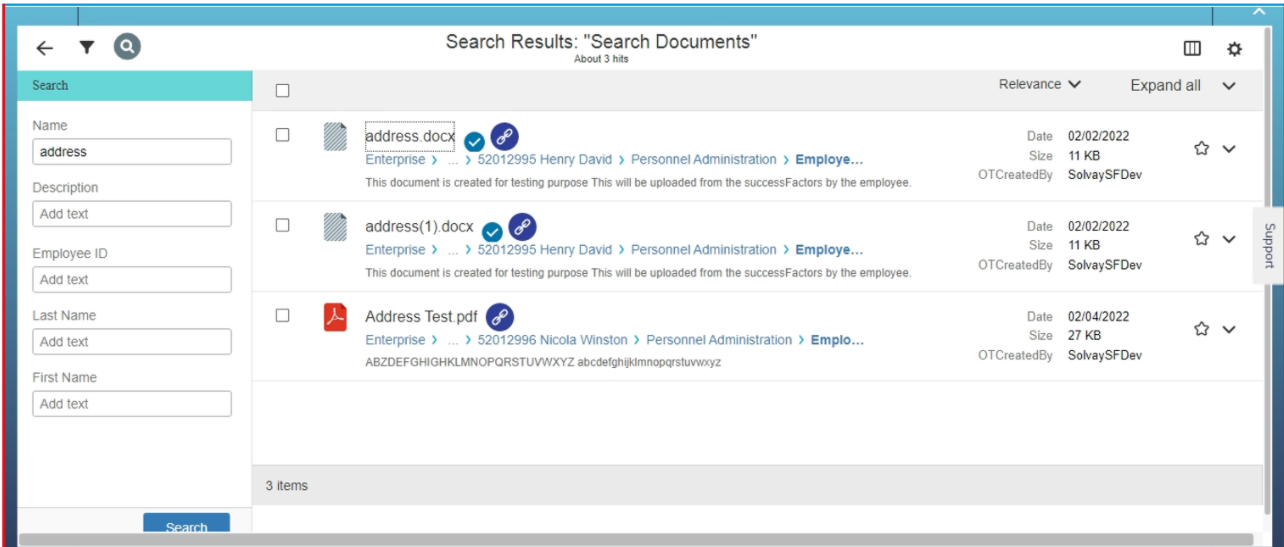
- This highlighted part below is the storage path of the document. From here you can identify to whom this Document belongs to and where in the folder structure it is stored. To see the full path you can reduce the zoom level by clicking ctrl - and can enlarge by clicking ctrl +.
In this example, the document belongs to Nicola Winston and it is stored in the Personnel Administration folder.

- Click on
 the Tabular Search View icon to change the view as shown here:
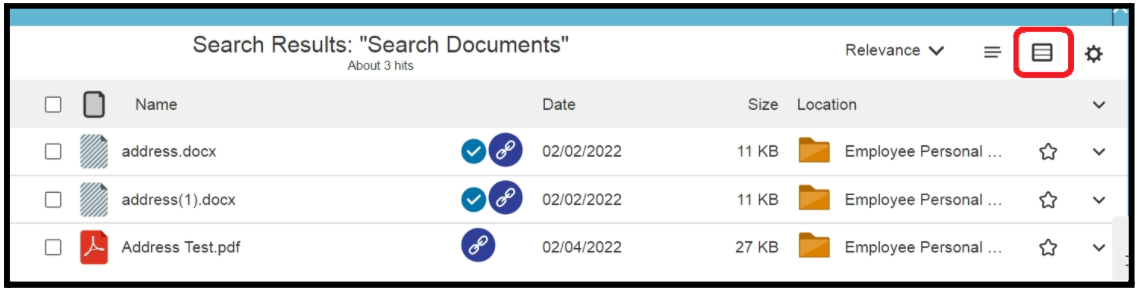
- Click on the above highlighted icon to revert back to Standard Search view.
- By Clicking on this icon
 You can add the associated document to your Favorites Widget.
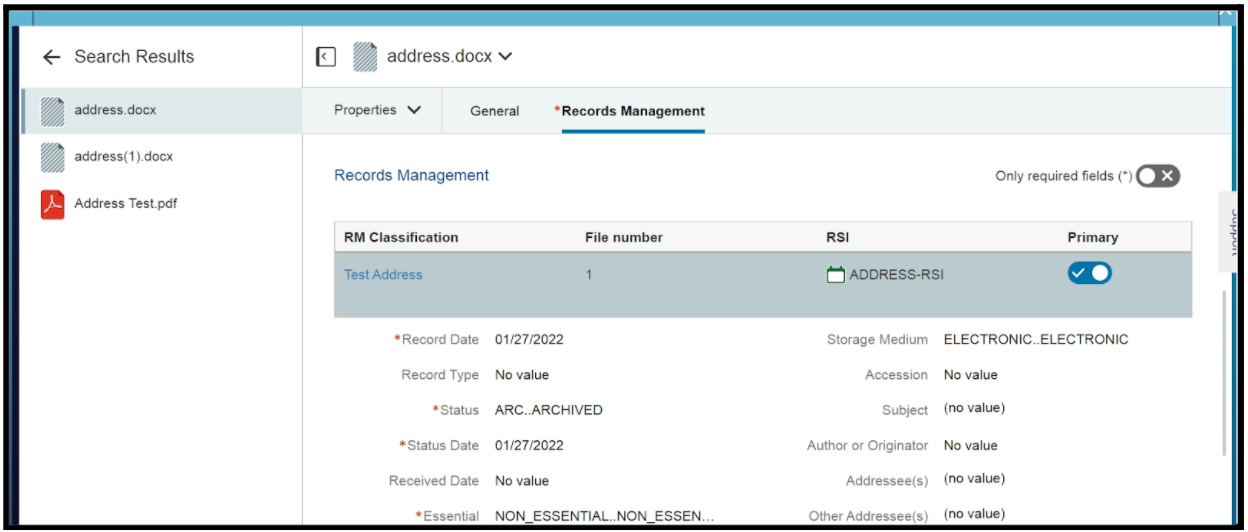
- To view the official Record Details of a particular document, click on the
 icon. It will open the detail page as shown below.
- This icon
 indicates that the document has been uploaded directly from Success Factors.
Favorites
This is a place where you can store documents and folders for quick access. To mark as a favorite, click on. A pop-up will be displayed enabling you to change the name of the favorite if you wish. There is no limit to the number of items you can mark as “favorite.”
My Workspace
This section contains the personal workspaces for all the employees in your scope. From here you can search for the employee and open the employee’s file.
Recently Accessed
This section provides a list of the documents recently viewed by you. It will display up to 25 of the most recently viewed documents.
Recently Accessed Workspaces
This section provides a list of employee files recently viewed by you. There is no limit defined to the number of objects in this list.
HOW TO PERFORM ACTIONS WITH A DOCUMENT
When you select a document by checking the box to the left of the name, additional actions will be displayed just above. These are explained below.
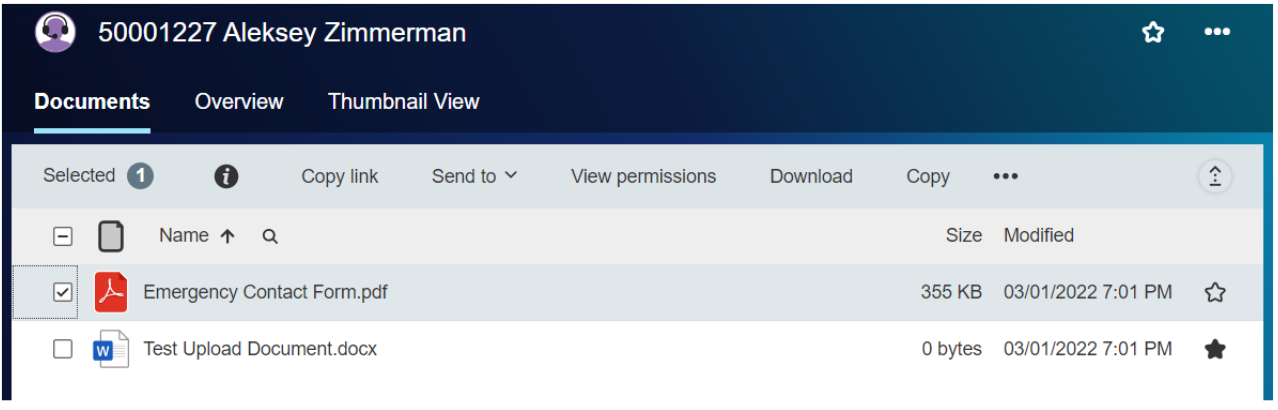
 - Displays the properties of the document.
Copy link - Copies the link of the document to clipboard. You can share this link with others however it will only work for them if they have the relevant permissions.
View Permission - Displays the permissions of the document.
Download - Can be used to download the document into your local system.
Delete Workflow - GPP and SBS Service Teams should disregard as this feature is not operational for you.
Copy and Send to/Mail as link - Please disregard.
MULTIPLE ASSIGNMENTS
An employee can have one or multiple assignments assigned to them during the course of their career. There are two distinct types: Concurrent Employment and Global Assignment. If an employee is in one or both of these categories, you can access the related documents for the assignment(s) that is in your scope as their HR. As HR Ops has global access they will always be able to see all assignments.
Concurrent Employment
Concurrent employment is when an employee is assigned to more than one assignment at the same time. In such a case, the documents related to each assignment would be maintained separately.
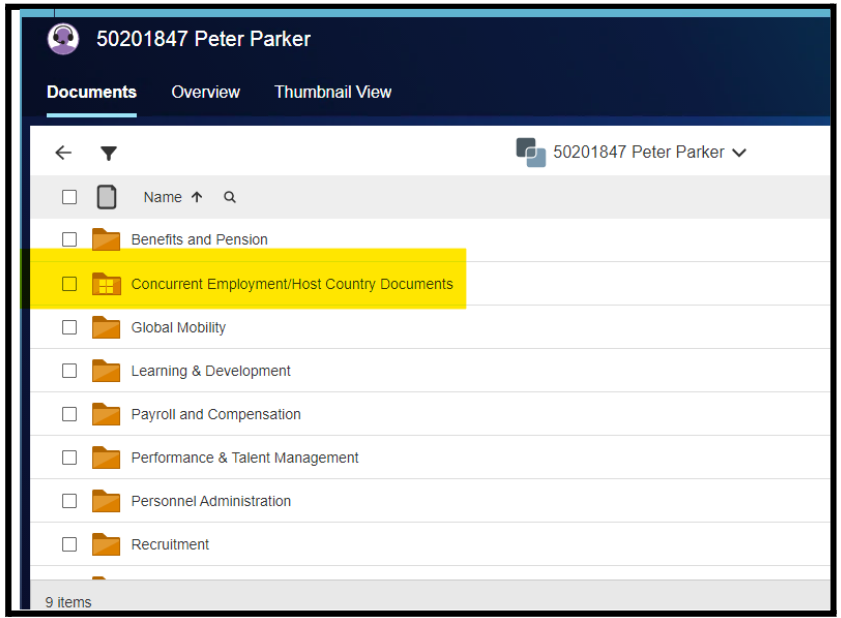
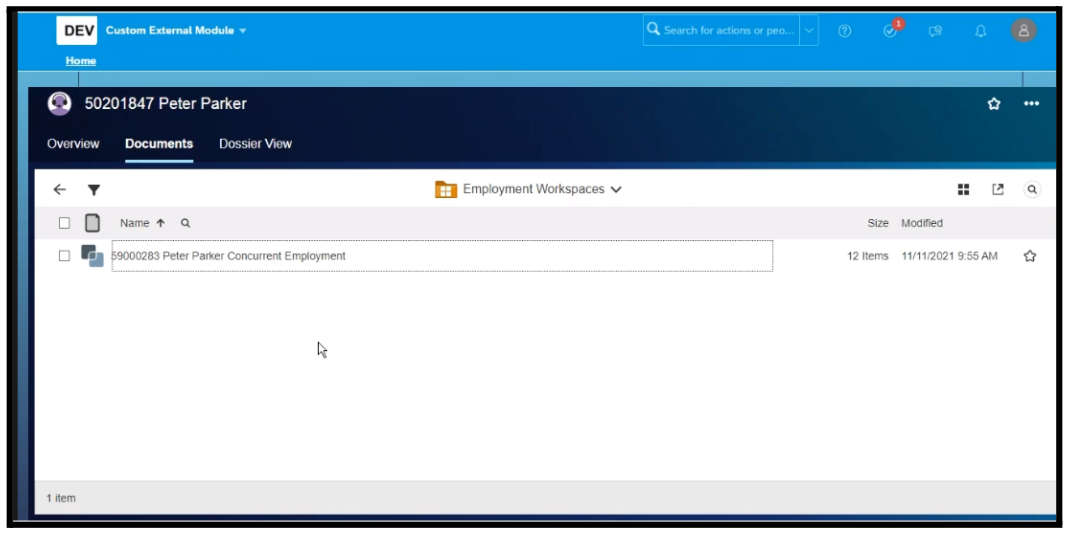
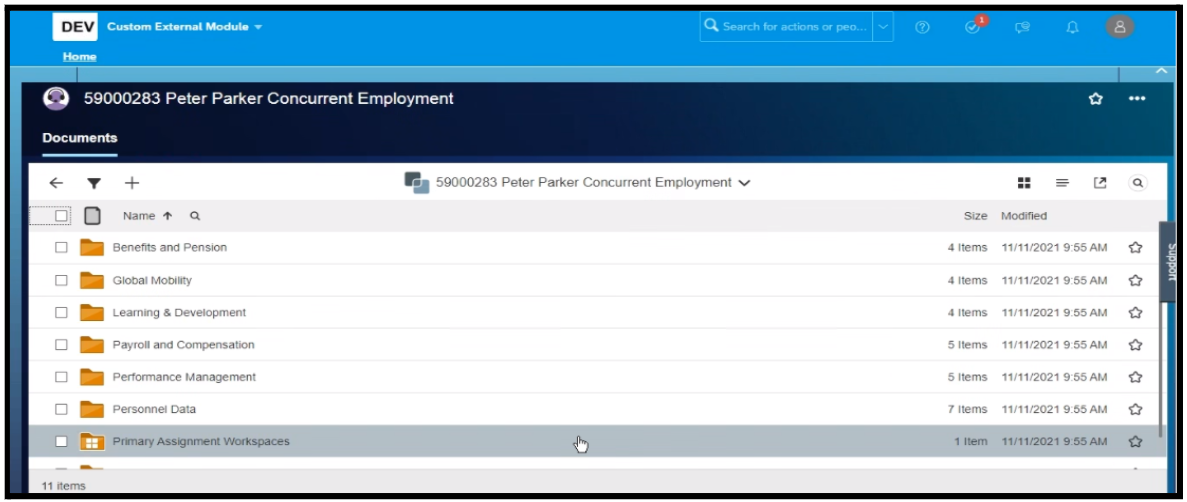
Find below a screenshot of the layout and folder structures.
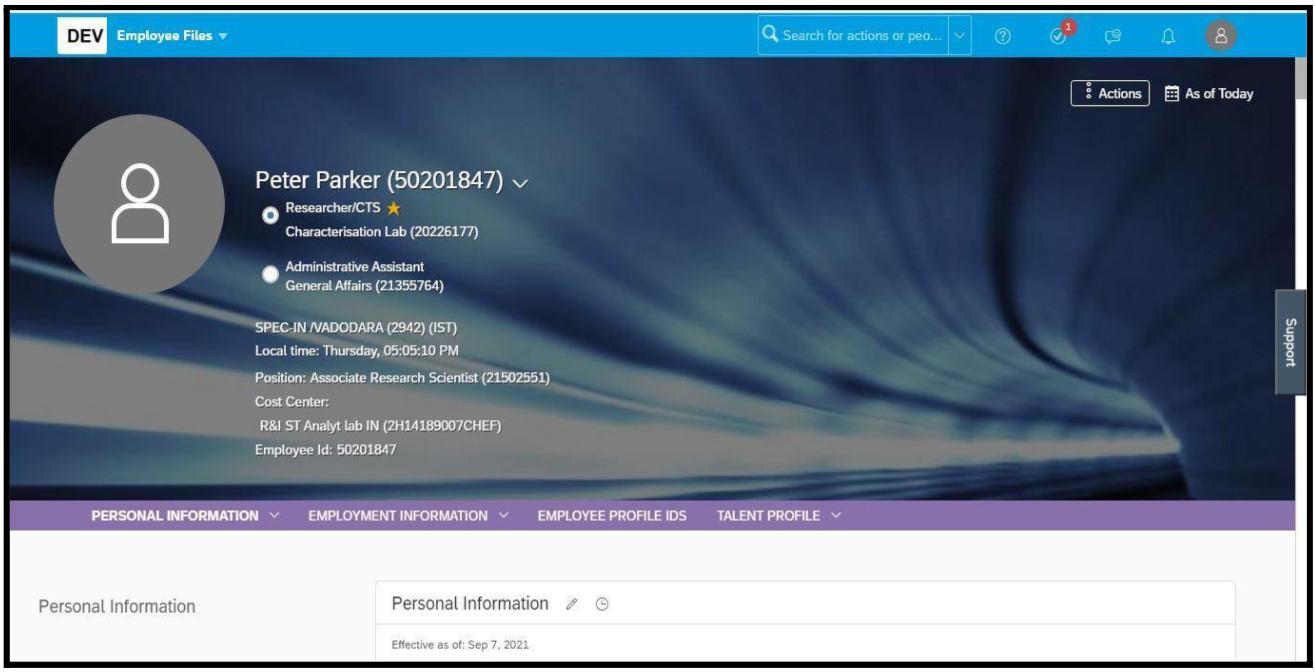
Enter the Employee File workspace of the individual and click on the “Concurrent Employment/Host Country Documents” folder then you will see the other assignment (Concurrent assignment in this case).
After clicking on Concurrent assignment, you will see the folder structure of the employee's Concurrent Assignment as shown below.
To go back to the folder structure of the other assignment click on the “Primary Assignment Workspace” folder from the list.
Global Assignments
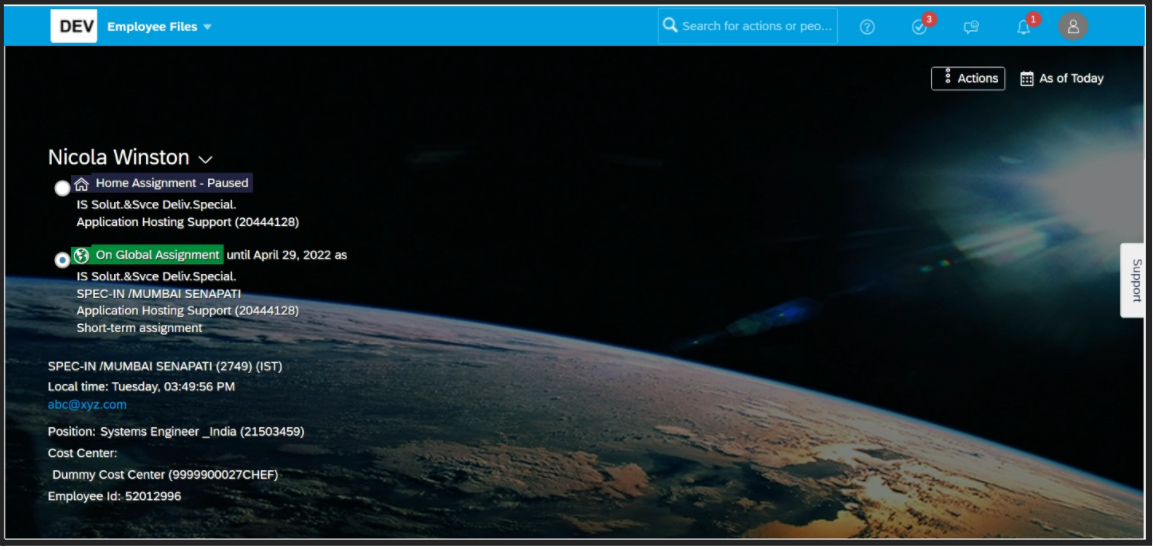
Global Assignment is when an employee is sent to a different geographical location for the fulfillment of an assignment. In such a case, on their My Profile page both the assignments would appear. However, one assignment would be paused (the “home” assignment) while they are active in the other assignment (“global” assignment”).
Below is the example of an employee profile on Global Assignment:
Toggling between assignments
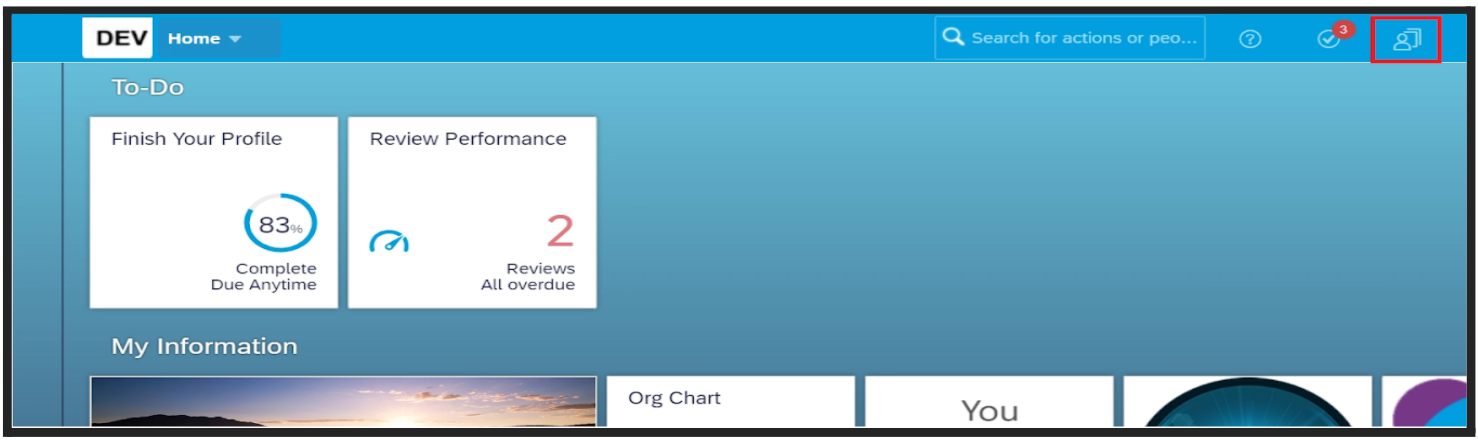
Step 1: On the My HR Services home page, click on the highlighted icon as shown below to toggle between home assignment and global assignment.
A menu like the one shown below will be displayed.
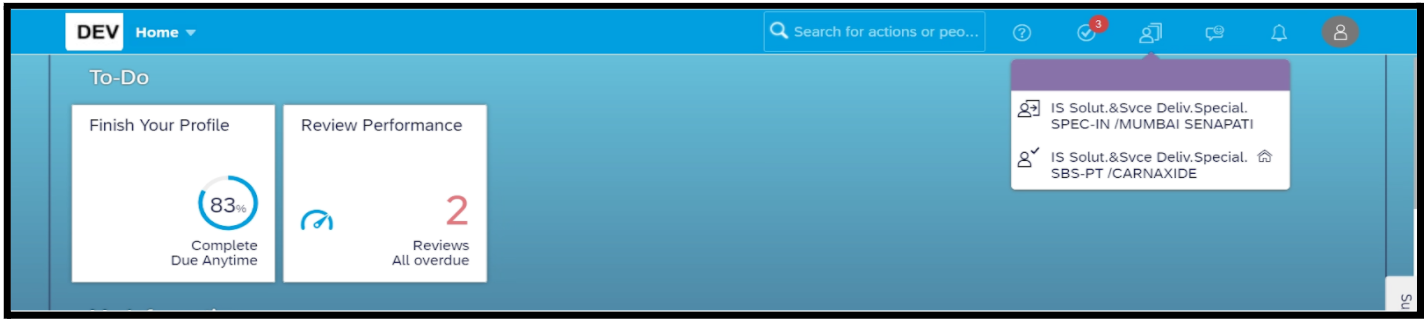
You can switch between the two assignments to access the accounts.
The account you are currently viewing is indicated by this  icon and the other account which you are not viewing is indicated by this
  icon.
icon.
Accessing Personal Employee File
Once you have selected between the above options, you can access the Employee File workspace as shown below. The example below is for the Global Assignment which is indicated by the highlighted box as shown below.
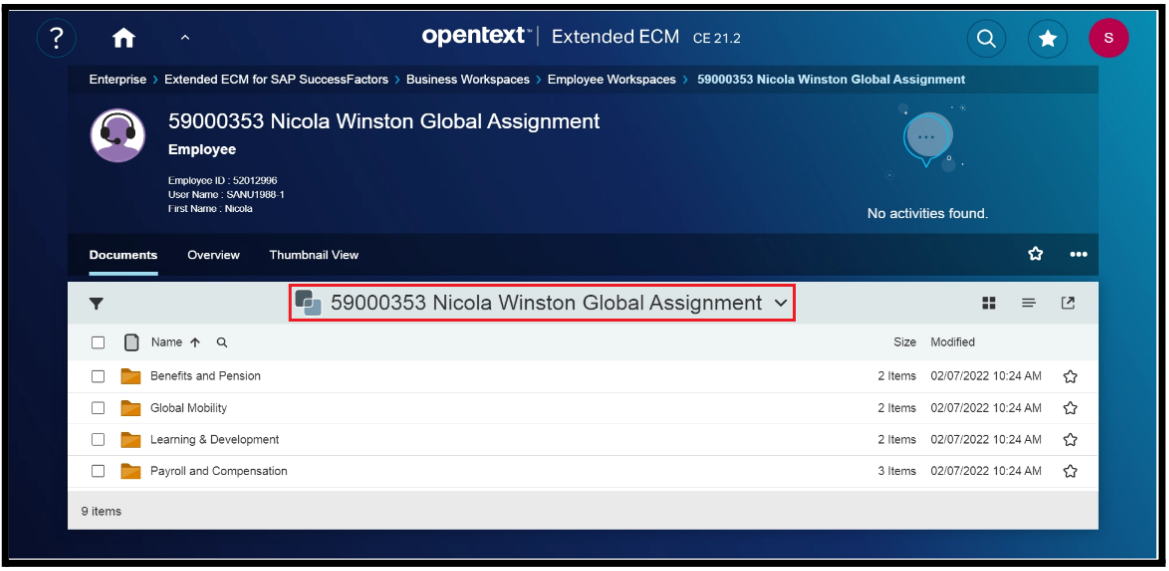
The folders here will contain the documents associated with the global assignment. You can access the primary assignment workspace by clicking on Primary Assignment Workspaces as shown below.
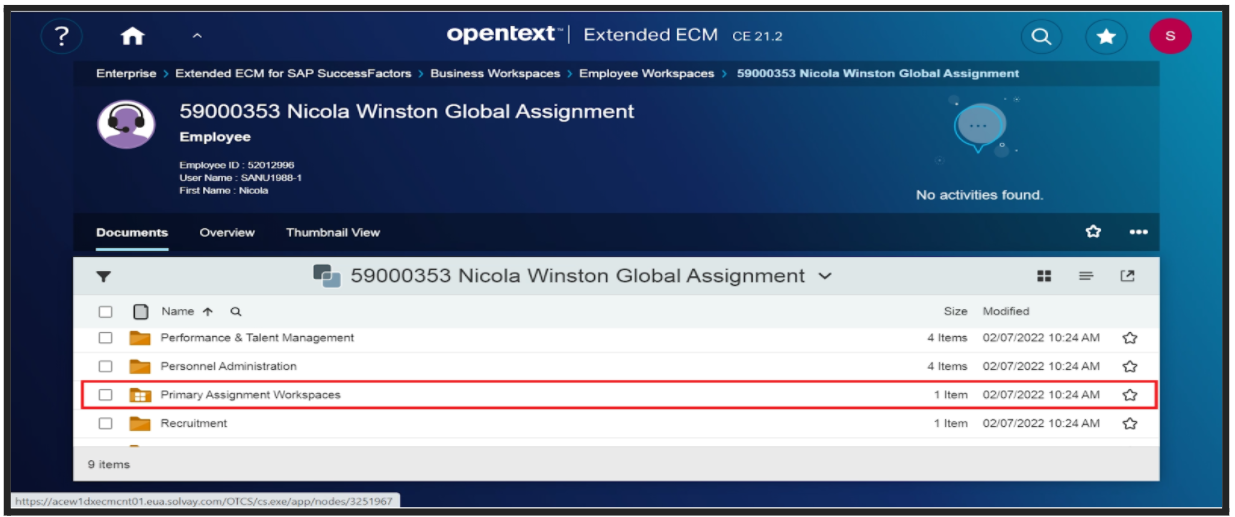
You can see the primary assignments as shown below. Now, click on the primary workspace as highlighted below.
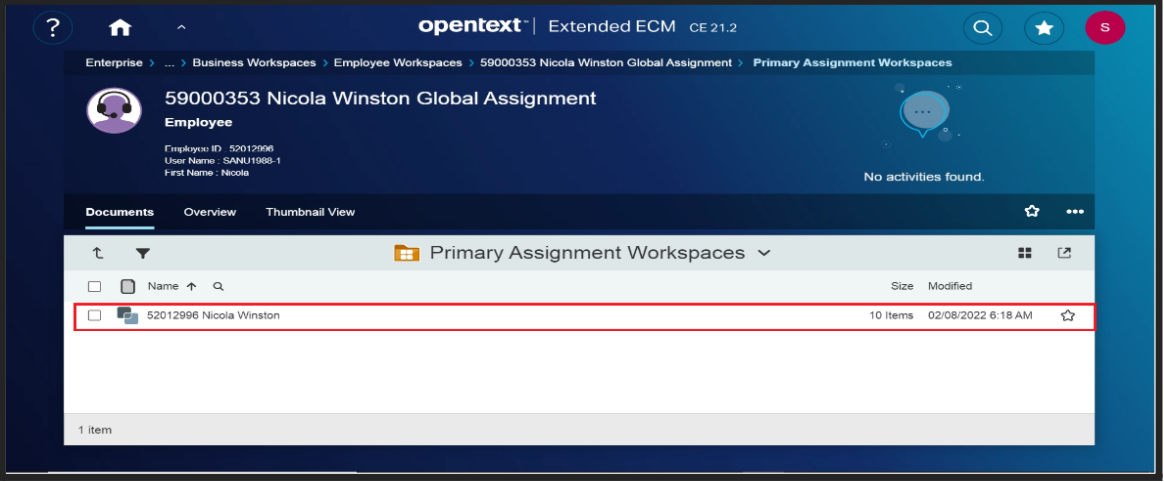
You will be taken to the primary workspace as shown below.
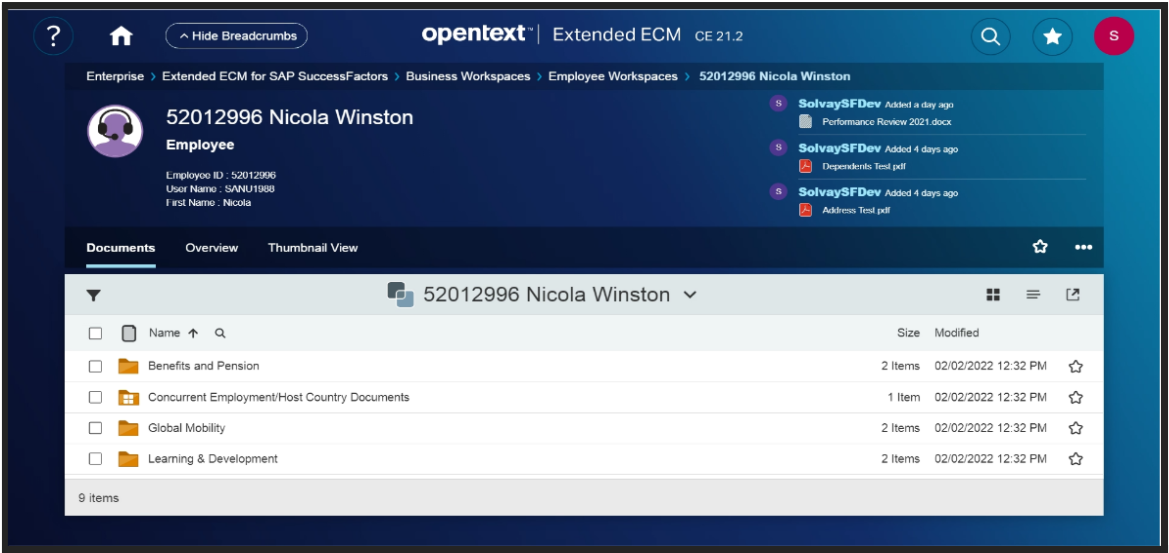
You can go back to the global assignment workspace by clicking on Concurrent Employment Country Documents as shown below .
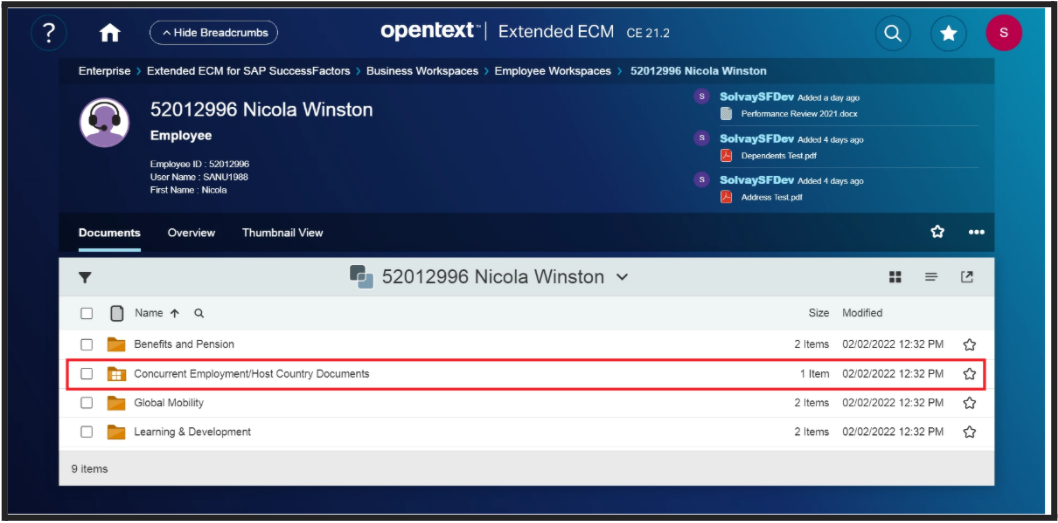
You can see a list of the global assignment workspaces. Click on the workspace as shown below.
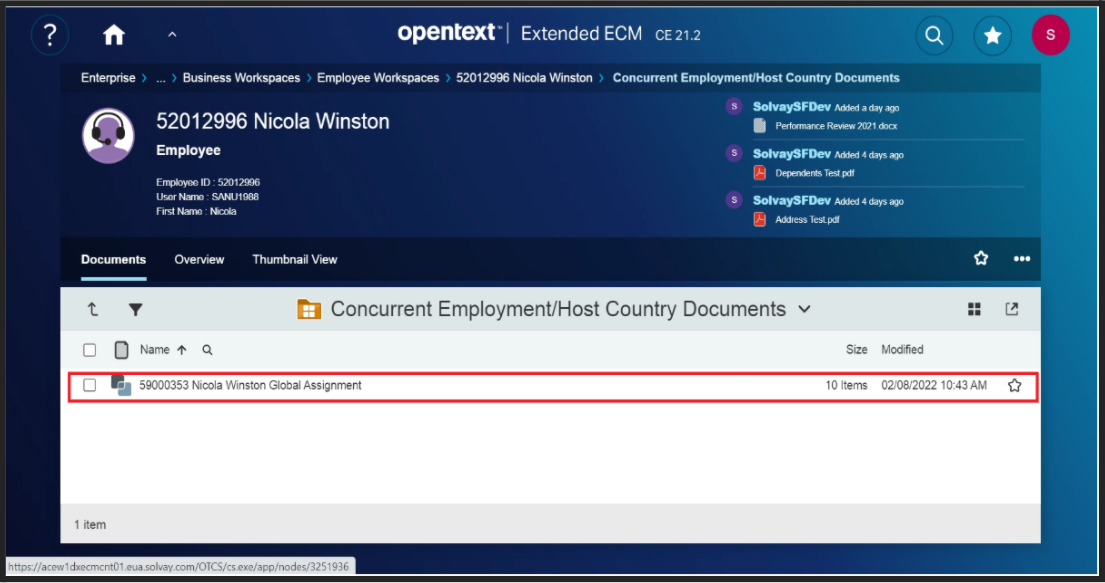
You will be taken to the global assignment workspace as shown below.
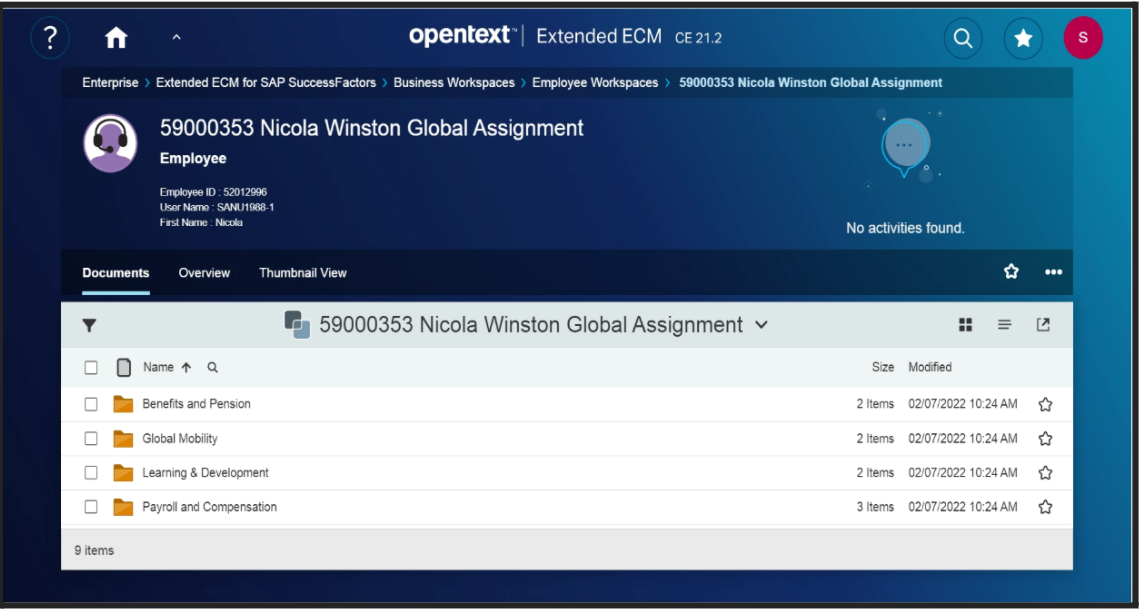
999 Inbox
When an HR uploads or deletes a document in OpenText, it is initially placed in a staging folder called 999 Inbox within the Employee file workspace. This will not be visible in the Folder structure.
Whenever an uploaded document (fromSuccessFactors/OpenText) is not available in the respective folder inside the Employee file workspace, search for the 999 inbox using the below instructions,
- Inside the Employee file workspace (for whom you uploaded the document) use the below highlighted search option to find 999 inbox.
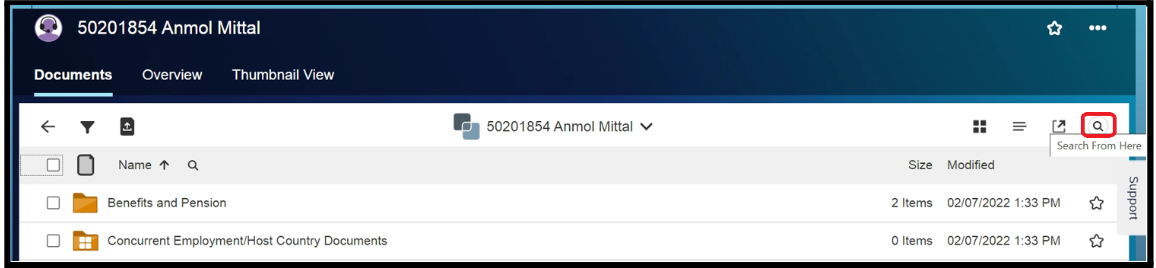
- Now type 999 inbox in the search bar as shown below and click enter.
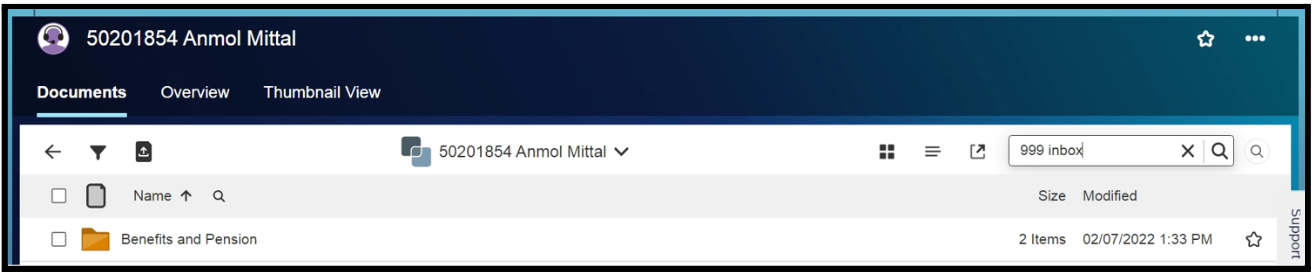
- It will take you to the result page as shown below, And now click the folder.

- After opening this, it will open the 999 inbox as shown below.
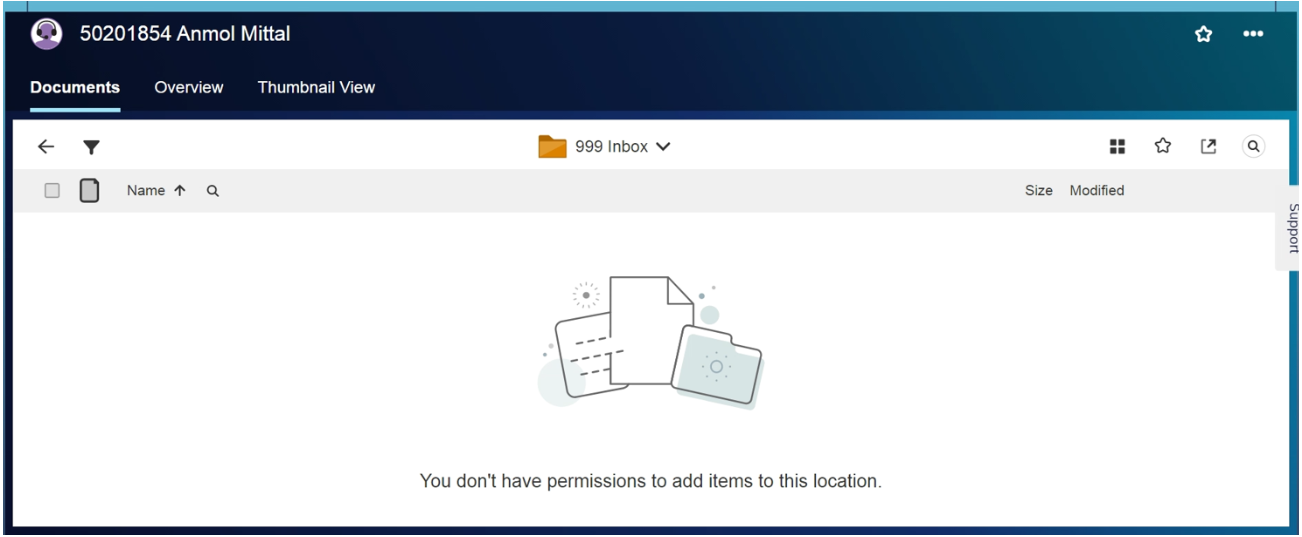
- If you find that document inside the 999 Inbox folder you can conclude that the document has lost its classification and therefore needs to be reloaded. To have the misclassified document deleted, a ticket will need to be submitted to IT via a ServiceOne request using the catalog category of “Report an IT Application/Software Incident”. When you select Submit Request a form will open that you can complete with the related details. In the Affected Application Section, please reference: OpenText Extended ECM Platform.
SITE HR, COUNTRY HR, HR SBPs & PAYROLL
Uploading Documents for Employees
As an HR you are able to upload documents for an Employee if you are in one of the following roles: Site HR, Country HR, HR SBP, Payroll, and HR Operations.
As a HR you will get the below highlighted icon which is what you use to upload documents. Please note that this is the only place from which you can load documents within the workspace.
IMPORTANT TO REMEMBER: You cannot drag and drop documents or add them directly into the subfolders. You must select the file destination via the dropdown menu as described below.
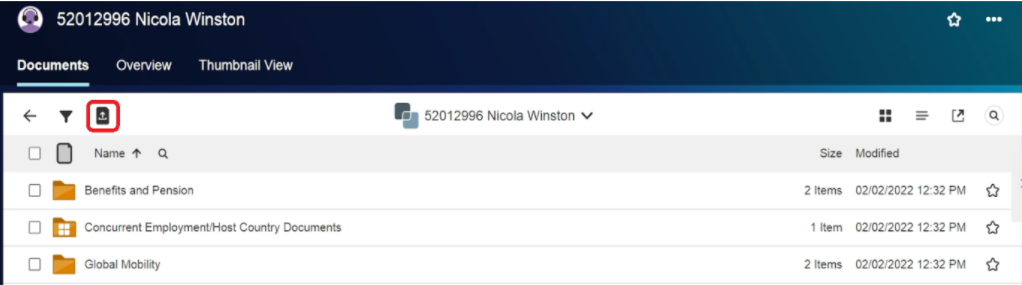
- Click on this
 icon to upload a document.
 - After clicking on it you will see a popup to select the document as shown below.
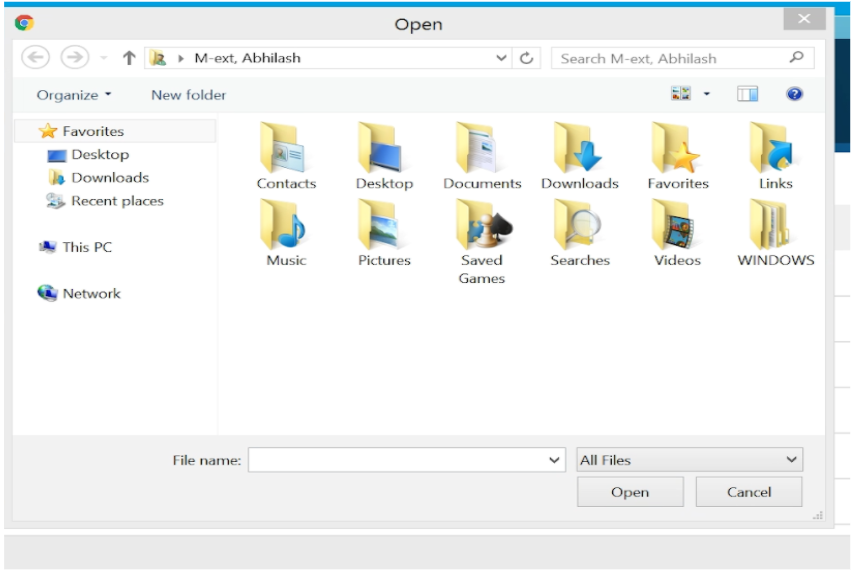
- Select the document from your local system (note that we are not able to upload directly from Google Drive) and then click on the open button. You will get the popup screen shown below.
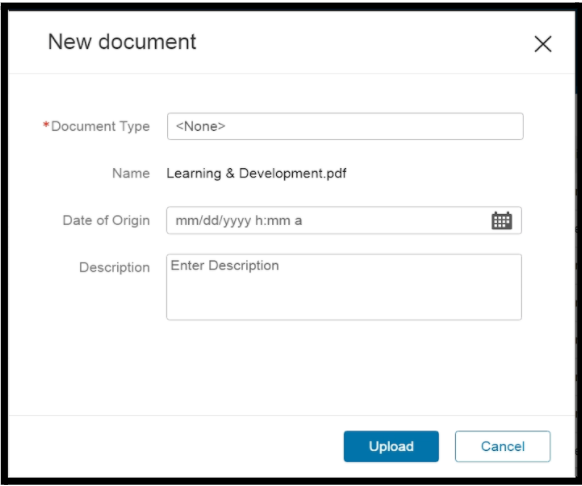
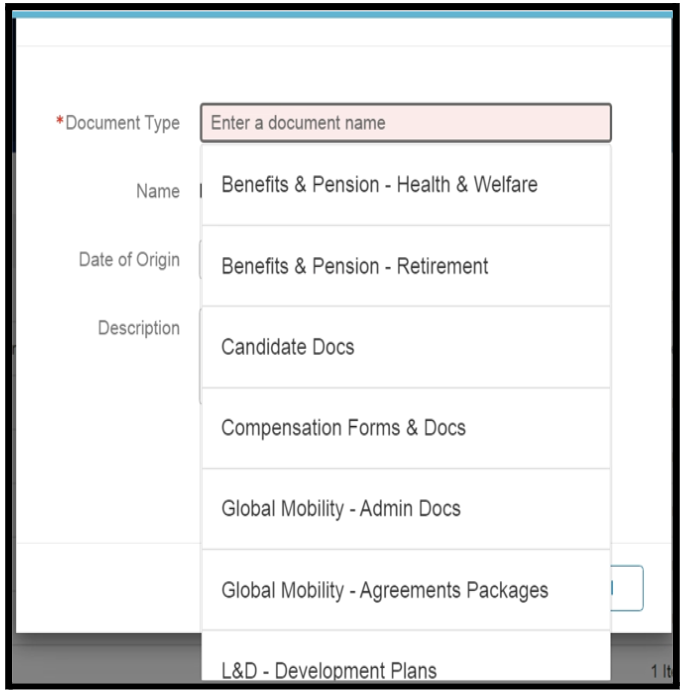
- In the “Document Type” field, select the folder to which you want the document saved to using the drop down list provided.
- Click here for the Folder descriptions in the section called "Navigating through your personal employee file workspace".
- You have the option to enter a date in the field called “Date of Origin” as well as a description of the document in the field called “Description”. Once all the details are entered click on “Upload” and the document will be saved in the designated Folder.
- After finishing the above steps click on the Upload button. You will get a Success popup message like this:
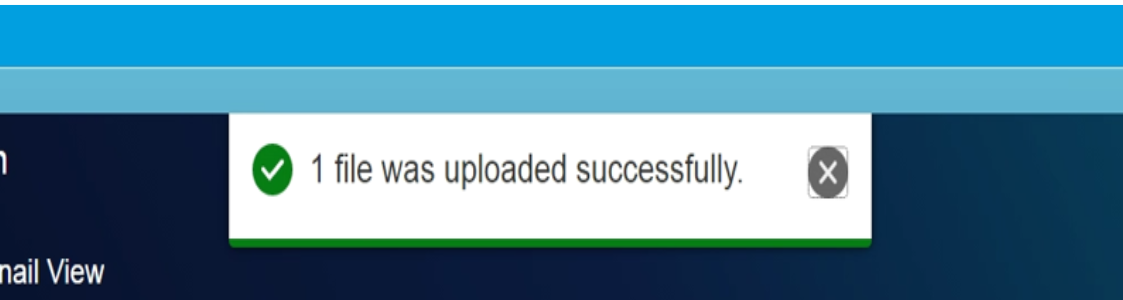
Now the uploaded document will reside inside the corresponding folder.
Deleting Documents from an Employee's File
As an HR you are able to remove or delete documents from an Employee’s file if you are in one of the following roles: Site HR, Country HR, HR SBP, Payroll.
- Select the document you wish to delete and select “Delete Workflow” from the menu options as shown here:
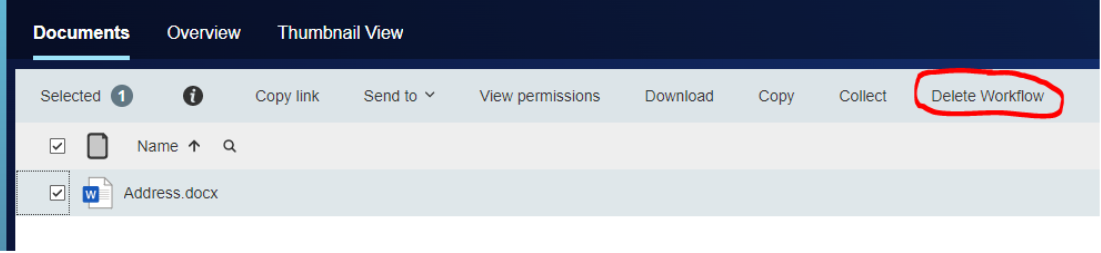
- This will open the Deletion screen as shown below:
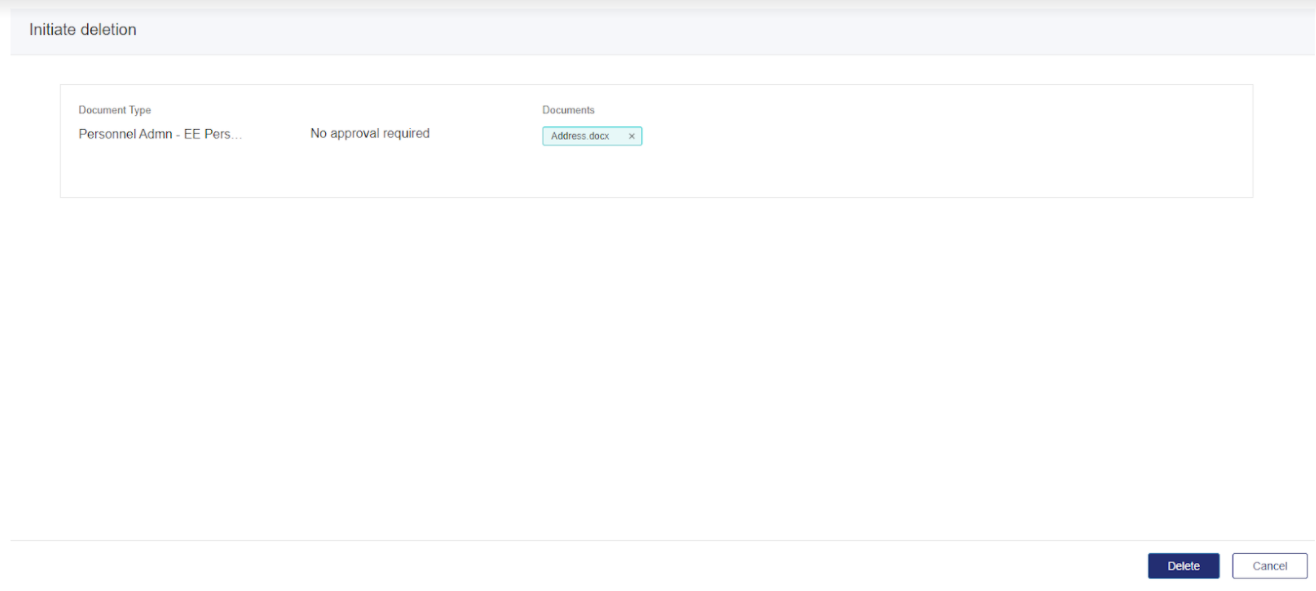
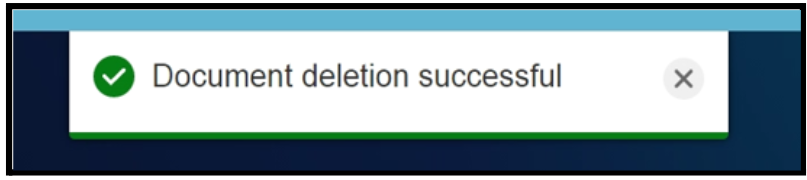
- If you click on the Delete button it will remove the document from the workspace and a success message will appear as shown below.
FOR HR OPERATIONS ONLY
This article is specific to functionality for members of the HR Operations team.
Please note that due to certain permissions, you might observe that you are able to rename or modify the folder names or even delete a folder. Kindly refrain from doing such modifications as it will cause product failures.
More details below:
RENAMING A SUB-FOLDER
DO NOT DO THIS PLEASE! This function allows you to modify the name of the Sub-Folders however doing so will break the mapping of documents from SuccessFactors.
MOVING A DOCUMENT
DO NOT DO THIS PLEASE! This function allows you to move a document from the current folder to another and cannot be undone. If it is confirmed that a document is in a folder where it does not belong, it should be deleted from that folder and then uploaded to the correct folder rather than “moving” it.
DELETING A DOCUMENT
As HR Operations you are able to remove or delete documents from an Employee’s file.
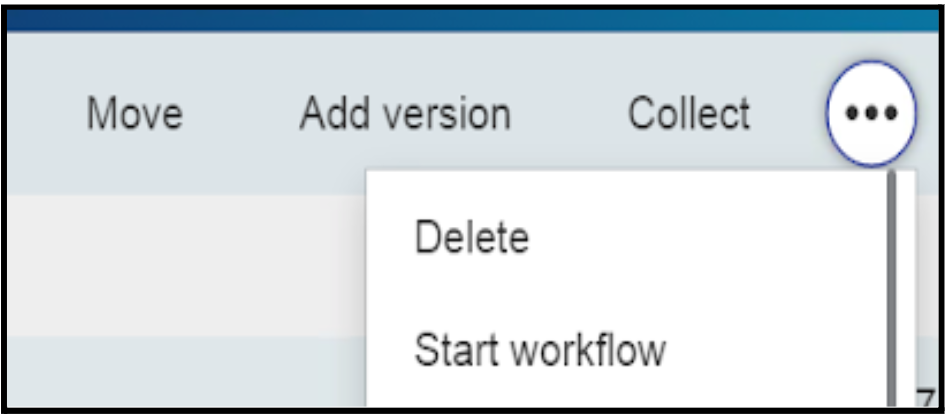
- Select the document you wish to delete and click on the DELETE icon as shown below:
- This will open the Deletion screen as shown below:
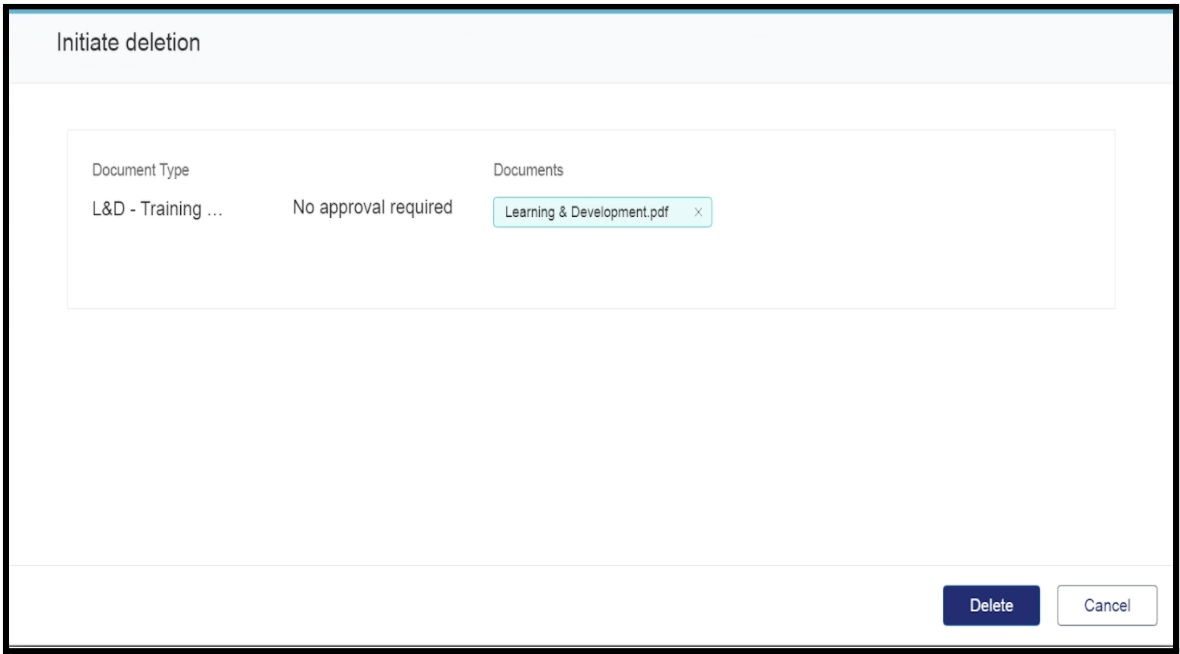
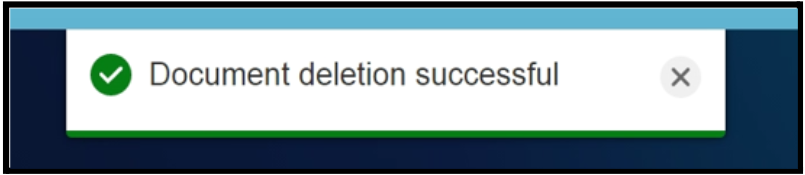
- If you click on the Delete button it will remove the document from the workspace and a success message will appear as shown below:
LEGAL HOLD
The Legal department is responsible for notifying HR when a Legal Hold is required and again when it should be removed. HR Operations will apply or remove the hold based on the direction received though generally a legal hold should be applied at the workspace level. The request should be submitted via an HR Service Request using ServiceOne by either the requesting lawyer or Site HR.
Technically within Open Text, a Legal Hold can be applied and removed at the Workspace level (all folders/all documents), the Folder level or the Document level though typically it would be managed at the Workspace level. Instructions for each of these levels is provided below.
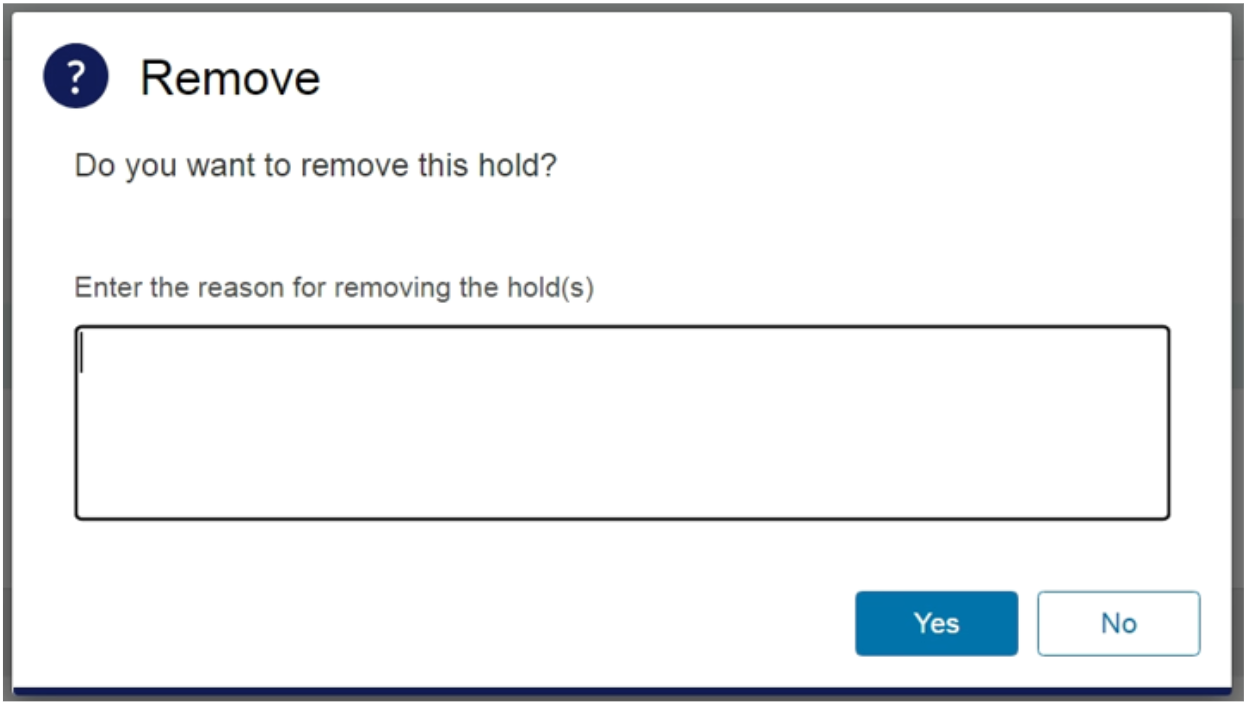
A confirmation pop up will appear as shown below. Capture the name of the person providing the instruction to remove the legal hold, the date this was effective, and the associated ticket number. Then click on Yes.
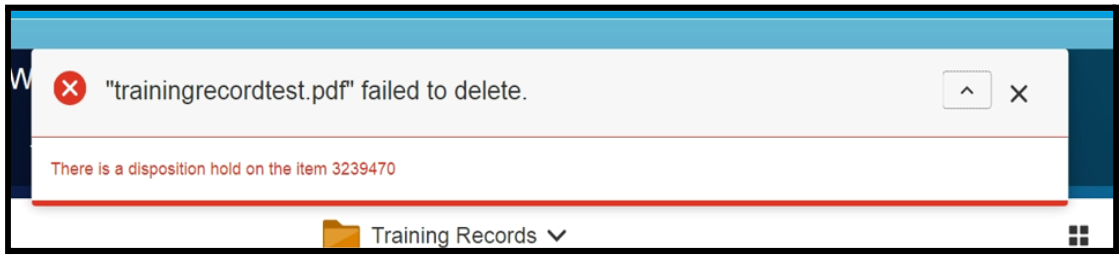
If a file has a Legal Hold applied and someone tries to delete it, an error message pops up as shown below.
Applying a Legal Hold at the Workspace Level
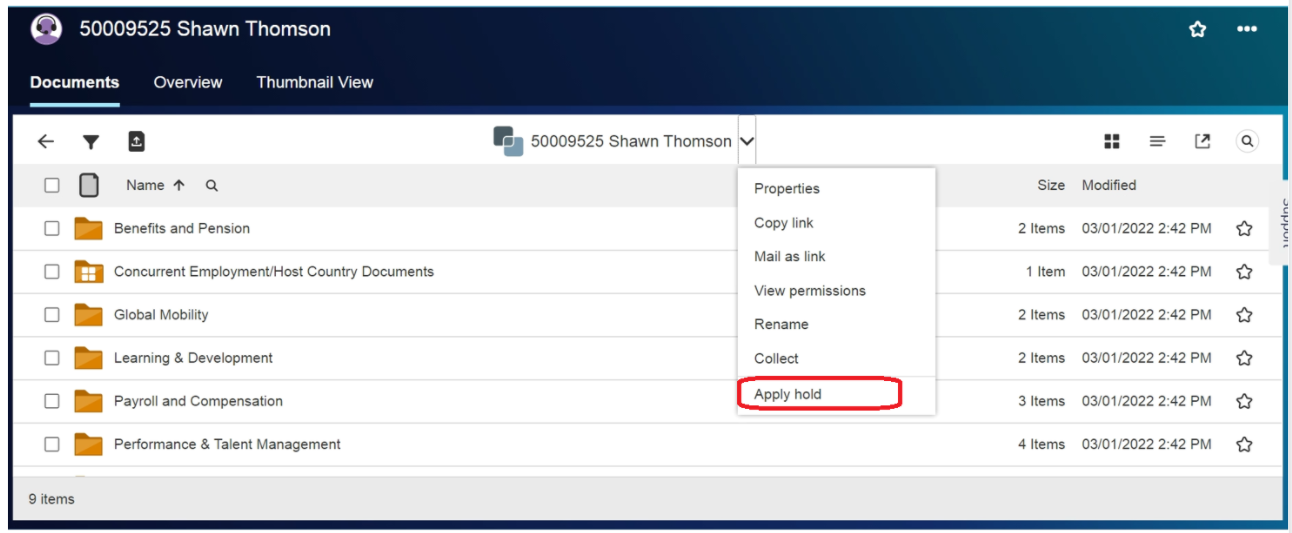
Open the workspace to which the Hold is to be applied, and Click on the breadcrumb next to the employee name as shown below. You will have various options.
Choose APPLY HOLD as highlighted below:
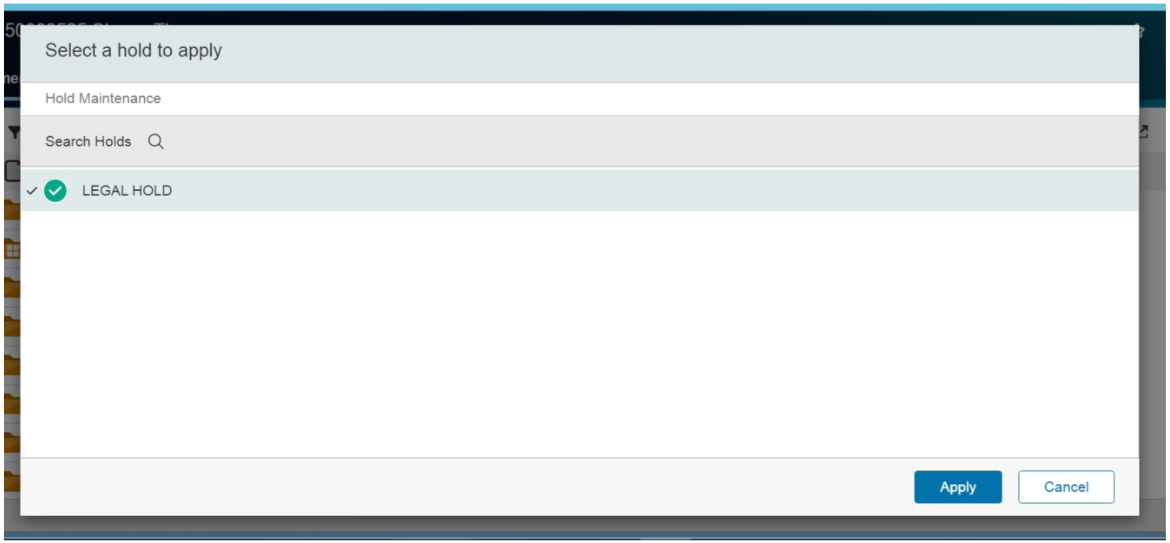
- In the next screen, select LEGAL HOLD and click on Apply as shown below:
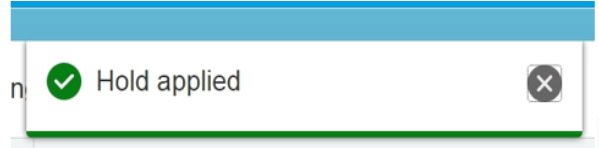
- A pop up message will appear confirming the successful hold application as shown below:
Removing a Legal Hold at the Workspace Level
- To remove the Legal Hold for the workspace, click on the breadcrumb as shown below and choose “Properties” as shown below:

- You will be directed to the properties screen, there click on the breadcrumb next to Properties and choose HOLDs as shown below:
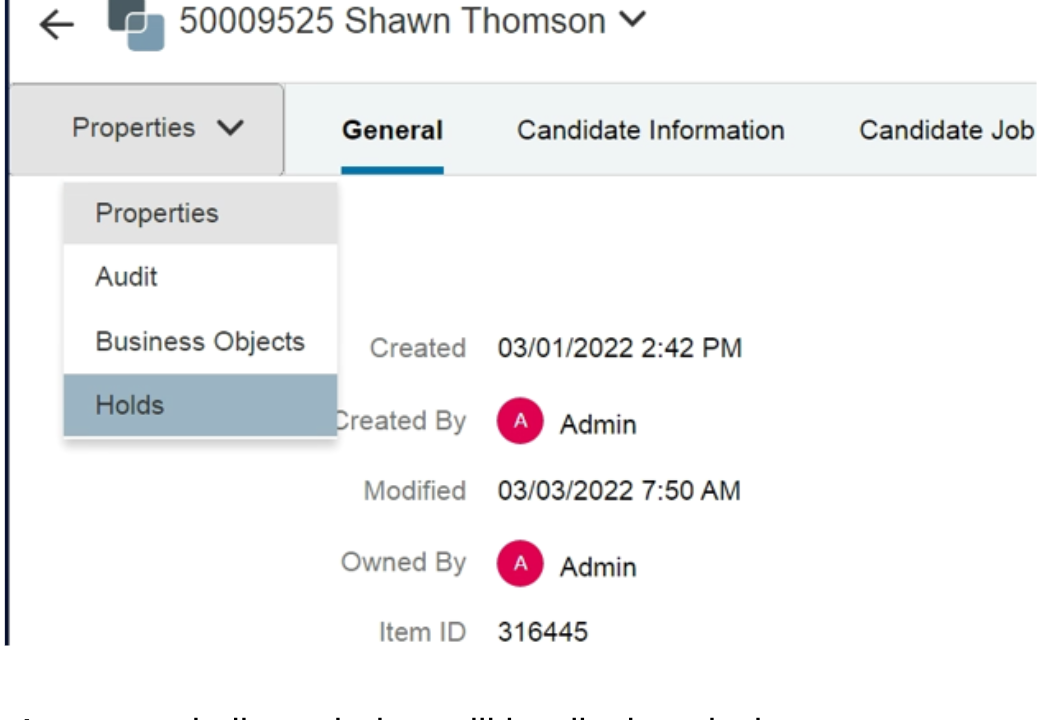
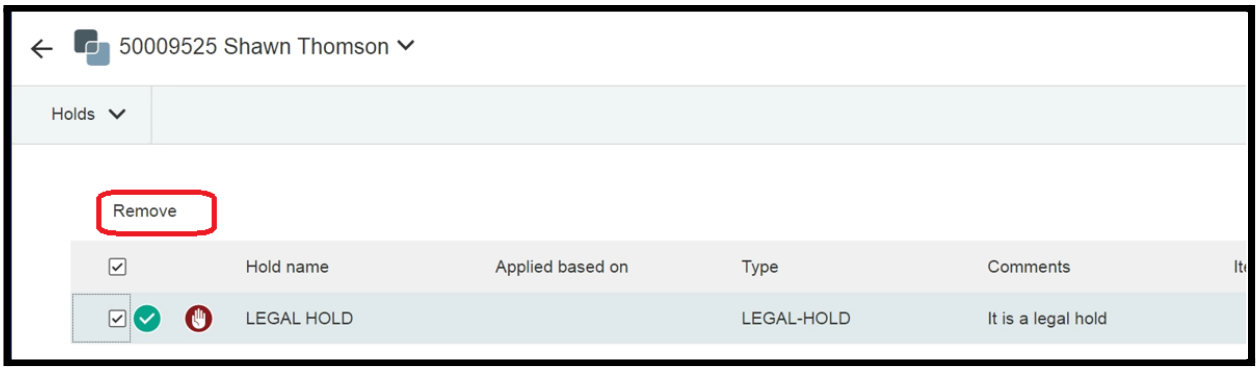
- A screen similar to below will be displayed where you can see the type of hold applied on the file. Now, select the hold you wish to remove as shown below:
- A confirmation pop up will appear as shown below. Capture the name of the person providing the instruction to remove the legal hold, the date this was effective, and the associated ticket number. Then click on Yes.
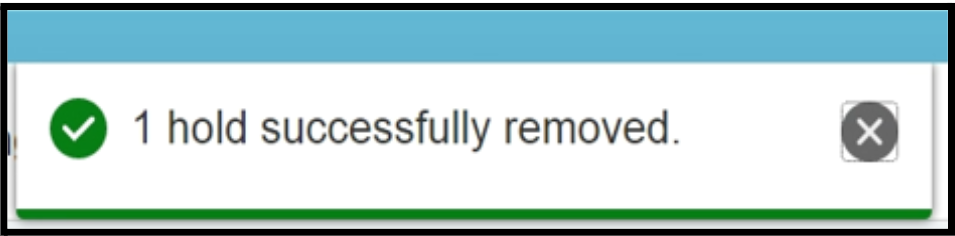
- A message appears confirming the removal of hold as shown below. Henceforth, the file can be deleted and no error message will pop up.
Applying a Legal Hold at the Folder Level
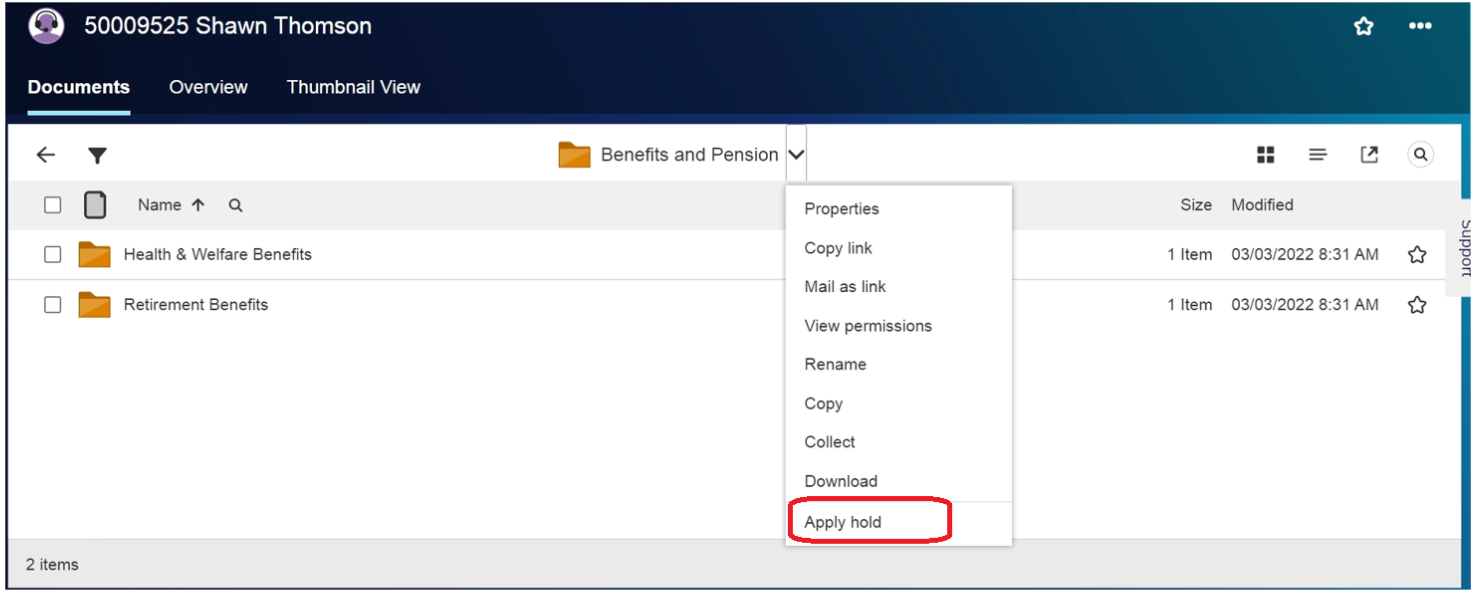
Open the Folder to which the Legal Hold should be applied and Click on the breadcrumb next to the employee name as shown below. You will have various options.
Choose APPLY HOLD as highlighted in below:
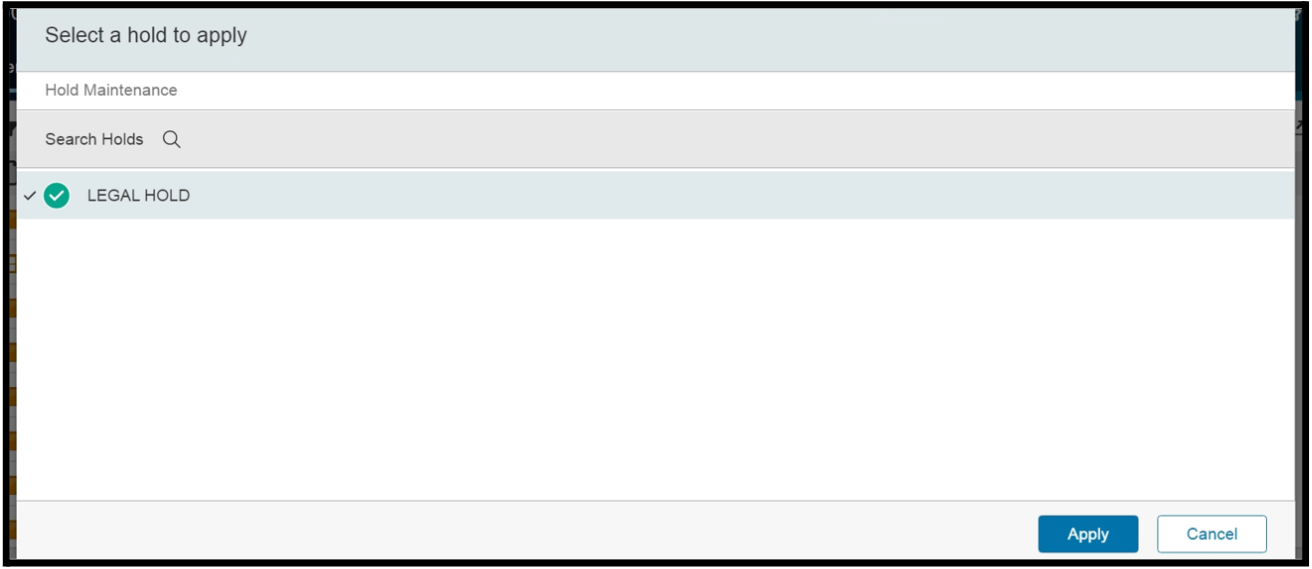
- Select Legal Hold and click on Apply as shown below:
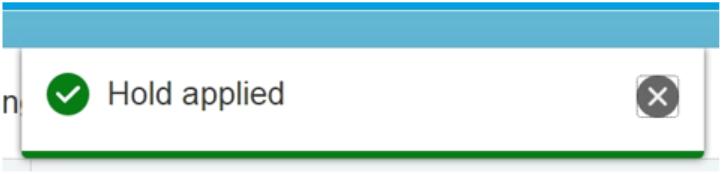
- A pop up message will appear confirming the successful hold application as shown below:
Removing a Legal Hold at the Folder Level
- To remove the Legal Hold at the Folder level, select the folder with the hold and click on the breadcrumb and choose “Properties” as shown below:

- You will be directed to the properties screen. Click on the breadcrumb next to Properties and choose HOLDs as shown below:

- A screen similar to below will be displayed where you can see the type of hold applied on the file. Now, select the hold you wish to remove as shown below.
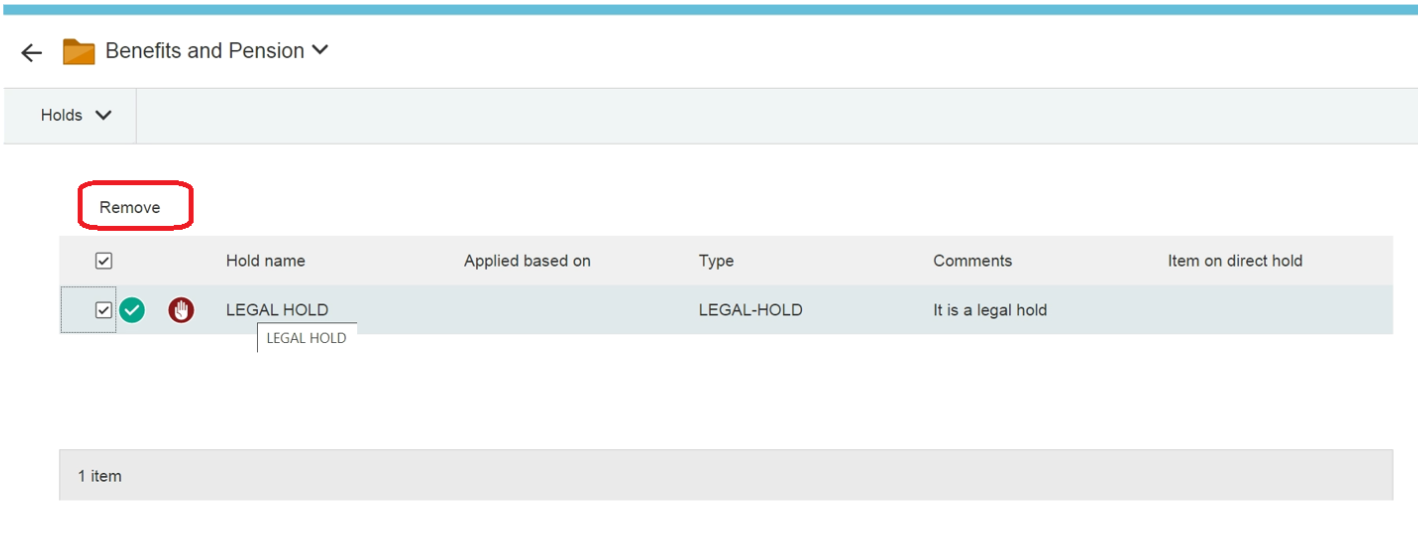
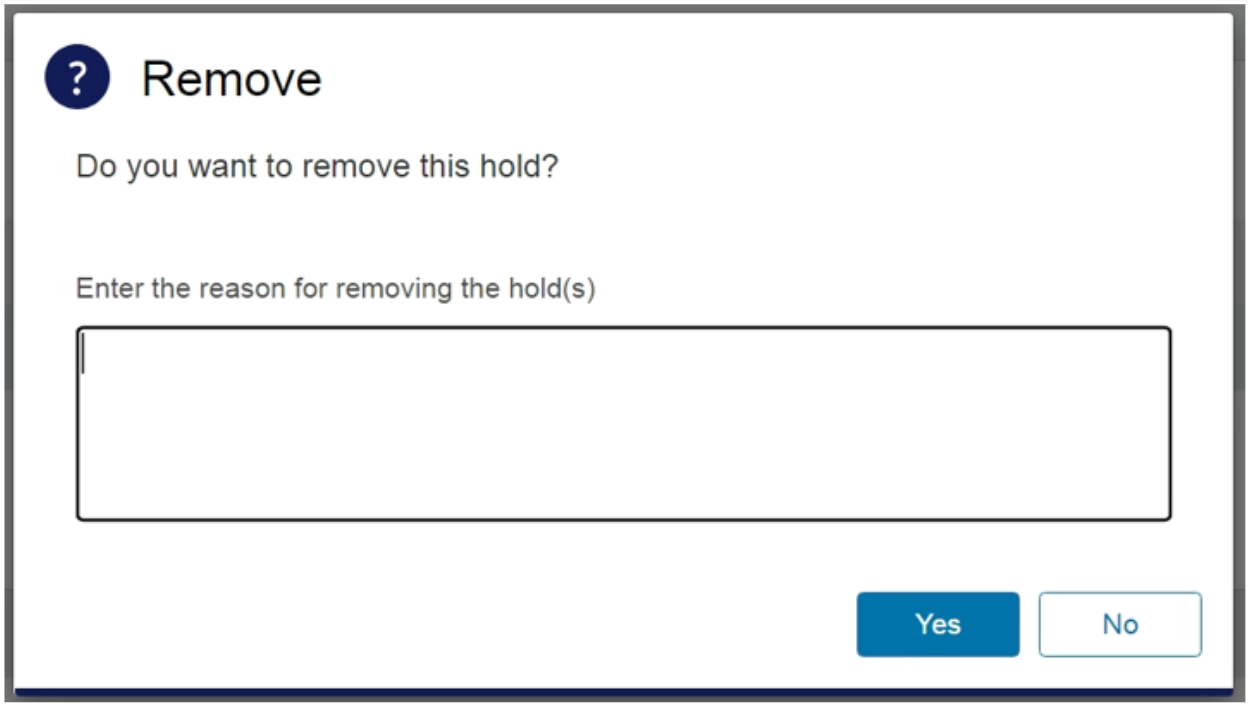
- A confirmation pop up will appear as shown below. Capture the name of the person providing the instruction to remove the legal hold and the date this was effective and then click on Yes.
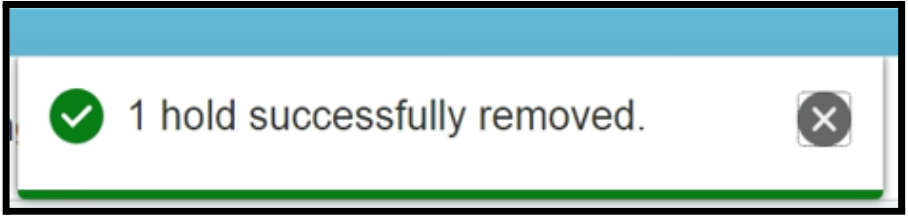
- A message appears confirming the removal of hold as shown below. Henceforth, the file can be deleted and no error message will pop up.
Applying a Legal Hold at the Document Level
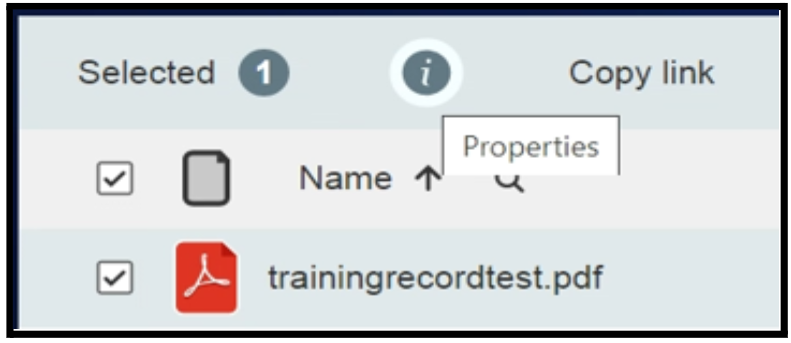
- Select the document to be put on legal hold and click on the “Properties” icon as shown below:
- You will see the properties of the file as shown below:
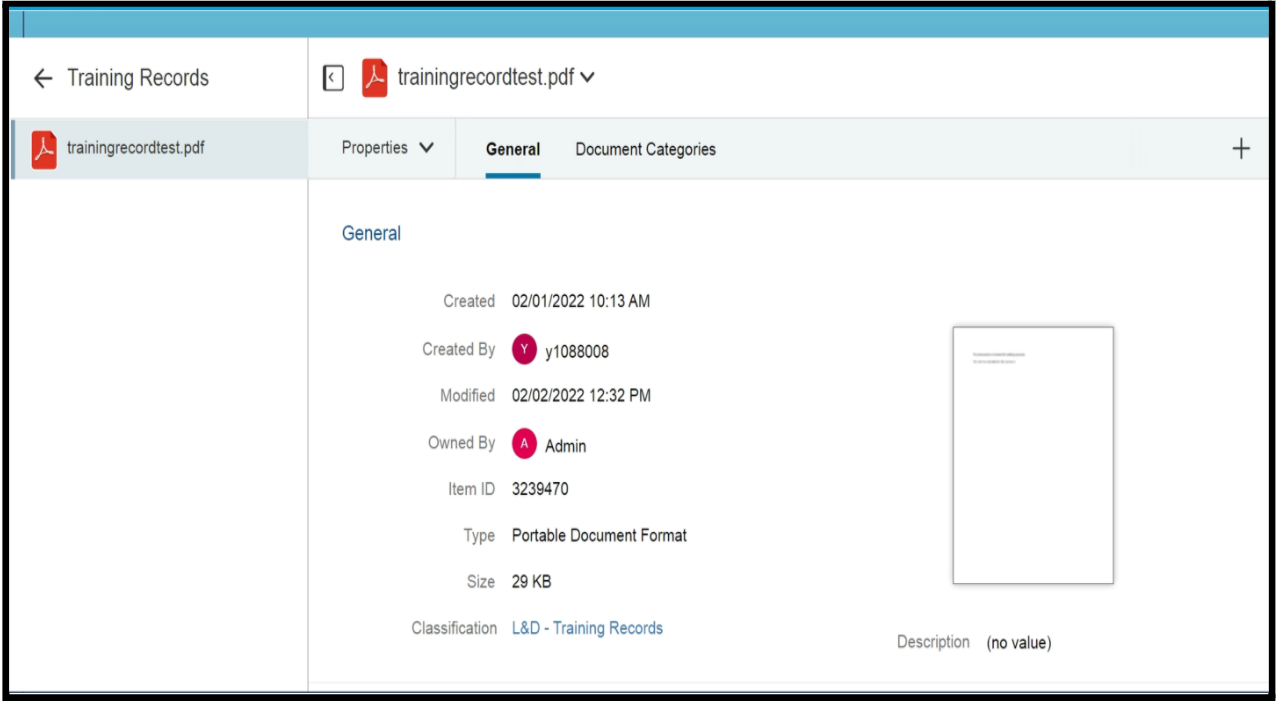
Click on the breadcrumb icon as shown below and select Apply hold.
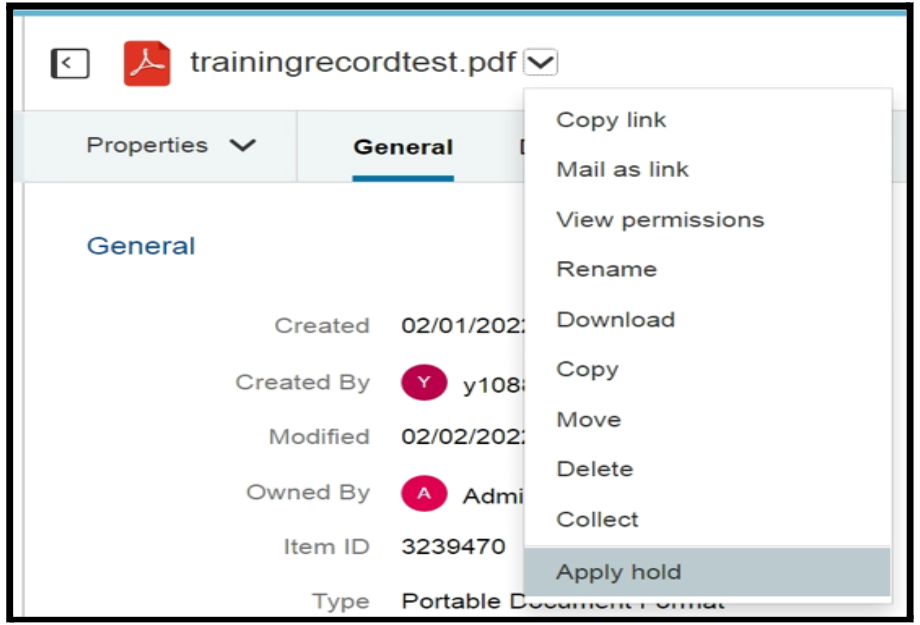
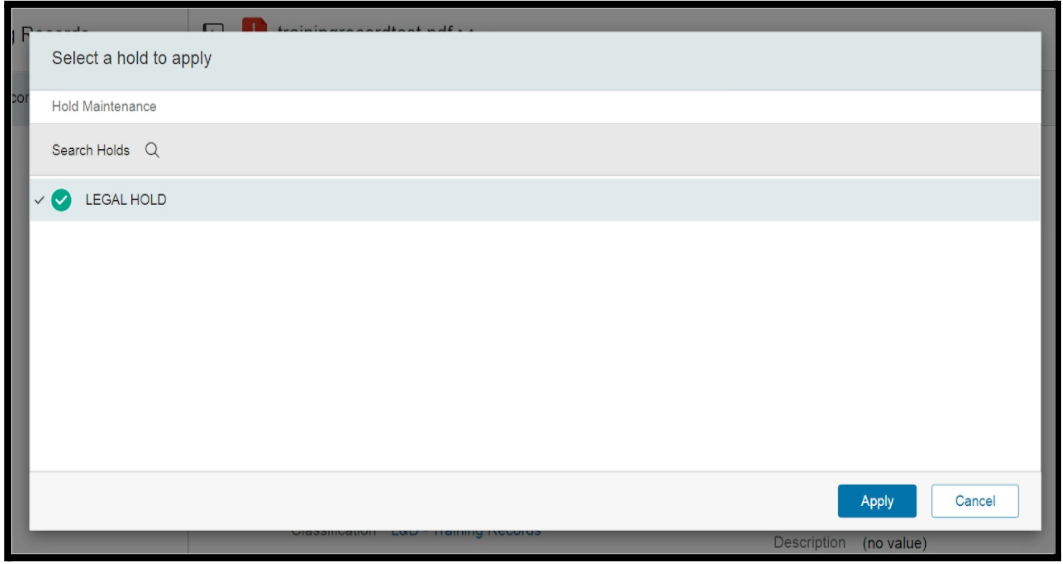
Select the hold to be applied and click on Apply as shown below:
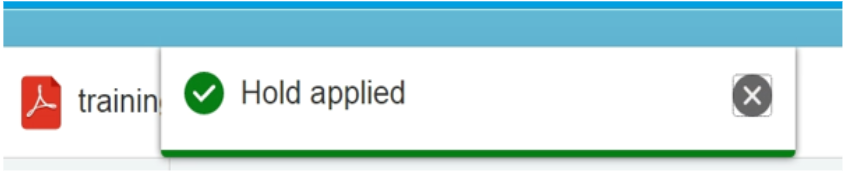
- A pop up message will appear confirming the successful hold application as shown below:
Removing a Legal Hold at the Document Level
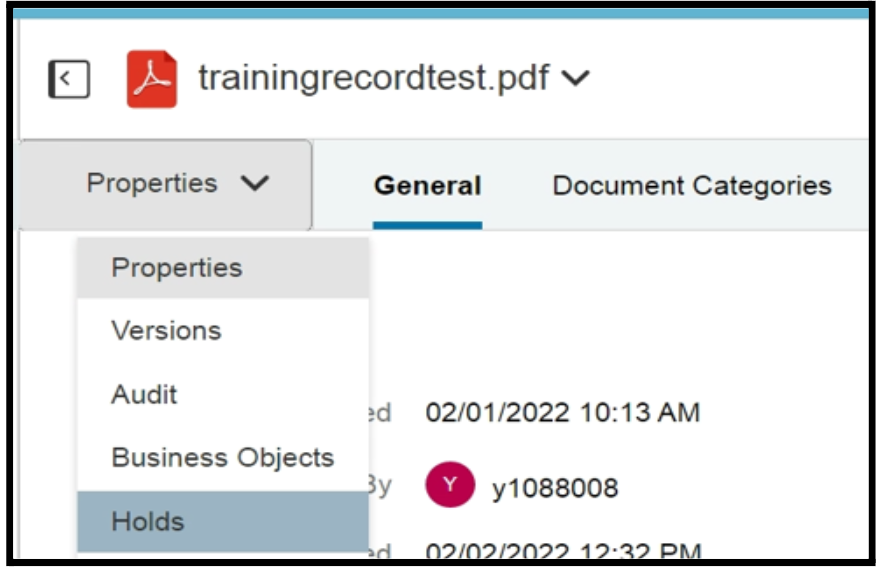
- To remove the Legal Hold at the Document level, select the document with the hold and click on the properties icon as shown below. Now select Holds.
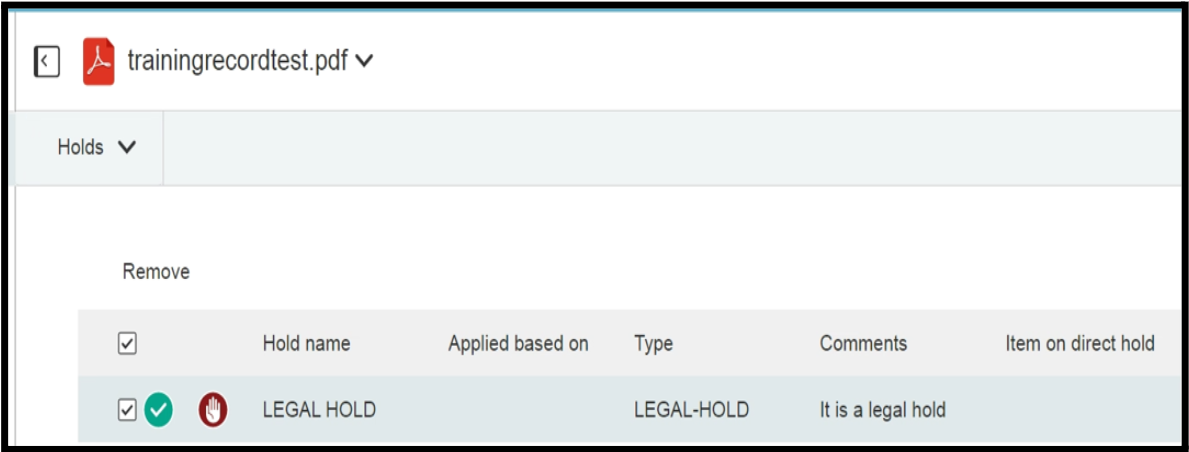
- A screen similar to below will be displayed where you can see the type of hold applied on the file. Now, select the hold you wish to remove as shown below:
- A confirmation pop up will appear as shown below. Capture the name of the person providing the instruction to remove the legal hold and the date this was effective and then click on Yes.

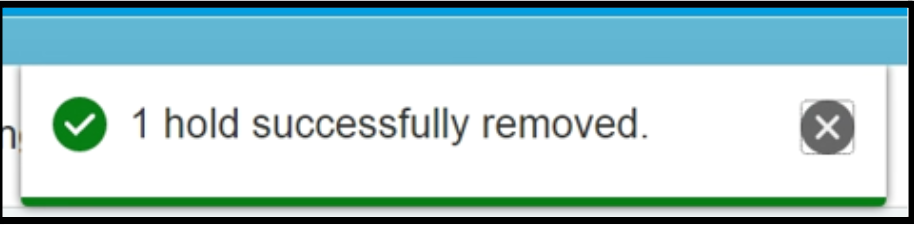
- A message appears confirming the removal of hold as shown below. Henceforth, the file can be deleted and no error message will pop up.
If you identify any issues, have any questions or need general support, please either submit a request through ServiceOne or call our HR Operations colleagues.
Date last updated: