Before follow this Wiki Page, you must complete step:
- SAS Getting Started
- Get privilege Access to SAS Platform :
- Define SAS Client Type :
- Install SAS Client software
For create a new profile follow this step by step procedure
| STEP 1 :
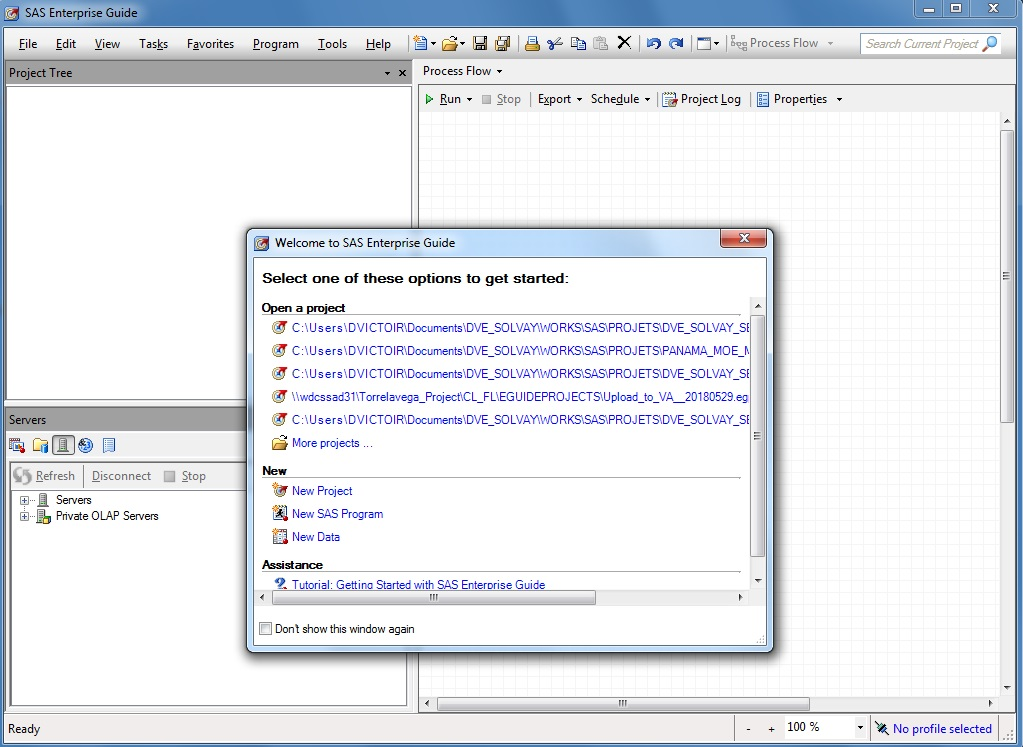
Launch SAS Enterprise Guide :
3 method
1 : in the Shorcut Bar
2 : In the Windows Menu
3 : From the EXE file
C:\Program Files\SASHome\
SASEnterpriseGuide\7.1 |
| STEP 2 :
SEG Opening |
| Step 3 :
Close Welcome Windows |
| Step 4 :
Go on the link : No Profile selected,
on the bottom right screen |
| Step 5 :
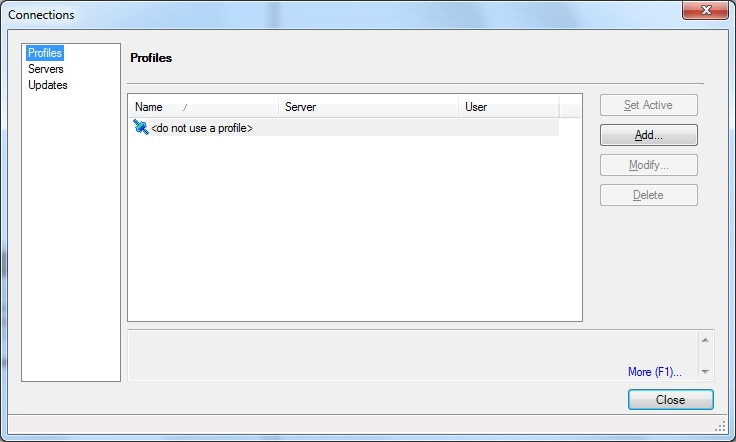
> Profiles > Add |
| Step 6 :
Best Practice for Profil Name :
PROJECT_ENV_SERVER@LOGIN - PROJECT : The project Name
- ENV : Your environment
(DEV, PRD,TST, SAND_BOX,…) - SERVER : Short Name Server
- LOGIN : Your Account
Complete access information's
> Names :
PROJECT_ENV_SERVER@LOGIN
> Description :
PROJECT_ENV_SERVER@LOGIN
Server:
> Remote
Machine :
> SERVER
Use Integrated Windows Authentication
Or Fill:
> Save login in profile
User : EUA/LOGIN
Paswword : ****
> Connect On Exit
> SAVE
|
| Step 7 :
Validate Access 1
Specific Icon before, Profile Name
> Close |
| Step 8 :
Validate Access 2
In the Right Bottom, you see your Profile :
PROJECT_ENV_SERVER@LOGIN
> On the Servers, open list |
| Step 9 :
Validate Access 3
> On the Servers, open list
you must see at least one SASApp server
under you must See: - Librairies
- Files
If you see All,
profile and privilege acces to
the SAS Platform it's OK
|







 The best way to get IT support is to use the new
Service One Platform.
The best way to get IT support is to use the new
Service One Platform.