Versions Compared

Key

  • This line was added.
  • This line was removed.
  • Formatting was changed.
Expand
titleStep 1: How to get Authorization Data
  •  Login to SAP and execute Transaction code "SU53".

Image Modified


  • In the “Display Authorization Data screen (SU53)” click on “Text View” button.

Image Added


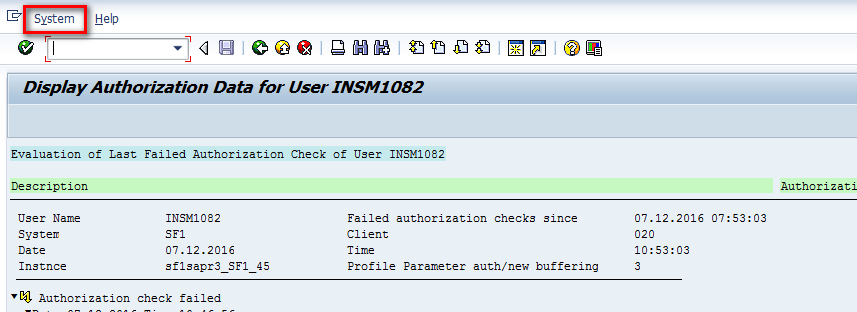
  • Click System button in Text view screen

Image Added


  • Then in System drop-down select
    • Go through “List” -> “Save” -> “Local File”.
      Image Added

  • In the popup to save file Choose the option "Unconverted" .
    Image Added


  • Change directory to the preferred one and click “Generate”.

Image Added


  • Allow the creation of the ".txt" file in the previously chosen directory.

Image Added


  • Now you have the ".txt" file with the authorizations of your user. 
Expand
titleStep 2: How to Create a Ticket in Freshdesk and Attach the file ".txt"

Image Added


  • Click on "New" button and select "Ticket" button in drop-down.

Image Added


  • Fill the fields with the options shown in the image below.
  • The fields Sub type, IS-Category and Application must be filled with the options correspondent to the stream of the user that is requesting the authorizations

...

  • .
  • Attach the .txt file with the authorizations to the description of the ticket
    Image Added

    Image Added

    Image Added

  • After Filling all the details Click on Submit button and submit it.
    Image Added

Image Added