

To create content, you need to have the space content creation permission.
To create a new content in a wiki space:
- click the wiki menu create button
- select a template
by default, the page is created as a child of the actual page. A page can be moved to another location, inside the same space or in another space.

- Enter the name of the page (it must be unique)
- Enter the content
- Preview your page and save

Test your Confluence skills
Set page location or move a page
- Do either of the following:
- While creating a page – choose the location icon
 at the top of the page
 - Once a page is created – choose
 > Move
- While creating a page – choose the location icon
- Use the tabs on the left of the 'Set Page Location' dialog to help you find the new space and/or parent page for your page (the Current location and New location breadcrumbs at the bottom of the dialog indicate the current parent page and new parent page)
- Select Reorder if you want to move the page to a different position amongst the child pages (when you choose Move in the next step, you'll be able to reorder the page)
- Choose Move (If you're reordering the child pages, choose the new position for the page and choose Reorder)
The page – along with any attachments, comments, and child pages – is moved to your chosen location. Confluence will automatically adjust all links to the moved pages, to point to the page(s) in its new location.
When completing the New parent page field, you need to select the page suggested by Confluence's autocomplete. Typing or pasting the page name (or using your browser's autocomplete) won't work.

Reorder pages within a space
You can change the location of a page within its space, and reorder pages in the hierarchy. This allows you to:
- Move a single page, or a family of pages, to a different parent within the space.
- Reorder pages that are children of the same parent.
All links to the page are maintained. When you move a parent page, the entire hierarchy of child pages will move too.
To move or reorder a page:
- Go to the space and choose Space tools > Reorder pages from the bottom of the sidebar
- Expand the branches to locate the page you want to move
- Drag the page to a new position in the tree


Notes about permissions
To move a page, you need the following permissions:
- 'Add' permission on the page you're moving, and
- 'View' permission on the page's parent page. If you're moving the page to a different parent, you need 'View' permission on the new parent.
To move a page into a different space, you also need:
- 'Delete' permission on the space you're moving from, and
- 'Add' permission on the space you're moving to.
If the page has restrictions, and you want to keep the page restrictions in the new location, you'll also need 'Restrict' permission on the space you're moving to. Alternatively, remove the page restrictions before performing the move.
Clamecy :The number of shifts in order to better manage available capacity per resource based on Human resources. So basically the number of shifts will double the capacity if you put 2 instead of 1.

- Copying a page will duplicate all of the original page's attachments and labels, but won't copy comments from the original page.
- This method of copying a page doesn't copy the child pages.
Delete a page with children
If you delete a page that has any child pages, the child pages moves up to the nearest parent page. If you want to keep the child pages under another parent, it's a good idea to move them before deleting their former parent.


Restore a deleted page
You need to be a space administrator to restore a deleted page.
When you restore a Confluence page, you're moving it from the trash to the root of the space. You may want to move the page to another location after you've restored it, as it won't be easy to find at the root of the space.
To restore a deleted page:
- Go to the space and choose Space tools > Content Tools from the bottom of the sidebar
- Choose Content Tools > Trash
A list of deleted pages and blog posts for the space displays. - Choose Restore for the page you wish to restore
To find the page after you've restored it, choose Pages to go to the root of the space (the page isn't restored to its original position in the page hierarchy). See Move and Reorder Pages for more information.
If a new page has already been created in that space with the same name as the page you're restoring, you'll be given an option to rename the page before it's restored.

Purge deleted pages
You need to be a space administrator to purge deleted pages.
If you want to permanently get rid of a page, you need to purge it from the trash. That'll mean the page, and all its versions and attachments, are gone for good.
 Attachments of deleted pages will remain in the database (allowing potential retrieval) until the trash is purged. Once the trash is purged, all attachments on the page(s) are permanently removed.
To purge deleted pages:
- Go to the space and choose Space tools > Content Tools from the bottom of the sidebar
- Choose Trash
A list of deleted pages and blog posts for the space displays. - Choose Purge for a specific page or Purge All to permanently clear all deleted pages and news items
The editor allows you to enter or change the title of your page; insert content including text, images, and links; and format your content using the toolbar.

Editor toolbar
The editor toolbar is where you format your page layout and text, and add links, tables, attachments and macros. You can also perform a find and replace, or get help using the editor by choosing the help icon 
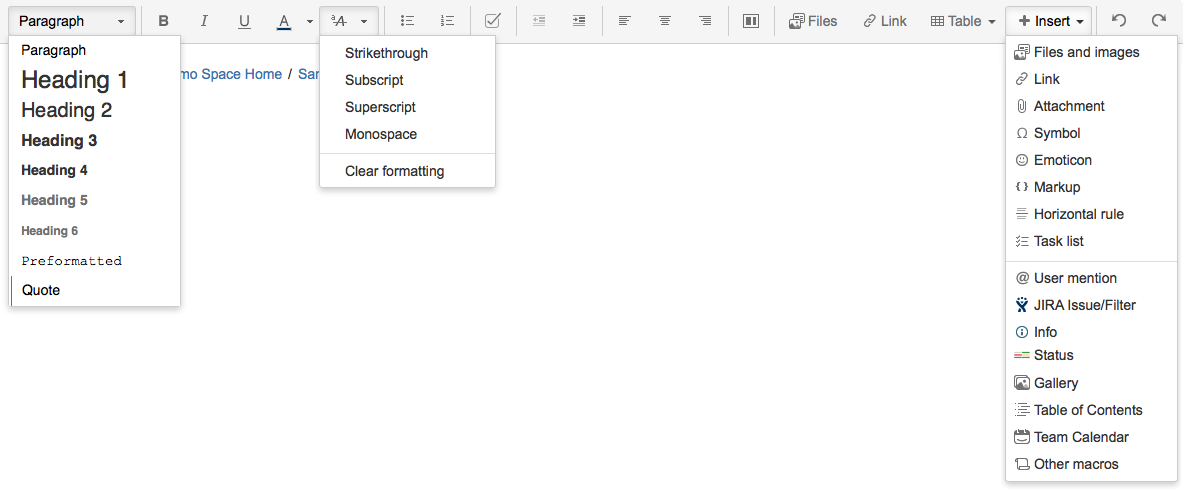
The Insert menu
Use the Insert menu to include any of the following content types on your page:
- An image
- A link to another Confluence page or external URL, or a link to an attachment or image
- An emoticon or symbol, or a horizontal line
- A macro (choose a specific macro, or Other Macros, from the Insert menu)

Restrictions, labels
When editing a page, you may want to set restrictions  on who can view or edit the page, or add labels
  to the page to make it easily searchable.

 The best way to get IT support is to use the new
Service One Platform.
The best way to get IT support is to use the new
Service One Platform.