

When you upload a file, such as an image or document, it will be attached to the current page.
To upload a file you'll need the 'Add Attachments' space permission.
Upload a file/image
- Click on the icon
 or
or - Go to Insert > Files and images and upload a file.

or

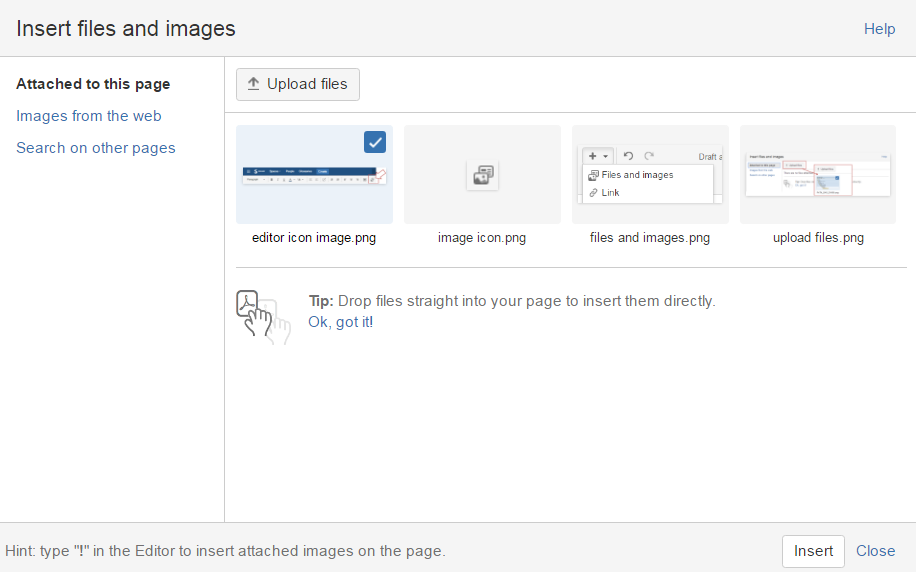
- Click on "Attached to this page" and "Upload files"
You can attach multiple files at a time.

Insert a file into your page
- Go to Insert > Files on the editor toolbar and select any of the previously uploaded files, or
- Your file will appear on your page as a thumbnail. Click the thumbnail to resize it or to switch to showing the file as a link.

File versions
If you upload a file with the same name as an existing attachment on the same page, Confluence will overwrite the existing attachment. Version history is kept for all attachments.
Click on the icon  to display all versions

Insert a file attached to another page
You can display a file that's attached to a different page of the same Confluence site, if you know the name of the file.
To display an image attached to a different page:
- Go to Insert > Files and choose the Search on other pages.
- Enter the name of the file.
- Choose whether to search the current space or All Spaces and choose Search.
- Select the file from the search results and choose Insert.

- give an explicit name to attachment (including image)
- avoid generic name such as "screen shot"
- avoid non English character in attachment name
- it's possible to change an attachment name via the attachment menu "property "
Exporting single pages to PDF or Word
You can export a Confluence page to PDF or Word. This option exports a single page and is available to all users who have permission to view the page.
- Go to a page in the space and choose Tools
 >Export to PDF or Export to Word. Follow the prompts to export the page.

Exporting multiple pages or the entire space to PDF
Using Confluence's space export functionality, you can convert multiple pages or an entire space to PDF.
To use the space export functionality, you need the 'Export Space' permission.
To export a space or selected pages to PDF:
- Go to the space and choose Space tools > Content Tools on the sidebar.
- Choose Export. This option will only be visible if you have the 'Export Space' permission.
- Select PDF then choose Next
- Decide whether you need to customise the export:
- Select Normal Export to produce a PDF file containing all the pages that you have permission to view.
- Select Custom Export if you want to export a subset of pages.
- Select the pages you want to export.
- You have the option to Select All or Deselect All pages.
- When you select a page, all its child pages will also be selected. Similarly, when you deselect a page all its child pages will also be deselected.
- Choose Export.
- When the export process has finished, download and save the PDF file as prompted.


Import a Word document
1. Create a page in Confluence or go to an existing page (not edit it).
2. Choose  > Import Word Document

3. Choose Browse and locate the Word document you want to import then choose Next.
The import document options appear.

4. Enter a title for the new page.
5. Choose where you want to import the file
6. Choose whether to create a single page or multiple pages based on the heading styles in the file (this option is only available if the file contains heading styles).
7. Click Import.
When the upload has finished, pages will be created with the content of the Word documents. You can then view and edit this page as normal. There's no connection between the original Word document and this page.

Macros extend the wiki page functionalities. There are macros for navigation, special formatting, reporting and adding media.
The macro browser is available from the advanced tool menu.

A macro can be selected:
- via the search box
- by categories: All, Administration, Communication, Confluence Content, Development, External Content, Formatting, Media, Navigation, Reporting, Visuals & Image

 The best way to get IT support is to use the new
Service One Platform.
The best way to get IT support is to use the new
Service One Platform.