Let’s say that you are invited to a meeting, and you want to know who are the people that will be joining. It would be funny if all the pictures were of animals, nature, cartoons… but in the end, it would not help you.
A professional picture has a huge impact in someone’s first impression. It doesn’t have to be boring, of course, but it must show who you are, like a brand.
When it comes to having your picture in the organizational charts, or your google email, the keyword here is PROFESSIONAL. It should be a portrait of you, and not pets, children or objects (let’s save those for other social networks). Take off your mask and show the company your big smile!
To sum up, the photo should be of you and only you, as you would come to work. And remember, it’s available for everyone at the company to see.
Need some tips on how to have a great profile picture? Check this video.
But… What if you don’t like pictures?
Well, let’s go to option B: Keep the avatar as is.
Below you can find the steps you need to follow if you want to change your picture/avatar.
Step 1: Go to Syensqo The Hub and click on the My HR Services tile
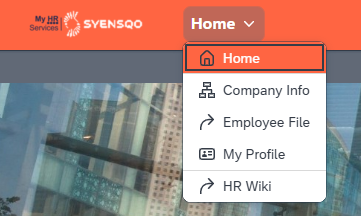
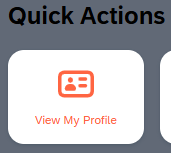
Step 2: Click on ‘Home’ and select ‘My Profile’ or you can directly access the ‘My Profile’ tile on the homepage
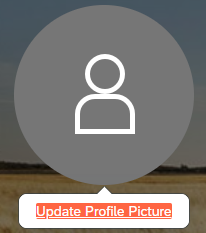
Step 3: Now place your mouse cursor over the picture, there will be ‘Update Profile Picture’ message pop up, Click on it.
Step 4: Select your profile picture and Save
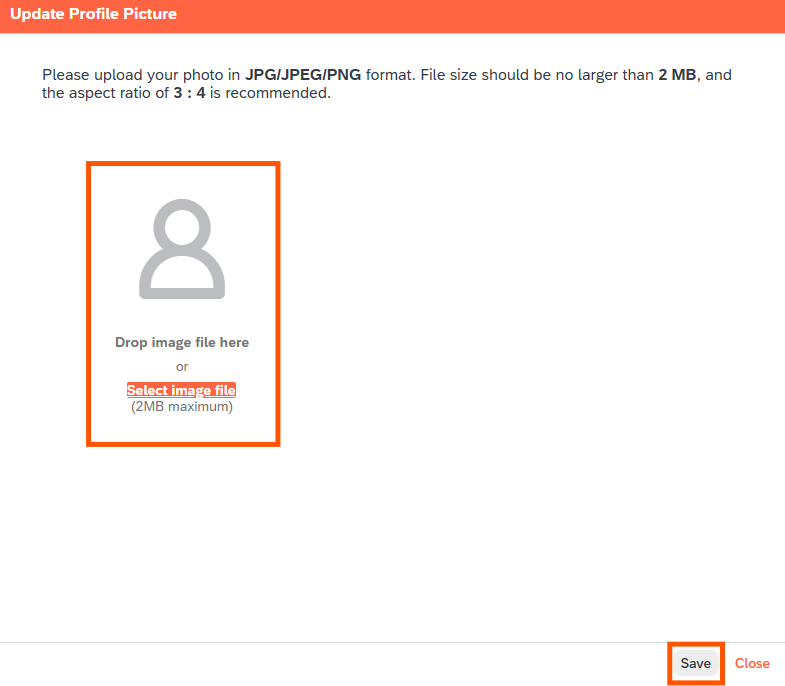
Now, the picture will be available on your Employee Profile.
You can also edit your background profile image!
Would you like to personalize a little more your profile? It’s possible by editing your background. Please remember that your profile is available for any Syensqo employee, so choose wisely.
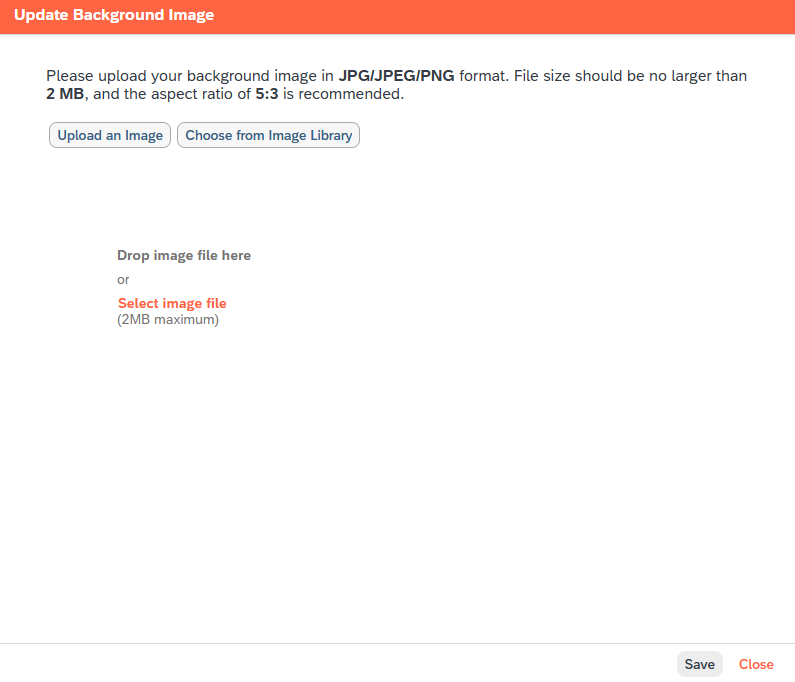
- In the top right corner of your screen click on "Header" and click on "Update Background image":
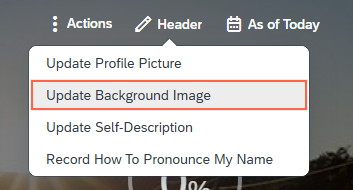
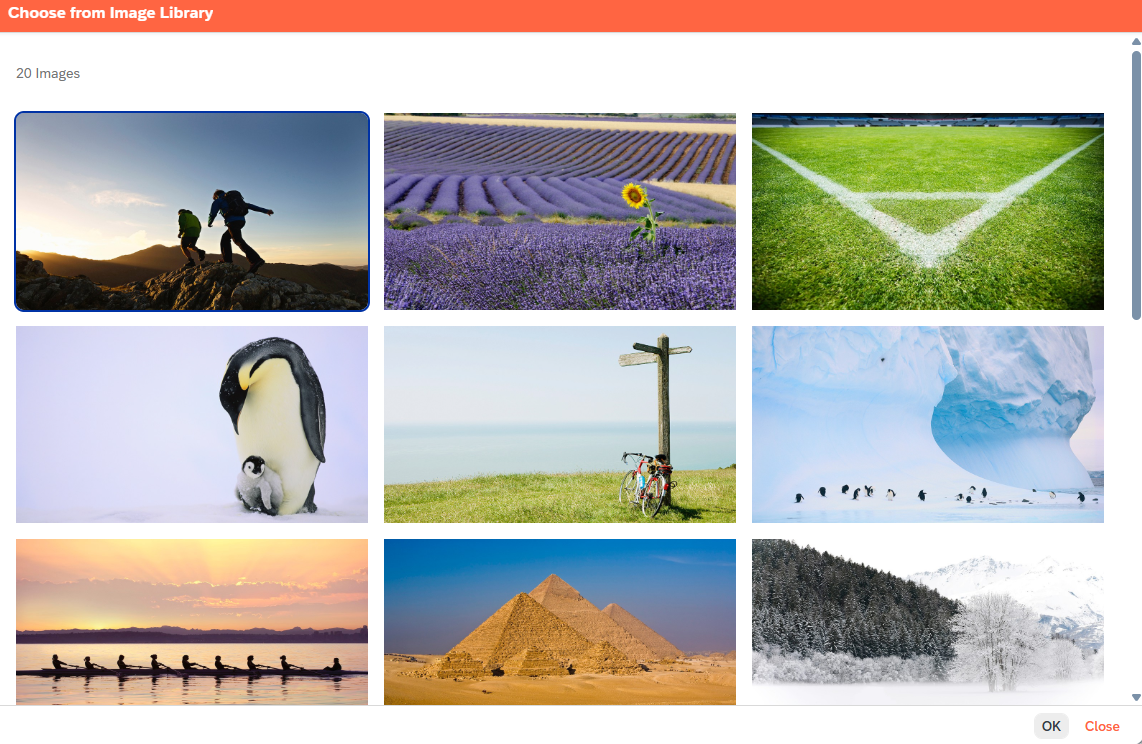
- You can choose to upload from an Image Library such as the Syensqo’s Library (make sure you have your VPN connection on) or Upload from your drive (just make sure not to upload any internet pictures for intellectual property reasons).
- Click "Save" to implement the change.
| Video Tutorials | |
| Further Reading Material |
Want to Use the HR Tools in your Language?
All 3 sources of HR information - Chatbot, Digital Workplace and HR Wiki have automated translation capabilities to let you enjoy the content in the language of your preference.
Translate to your language - You can chose to use the platform and chat in your own language.
How to Change the Language in SyRa
SyRa: Go to your profile→Preferences→Select your language→Sign into the tool again.
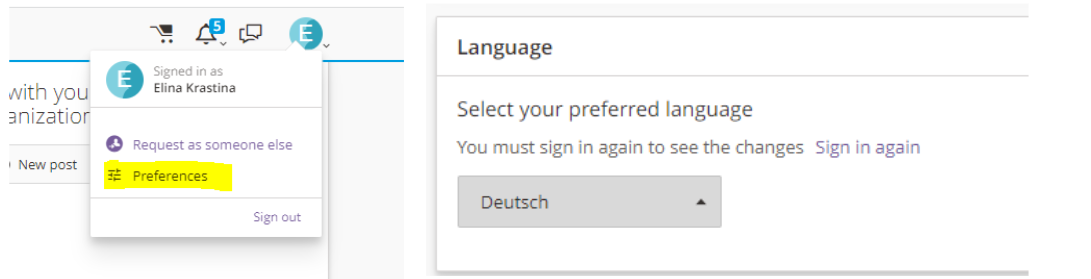
*Please note that this option will not translate the Service Catalogue and Knowledge articles.
To interact fully in local language you can enable Google translate functionality. See the information below.
How to Enable Google Translate in SyRa
To translate some content in SyRa you can use Google translate functionality.
Right click on the screen→Select Translate to→Choose language→Read in your language.
WATCH THE VIDEO TUTORIAL
How to Translate the HR Wiki?
Click on Translate tab in the header→Select your language→Read content in your language
WATCH THE VIDEO TUTORIAL
* Please note that images/photos, presentations and other embedded documents that are in English will not be translated.
The Employee File is a place where you can find all of your HR related documents in one place. This space will contain your documents that have already been loaded in your profile in My HR Services.
Note: Documents will be captured here as of go-live forward. Documents stored locally will be gradually migrated over time.
Please note that due to legal constraints, Bulgaria and Russia are out of scope.
You access your personal Employee File via My HR Services. Here you will find a tile under My Information called Employee File.

Just select this tile and you will be led to your personal workspace as shown below. Each of the tabs are explained below.
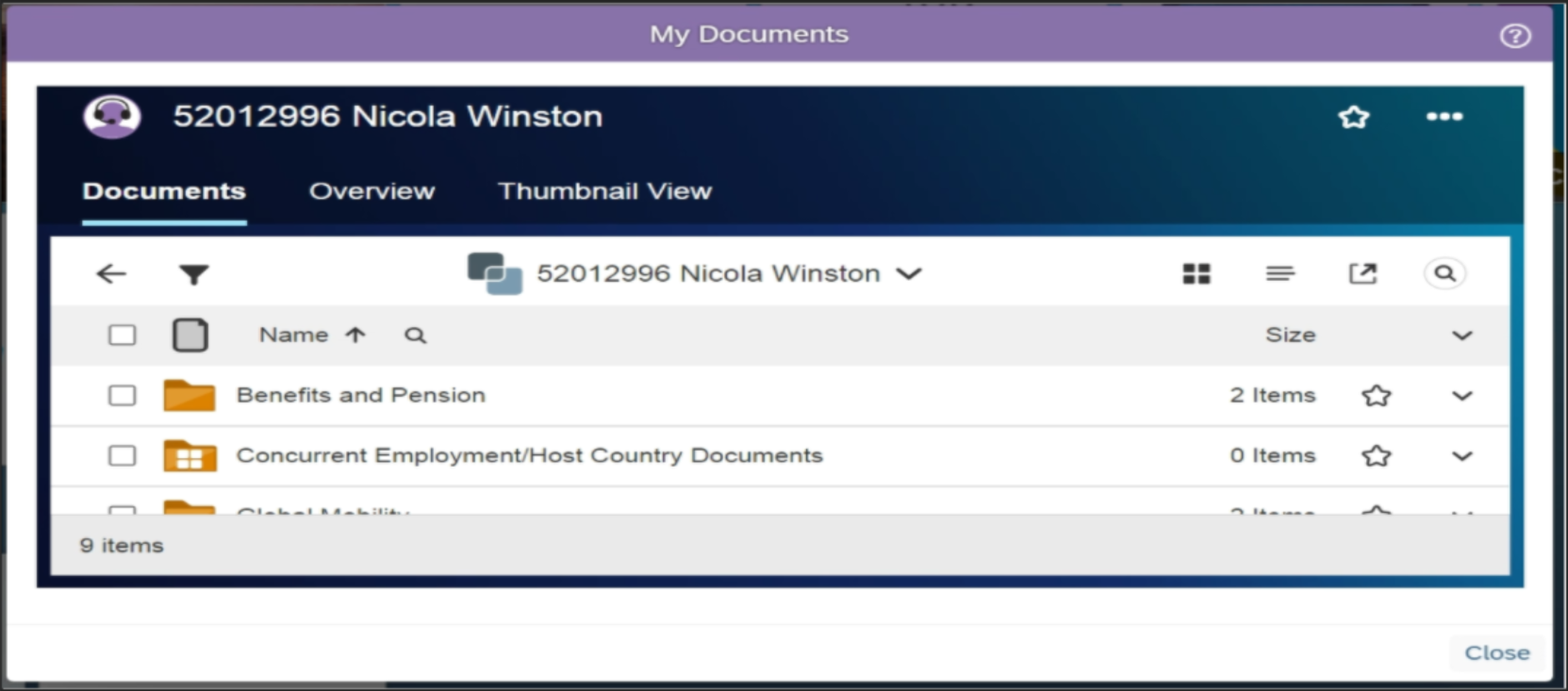
Documents Tab - Here you will find a folder structure for the different document categories and within each the related sub-categories. Simply click on the folder to open and see what is inside and then click on the name of the document to open it.
Folder | Sub Folder | Description | Document Examples |
|---|---|---|---|
Benefits and Pension | Health and Welfare benefits | Documents related to Health and Welfare benefits provided to the employee and their family. | Health Insurance Forms, Short or Long term Disability, Life Insurance, Meal Allowances, Company car, Participation in Langzeitkonto (DE), Usage of tariff related benefits (Zukunfts Beitrag) (DE), etc. |
| Retirement benefits | Documents related to the different types of pension funds and retirement benefits/plans. | Pension fund letter leaver/retiree , Pension fund leaver/retiree calculation, 401k, Seniority Jubilee (calculation), Pension Schemes/Program, Participation in PKDW, AFORE Document,Individual liquidation statement - (pre)retiree and leaver, etc. | |
Global Mobility | Agreements & Packages | Documents containing all the information about expatriation. | Secondment Agreement, Assignment Extension, Assignment Termination, Remuneration Package, Cost of Living Calculations, etc. |
| Administrative Documents | Documents about tax administration for expats: | Reports on Taxes & Deductions etc. | |
Learning and Development | Development Plans | Includes career development and skill building plans. | |
| Training Records | Documents showing the training history of the employee and related certifications. | ||
Payroll and Compensation | Payroll Forms & Documents | W4, W2, annual tax statements, local bonuses, recurrent deductions, garnishment, etc. | |
| Compensation | Compensation statements, promotion statements, bonuses, long term incentive | ||
Performance and Talent Management | Performance Assessment | All types of performance reviews or assessments. | |
| Feedback | Feedback received by the employee from others in the organization. | ||
| Discipline & Improvement Plans | Official communication to the employee when performance and/or behaviors are not in line with expectations. | Performance improvement plans, disciplinary letters, praises etc. | |
Personnel Administration | Employee Personal Documents | Documents that contain information about the employee and there dependents and are needed to maintain employee data across several HR systems for several purposes, such as permissions, check-ups etc | Copies of passport, national ID card, driver’s license, Work Permit/Immigration Forms, Security Clearance documents, Form I-9, Religious orientation, birth certificate, marriage certificate, verification of employment, certificate of salary and employment status/contract type, Proof of Address, bank account, RFC, CPF (Cadastro de Pessoas Físicas or Natural Persons Register), CURP, etc. |
| Company Issued Documents & Agreements | Documents that include information relating to the employment and employment contract of an employee, as well as several acknowledgements and declarations signed by the employee. | Labour contract, Offer letter, Confidentiality Agreement, non-competition agreement, Letter of Assurance, Labour book, NDA Agreement, GDPR declaration, Industrial Agreement acknowledgment, Acceptance of the collective accident insurance, Confirmation acceptance work regulations, Declaration for received documents such as Code of Business integrity, Safety procedures, etc | |
| Medical | Documents containing medical related information that is NOT maintained by HSE. | Hiring / Leaving Medical Clearance Form, Medical accommodation, Medical certificate | |
| Union Documentation | Documentation related to union topics that is employee specific. | Arbitrations / Grievances | |
Recruitment | Candidate Documents | Documents related to the candidate's profile for the position and professional qualifications:. | CV and Application, assessment results, recommendation letter, School Diploma/Degree, licences etc. |
| Time Management | Absence & Attendance Related Documents | Documents that are needed to justify/approve absences paid or unpaid. | Absences related to sickness, work accident, parental leave, furloughs, disciplinary, strike, etc. |
Overview Tab - Here you can quickly access any folders or documents you mark as Favorite as well as Recently Accessed documents.
Thumbnail Tab - Here you can view the Thumbnail of documents in your Employee File.
Searching for a Document
The magnifying glass icon on the right side of the screen enables you to search for a document regardless of which folder it is stored in. Simply type the name or key word in the name of the document and click on the document name to open the document.
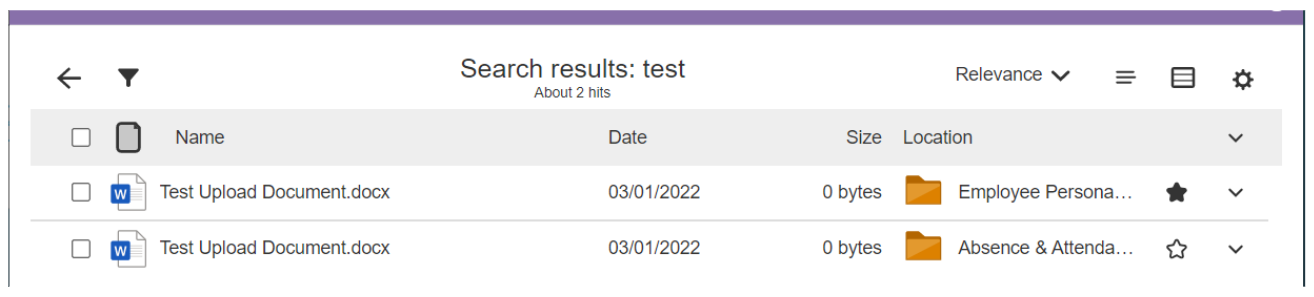
- Your search result will appear in one of two formats that you can toggle between by clicking the related icon:
- Standard View -

- Tabular View -

A) Standard view:
B) Tabular view:
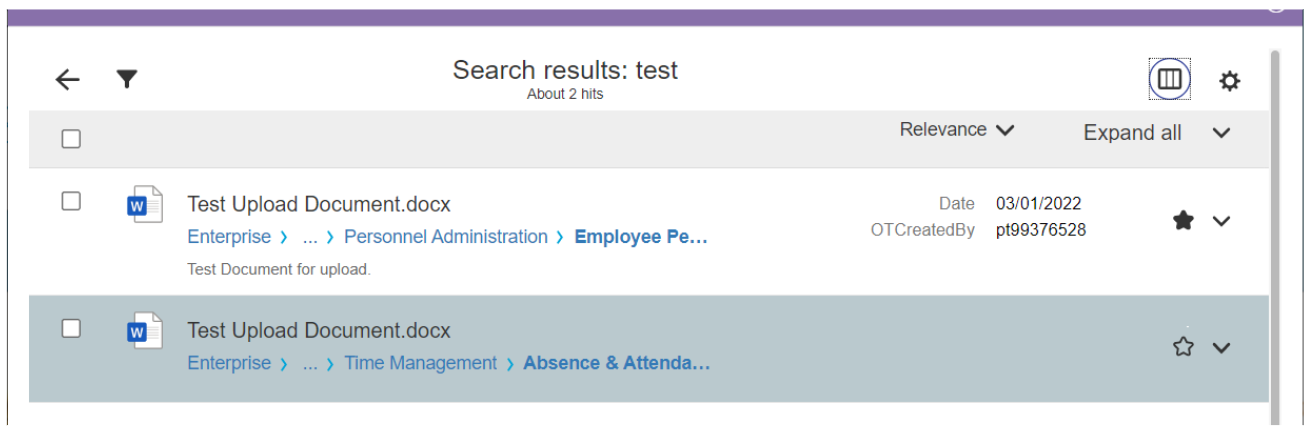
In Tabular View under each document name you will find the storage path of that document. In the example above you see this document is stored in the “Personnel Administration” folder and then a sub-folder “Emplo…”. To see the full path you can reduce the zoom level to 80% by clicking ctrl - and can enlarge by clicking ctrl +.

C) By Clicking on this  icon you can add the associated document to your Favorites which is displayed on the Overview tab.
NOTE: The magnifying glass icon shown on the left directly above the folders searches only what is visible on this screen so not particularly helpful in our context.
- You can filter documents stored in the files by clicking on the filter icon
 . From here you can refine the filter further. This can be a useful tool if you are looking for a particular type of document such as pdf or you are not sure of a key word in the name of the document.
 - List View and Grid View - Click on the
 icon to change to grid view and click on the
  icon to revert to the list view.
 - Display the folder descriptions by clicking on the
 icon.
icon. - Maximize the widget view by clicking on the
 icon
icon - STAR icon enables you to indicate that item as a Favorite. Favorites are displayed on the Overview tab.
- 3 Dots (top right corner). Clicking here gives you two options. One is “Copy Link” which you can then share via email, chat, etc. The second is “Mail as Link” - this functionality is not yet enabled for Syensqo. NOTE: Any link you share will only work if the recipient has the authorization to access your Employee File.
Marking Favorite Documents
You can mark Favorites at the document, folder and workspace level.
Step 1: Navigate to the document you want to mark as favorite as shown below and click on the star button:

Step 2: A pop-up similar to below will be displayed. You can either leave the name as is or change it and click on "Add" as shown below:
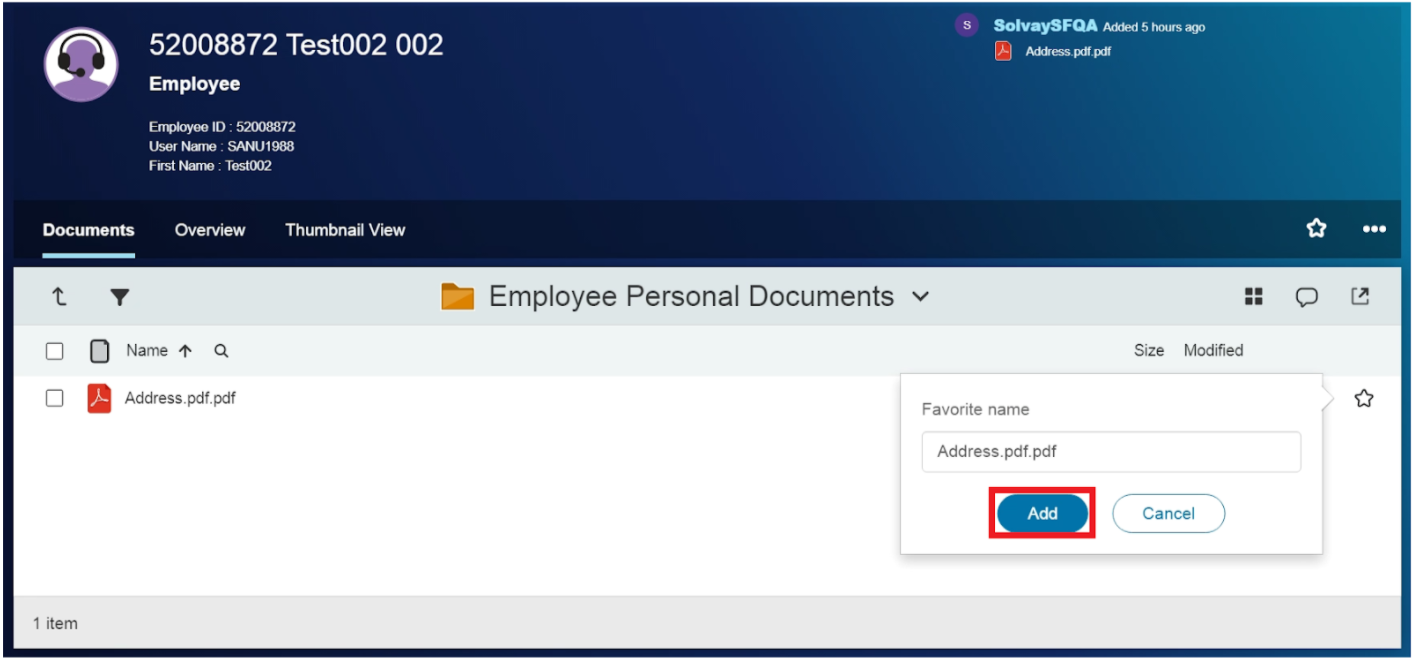
The icon in front of the document will change from to  and the document will now be included in the Favorites section on the Overview tab.
Additional Actions with Documents
When you select a document by checking the box to the left of the name, additional actions will be displayed just above. These are explained below.
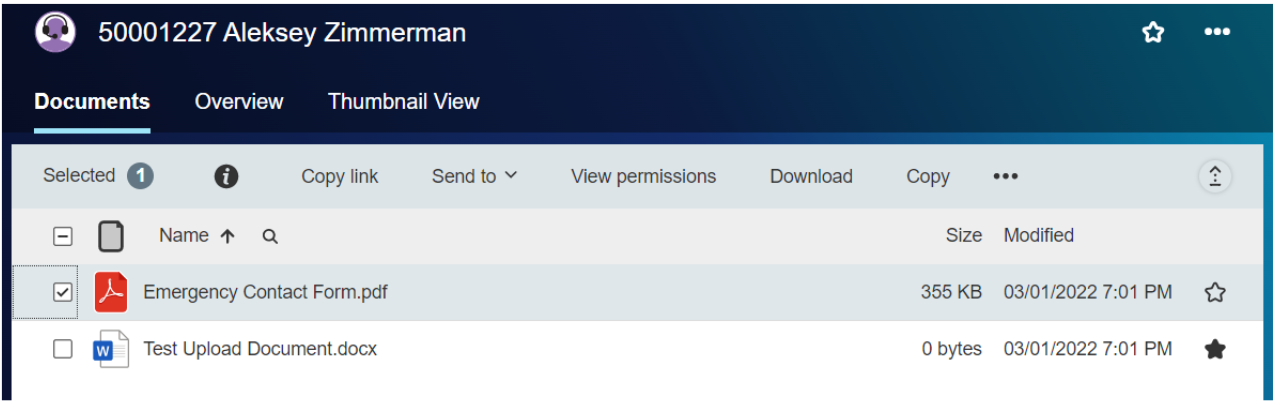
 - Displays the properties of the document.
Copy link - Copies the link of the document to clipboard. You can share this link with others however it will only work for them if they have the relevant permissions.
View Permission - Displays the permissions of the document.
Download - Can be used to download the document into your local system.
Copy, Delete Workflow, Sand end to/Mail as link - Please disregard.
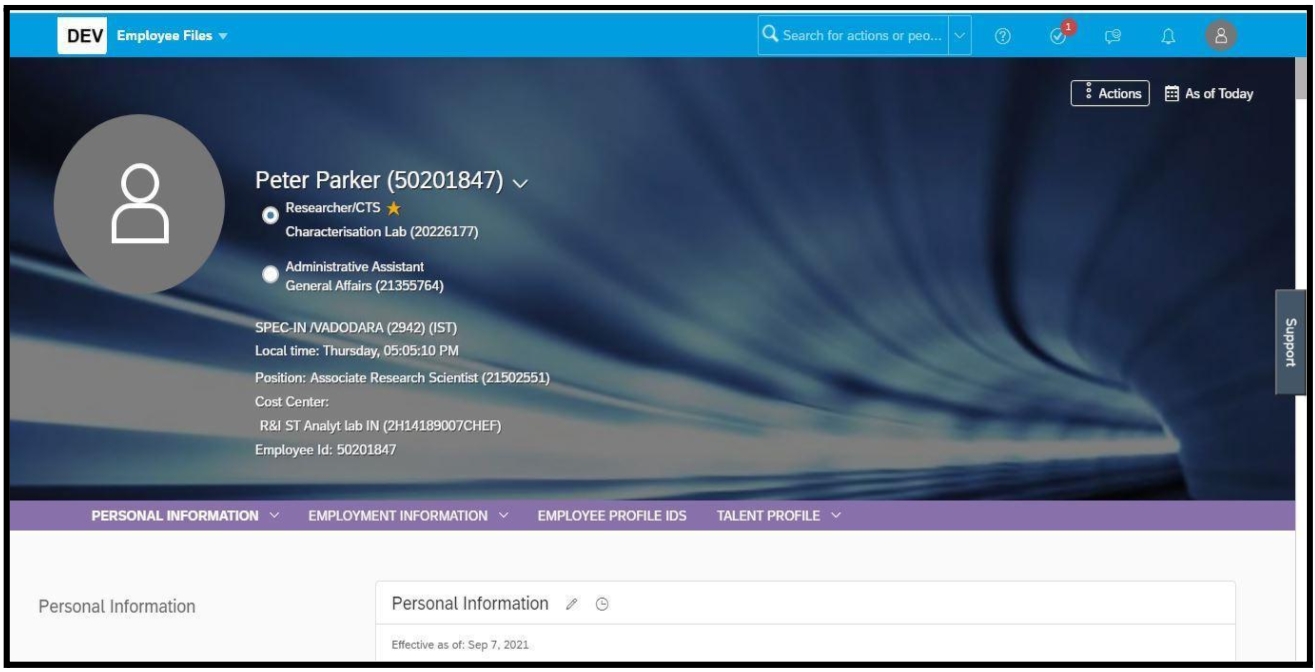
An employee can have one or multiple assignments assigned to them during the course of their career. There are two distinct types: Concurrent Employment and Global Assignment. If you are in one or both of these categories you can access the related documents via a single profile.
Concurrent Employment
Concurrent employment is when an employee is assigned to more than one assignment at the same time. In such a case, the documents related to each assignment would be maintained separately.
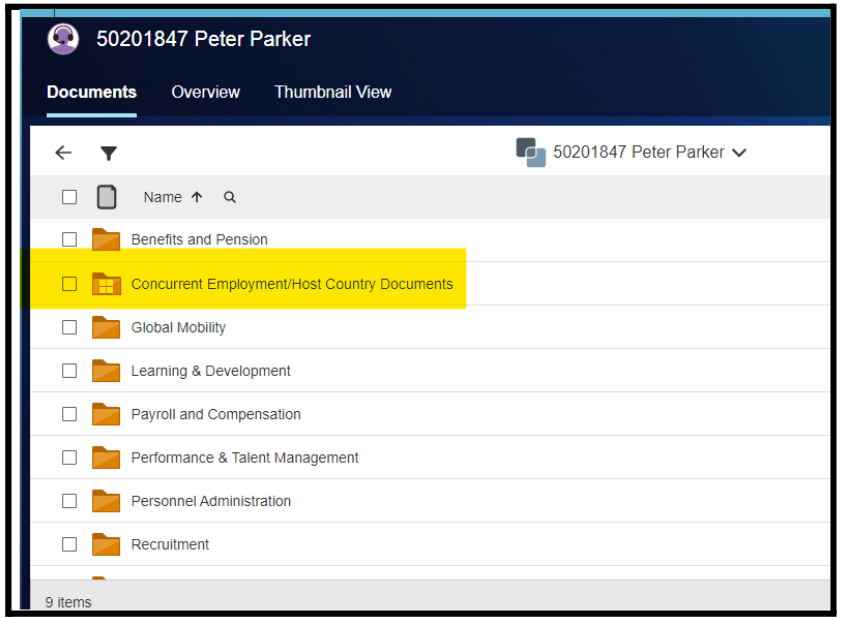
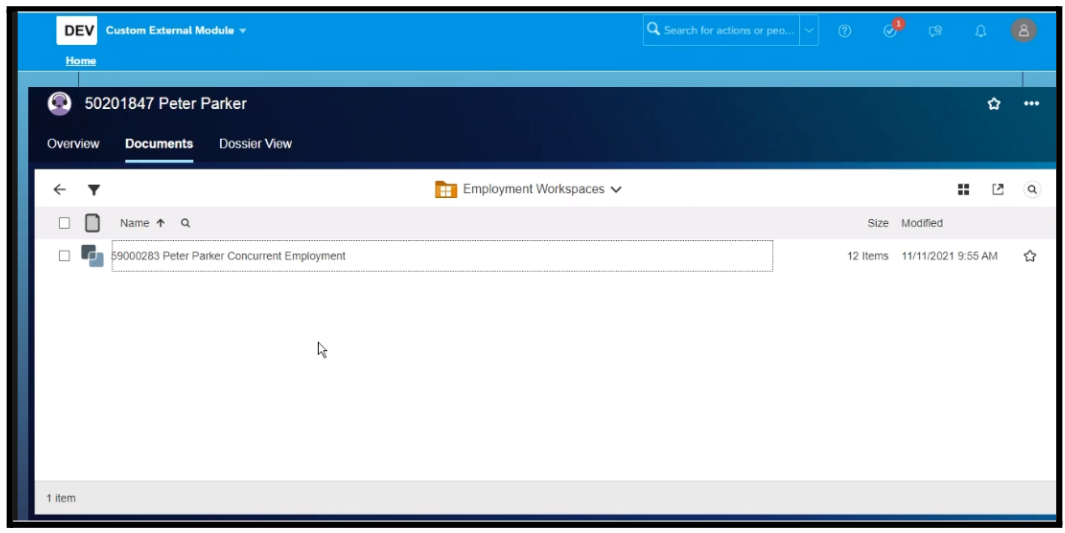
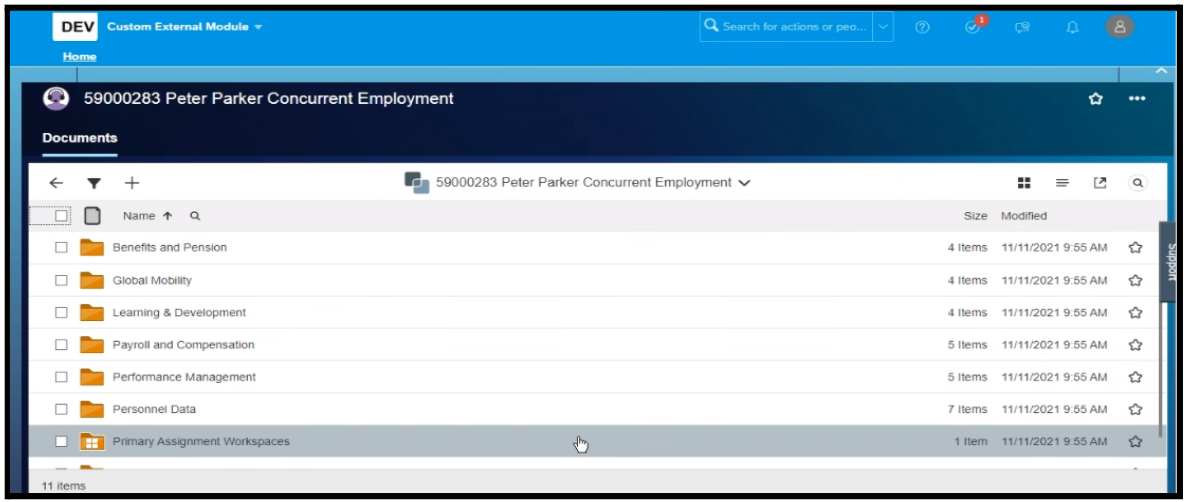
Find below a screenshot of the layout and folder structures.
Using the Employee File tile under My Information, go to your Personal Employee File to see the folder structure. When you click on the “Concurrent Employment/Host Country Documents” folder then you will see your other assignment (Concurrent assignment in this case).
After clicking on Concurrent assignment, you will see the folder structure of your Concurrent Assignment as shown below.
To go back to the folder structure of your other assignment click on the “Primary Assignment Workspace” folder from the list.
Global Assignments
If you need assistance accessing any of your personal HR documents or those of anyone you manage, please contact our HR Service team who are available to support you with this.