
Accessing Your Team Members’ Employee Files
INTRODUCTION
The Employee File workspace enables Managers to access the documents of the employees in their management line.
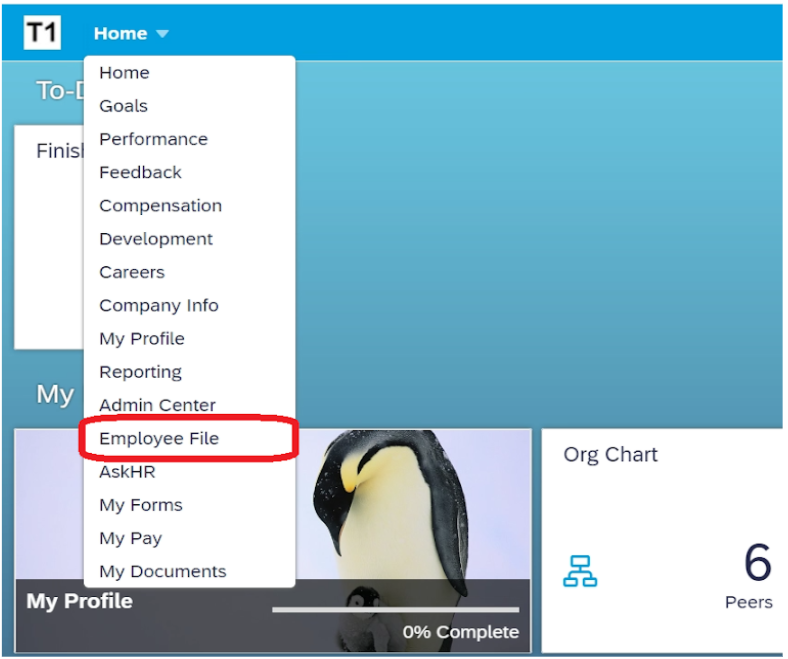
To access the Employee Files of those in your management line, select “Employee File” from the Home drop-down menu of My HR Services.
For detailed information about accessing your own personal Employee File workspace and how to use the available functions, please click here.
Please note that Bulgaria and Russia are out of scope.
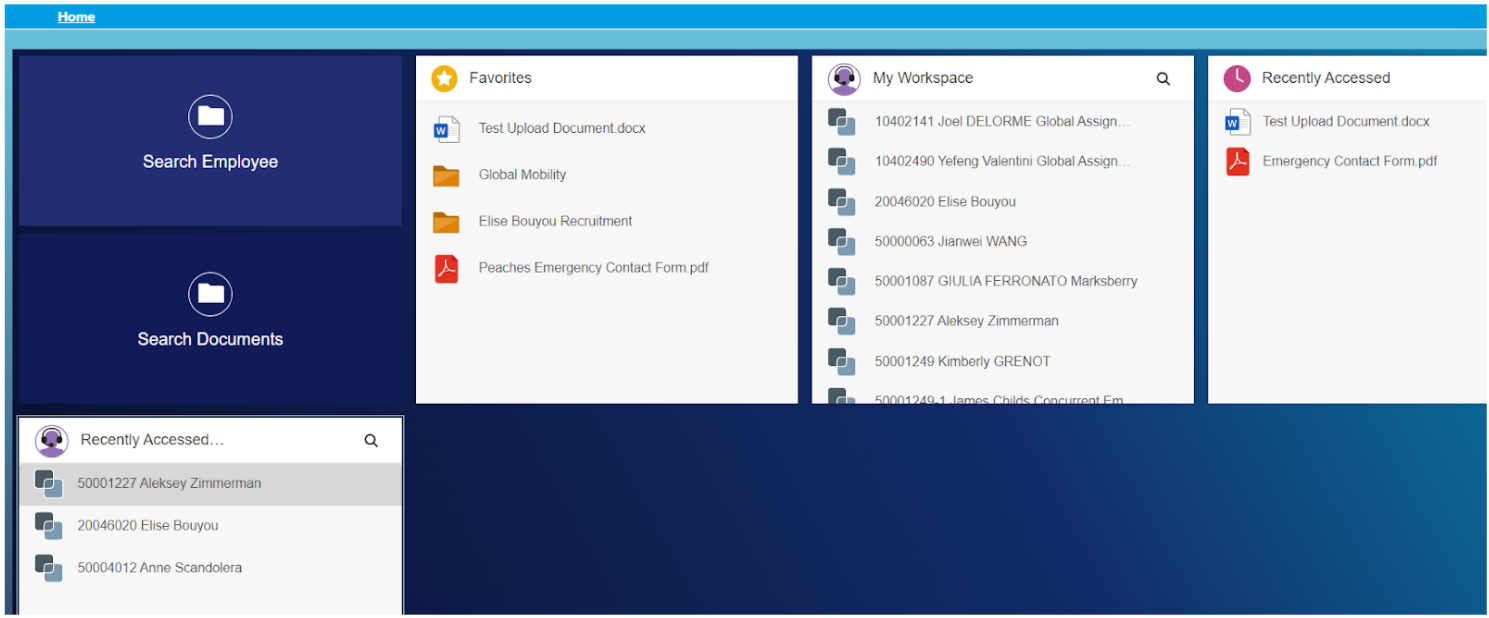
This will lead you to the Employee File Workspace as shown below. Here you can search for an employee, search for a document, view Favorites, and see the most recently accessed employee files and documents.
INFORMATION ON WHAT CONTENT YOU CAN ACCESS AS A MANAGER
SEARCH FUNCTIONALITY
This can be used to locate the file of a specific employee or to locate specific documents.
Search Employees
You can search for an employee’s file using Employee ID, Last Name, First Name or User Name as shown below.
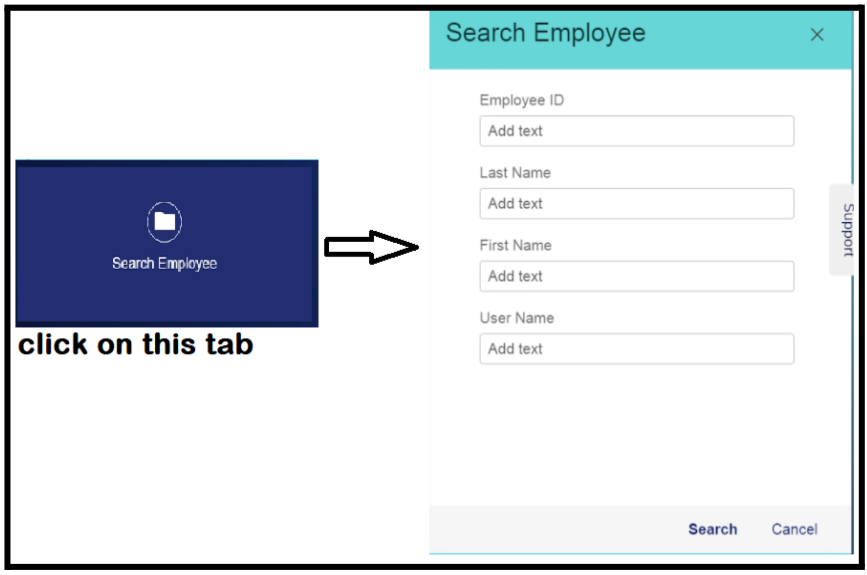
- In the Search for Employee dialog, you must specify at least one search criteria.
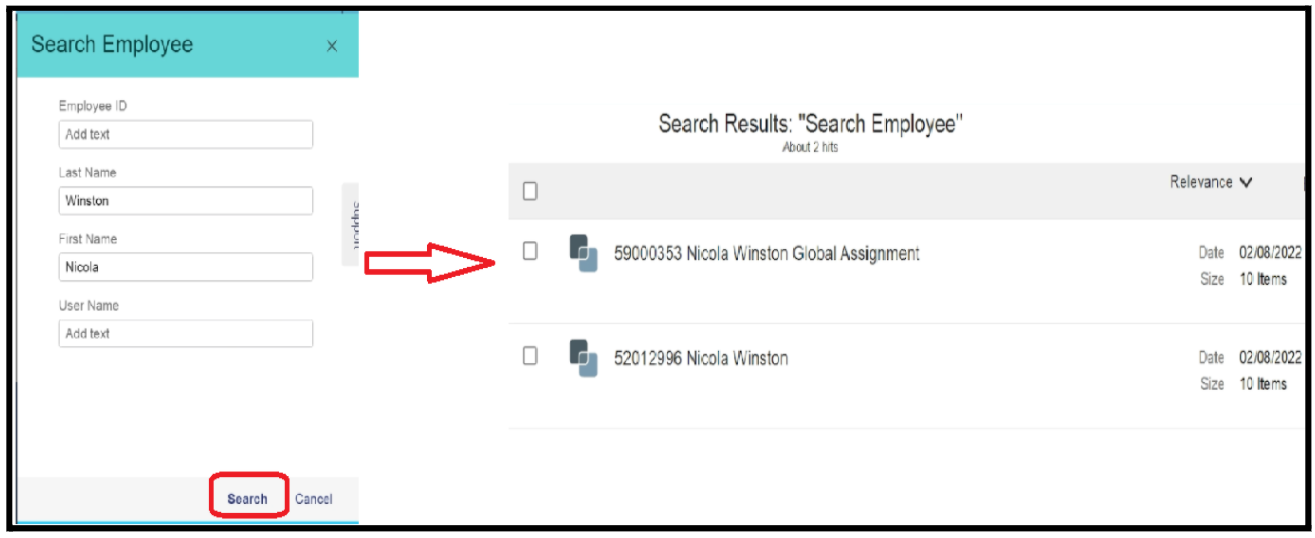
- Click the Search button at the bottom right and it will take you to the Search Result page as shown below.
- You are able to further refine your search by completing open fields in the box on the left.
Search Documents
You can search for a particular document of an Employee using the available fields in the search box and then selecting the Select button at the bottom right corner of the screen.
- Name: This searches based on the name of the document and works with one or multiple words used in the name.
- Description: If a document received a description upon upload, you can search using a keyword from this description.
- Employee ID, Last Name, and First Name enable you to search for all documents associated with the criteria you enter in one of these fields.
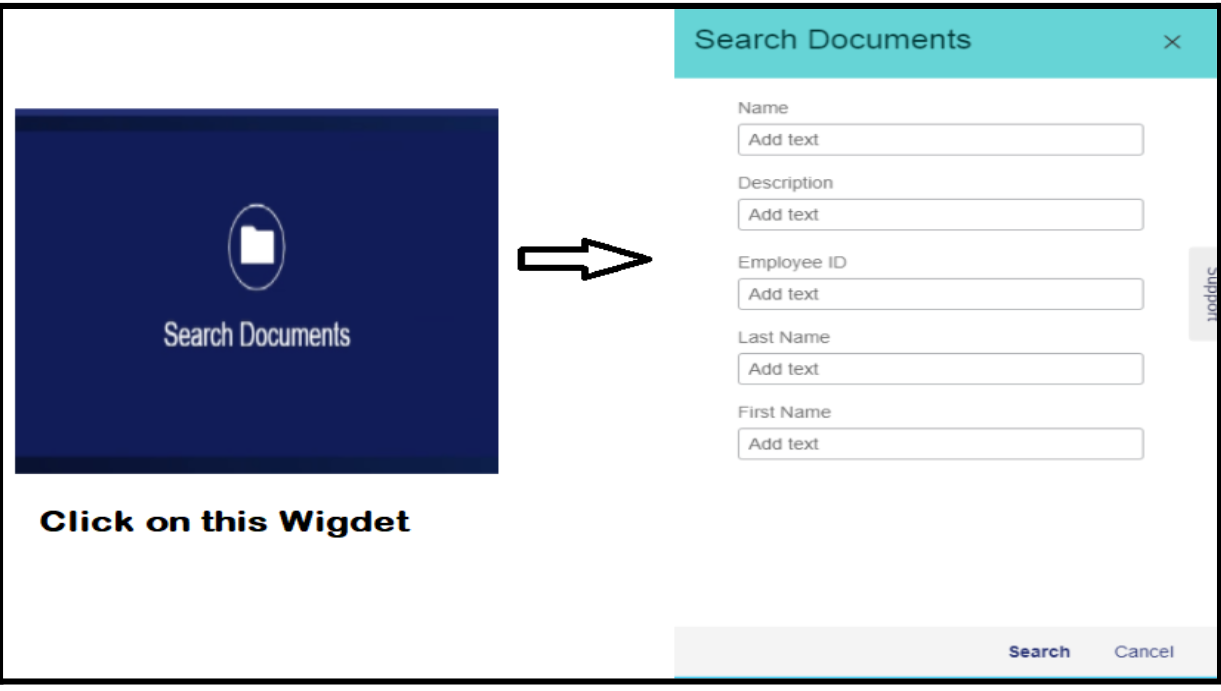
- You are able to further refine your search by completing open fields in the box on the left.
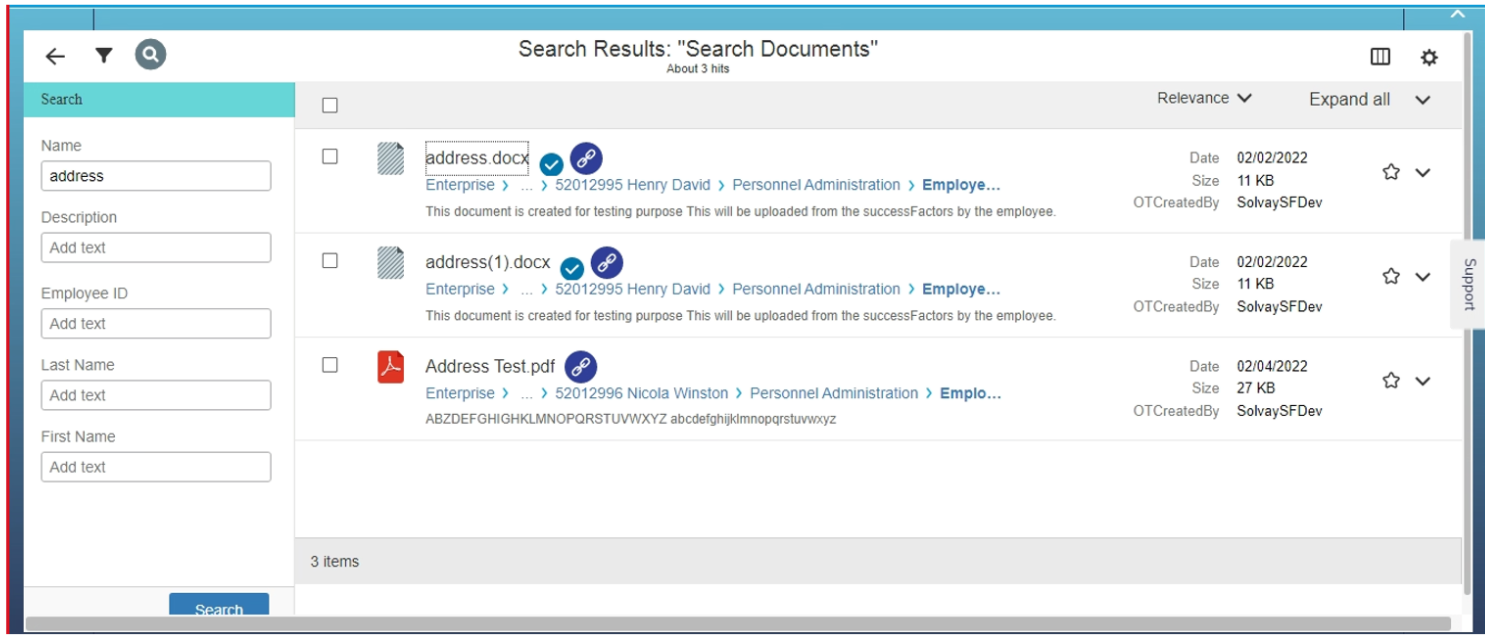
- This highlighted part below is the storage path of the document. From here you can identify to whom this Document belongs to and where in the folder structure it is stored. To see the full path you can reduce the zoom level by clicking ctrl - and can enlarge by clicking ctrl +.
In this example, the document belongs to Nicola Winston and it is stored in the Personnel Administration folder.

- Click on the
 Tabular Search View icon to change the view as shown here:
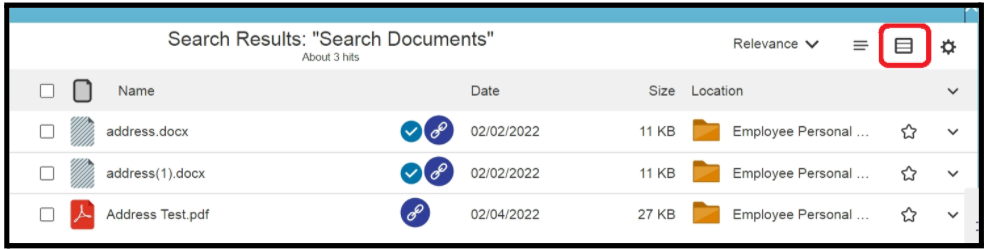
- Click on the above highlighted icon to revert back to Standard Search view.
- By Clicking on this icon
 You can add the associated document to your Favorites Widget.
 - To view the official Record Details of a particular document, click on the icon
 . It will open the detail page as shown below.
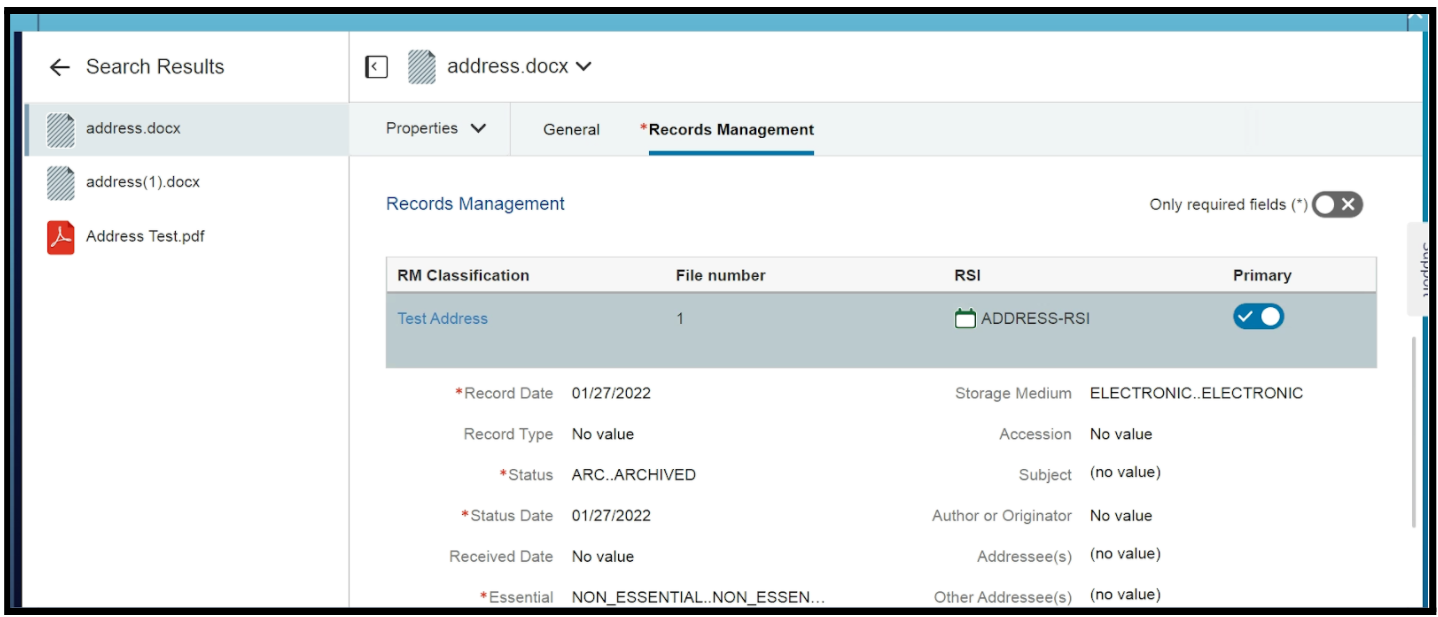
- This icon
 indicates that the document has been uploaded directly from Success Factors.
FAVORITES
- This is a place where you can store documents and folders for quick access. To mark as a favorite, click on. A pop-up will be displayed enabling you to change the name of the favorite if you wish. There is no limit to the number of items you can mark as “favorite.”
MY WORKSPACE
- This section contains the personal workspaces for all the employees in your management line. From here you can open the employee’s file.
RECENTLY ACCESSED
- This section provides a list of the documents recently viewed by you. It will display up to 25 of the most recently viewed documents.
RECENTLY ACCESSED WORKSPACES
- This section provides a list of employee files recently viewed by you. There is no limit defined to the number of objects in this list.
Date last updated: