

Responsibility area: Master data management
This document describes the transactions related to the process of R&D project creation.
The R&D projects aims to track costs of R&D projects. In order to facilitate the capitalization of qualifying R&D projects, a time and cost-tracking system has been created using WBS (Work Breakdown Structure) in the accounting ERP system (SAP).
xx << SBS-OP-DRTR-02-075 - I create R&D WBS >> xx
Guideline
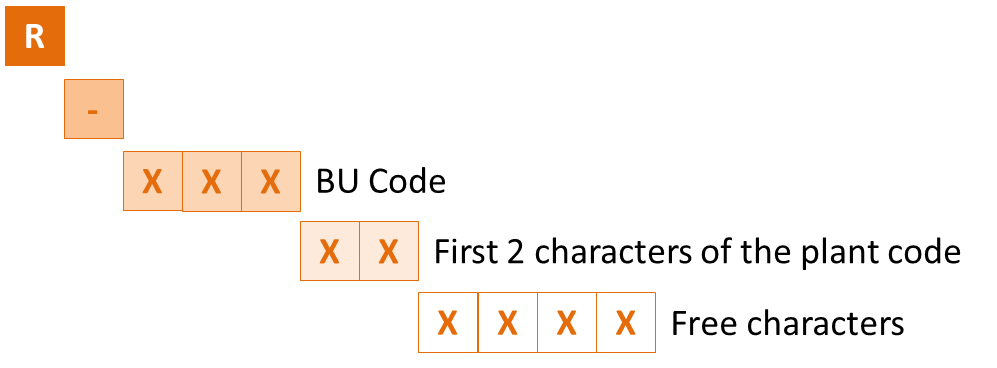
The codification of the R&D project must follow the standard rule detailed below:
- R
-
BU code
| GBU | Name |
| U01 | Essential Chemicals (Solvay Legacy) |
| U02 | Special Chemicals (Solvay Legacy) |
| U03 | Vinyls (Solvay Legacy) |
| U04 | Plastics Integration (Solvay Legacy) |
| U05 | Specialty Polymers |
| U06 | CBS & NBD |
| U07 | Olefins (Solvay Legacy) |
| U09 | Rhodia |
| U10 | Peroxides (Solvay Legacy) |
| U11 | Soda Ash (Solvay Legacy) |
| U12 | Engineering Plastics (obsolete) |
| U13 | Polyamides & Intermediaires (obsolete) |
| U14 | Novecare |
| U15 | Silica (Solvay Legacy) |
| U16 | Aroma |
| U17 | Performance Polyamides |
- First 2 characters of the plant code (can be found with PF2 - ZPRI Display table ETAB)
- Free characters
STEP 1
Enter Transaction CJ01
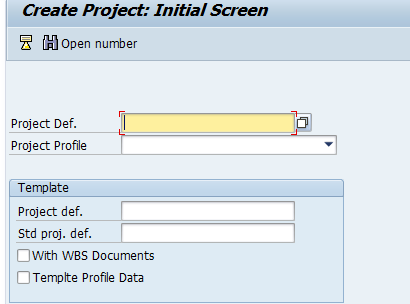
STEP 2
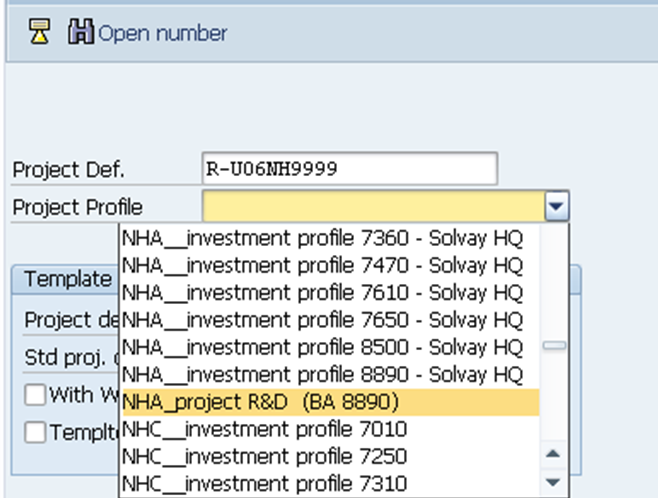
Insert the project definition and choose the project profile according to the plant of the company. This information is available in the template received.
The Project Profile should be always “ XXX_project R&D (BA XXXX)”.

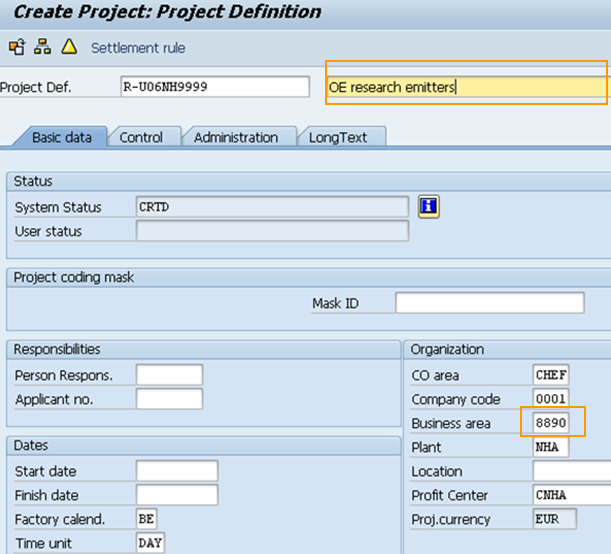
STEP 3
- Include the Project Name send in the template
- Check if the Business Area is correctly filled.
STEP 4
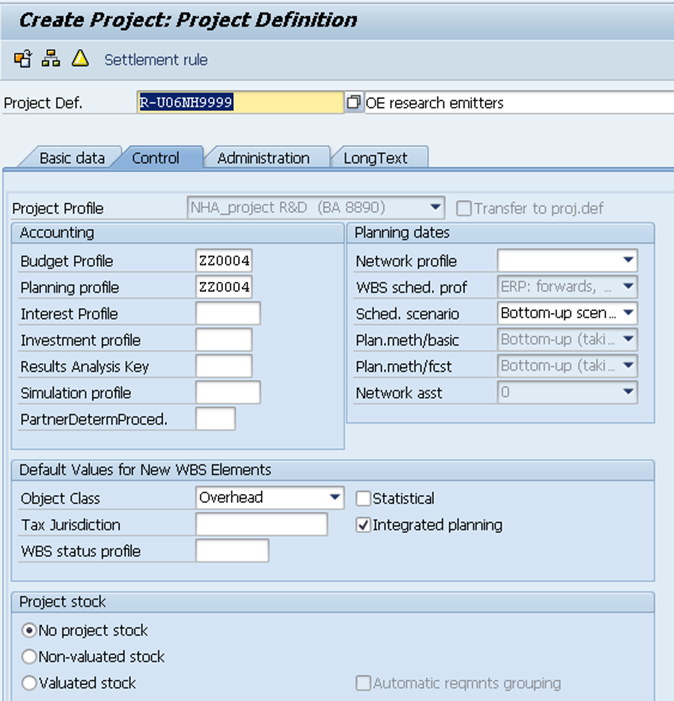
Enter the Control tab in order to confirm that the object class is “Overhead”.
- Click on the WBS overview

STEP 5
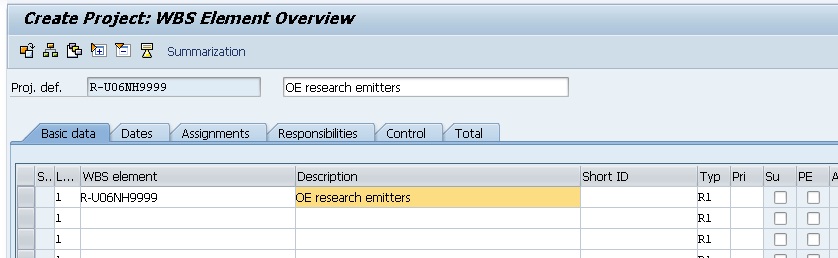
- Fulfill the level 1of the WBS by inserting the WBS element and Description as per the received template.
STEP 6
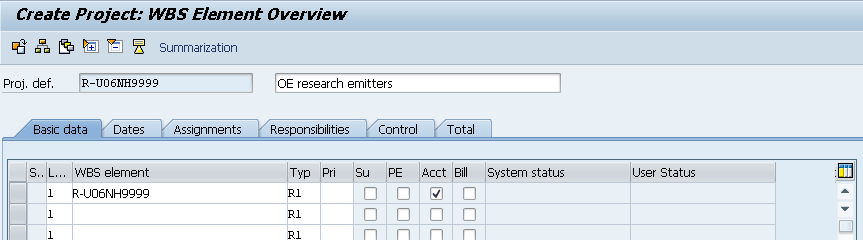
- Flag the "Acct" Column.
Column ''Typ'' is set by default to R1. Change it only if it's mentioned in the template file.
STEP 7
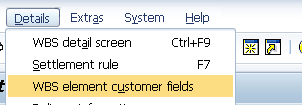
- Go to Details menu and enter in WBS element customer fields.
STEP 8
Fill in the following fields, as per template:
- Proj. type
- GBU
- Sub-GBU
- Product
- Proj. Leader
- Proj. Manager
- Tax Cred. Local
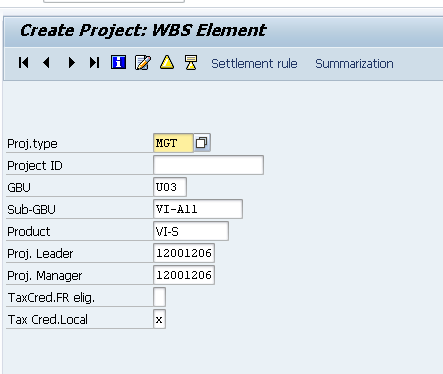
Note that the selection of the correct Project Type is very important when creating the WBS element, as it will have impact in some reports, namely CosTa and Capex ones.
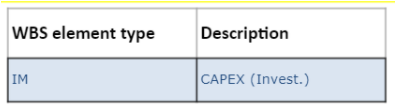
In order to be considered Capex (both for CosTa and Capex Dashboard) the Project Type must be the one below:
STEP 9
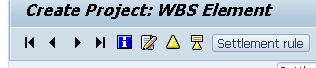
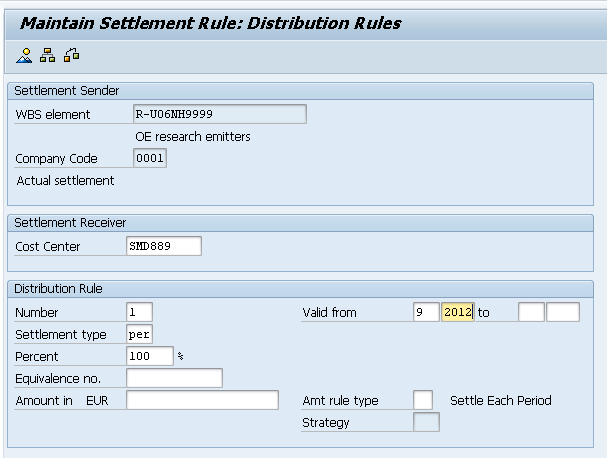
Click on  , in order to define the settlement rule of the WBS.
STEP 10
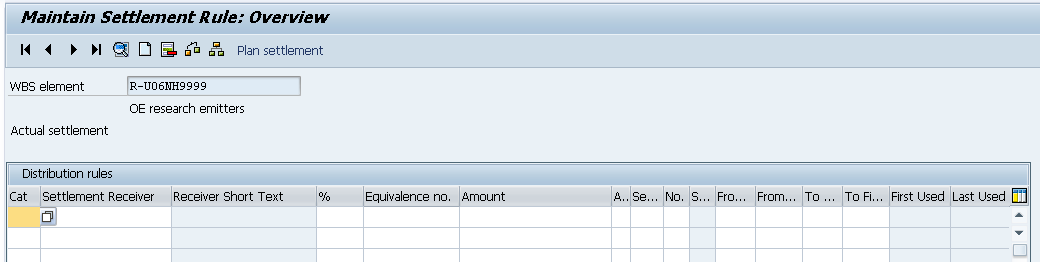
Click twice on the first line.
STEP 11
Fill in the following fields:
- Cost Center – (received in the template)
- Number – Usually 1, this field should be adapt according to the number of receivers
- Settlement type – PER
- Percent – Usually 100% it’s variable according to the number of receivers
- Valid from – month and year of the creation of the WBS
In the end go back by pressing until you arrive to the WBS first screen.
STEP 12
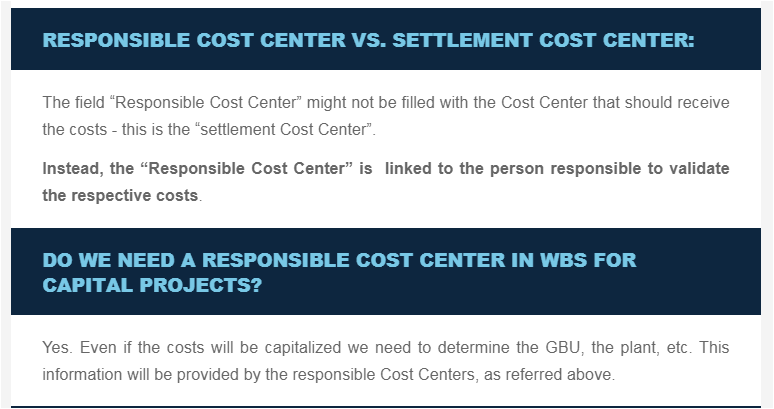
Important fields of the master data that will have an impact for CosTa Dashboards. NOTE: The "responsible CC" is not mandatory for Projects or WBS levels WITHOUT a flag in the operative indicator of "Account Assignment Element".
STEP 13
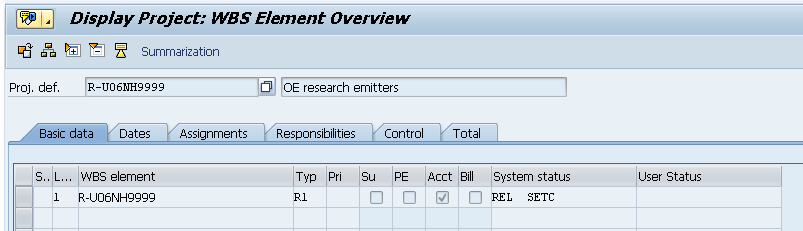
In order to release the WBS, you have to go to Edit > Status > Release.
Check if the status is now REL and SETC.
STEP 14
The WBS is now ready to be saved
STEP 1
Analyse the document sent.
If there is any AUC in column "Settlement Receiver" it should be deleted because it will be fulfilled automatically by the transaction.

STEP 2
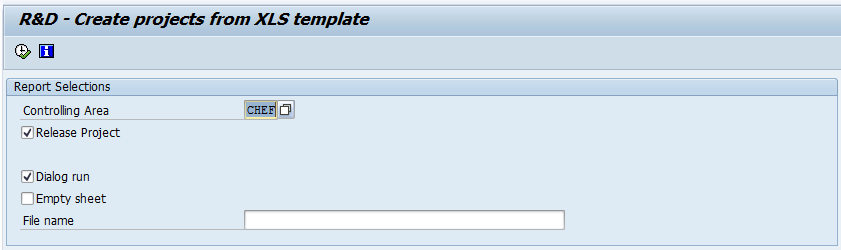
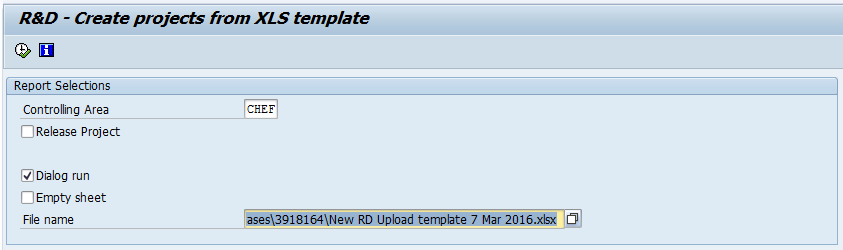
Enter transaction ZZJ02
STEP 3
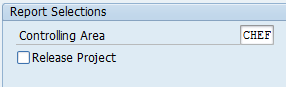
Deselect the field “Release Project”.
STEP 4
In the "File name" field, upload the Excel file received
STEP 5
Click on the ''Execute'' in order to get to the following screen.
The information that is available on the chosen Excel file, is not displayed.
The first 4 columns stand for:
P: Project / W: WBS / S: Settlement rule /R: Release

The "Release" column can have 4 different status:
 | Ready to be created |
 | Created |
 | Error in creation |
 | Completed |
STEP 6
Select one or several lines and click on  in order to create a new project.

STEP 7
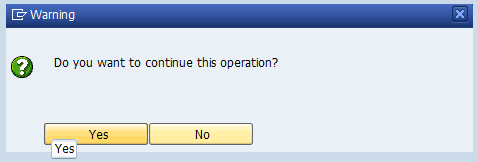
Click on ''OK'' when the warning message pops-up.
STEP 8
If no errors will be found, a similar screen will be displayed.
Click on  to continue.
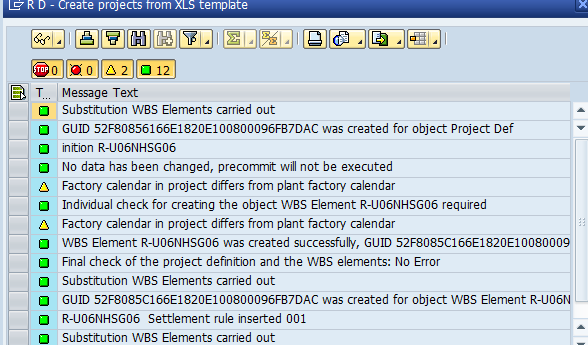
The project created will show a flag  in columns P, W and S.

- Click on ''Back'' (F3)

- When the warning message appears, click on ''Yes''.
- Tick the''Release project'' field.
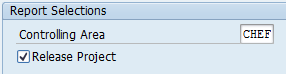
- Repeat the process described on ZZJ02 - R&D - Create Projects from XLS template, starting with step 4.