Modify Details of an Existing Position in My HR Services
Content Layer
id
1925176407
Content Column
width
70%
id
1925176409
Content Block
id
1925176412
INTRODUCTION
Why this is important
Why is this important?
Position management is key:
To start a recruiting process, internal or external
To assign new joiners or internal movers their ‘seat’ in our Organization structure
To reflect our Business Organization’s evolution
The correct and timely creation / maintenance of positions ensures a proper functioning of all HR processes and an org chart that provides a correct view of the organization.
POSITION MANAGEMENT - GUIDELINES & PRINCIPLES FOR MANAGERS
Modify a Position
modification workflow
Why modify positions?
Important information
Be aware that when you modify the details of a position currently assigned to an employee, thechanges will also apply to its incumbent. For example, changing the cost center of the position will update the employee’s cost center.
Why modify positions?
A position is modified
To correct or update the position name, position grade, job function/code, or the cost center
To set the position “To be recruited” when the current incumbent is leaving, and you want to mark the position as open for internal or external recruitment
You must never change the Business Unit, Company, or Location Group in the position when it’s assigned: this should be treated via a new position creation first andRecruitment processstarted.
Expand
title
STEP ONE
Step one:
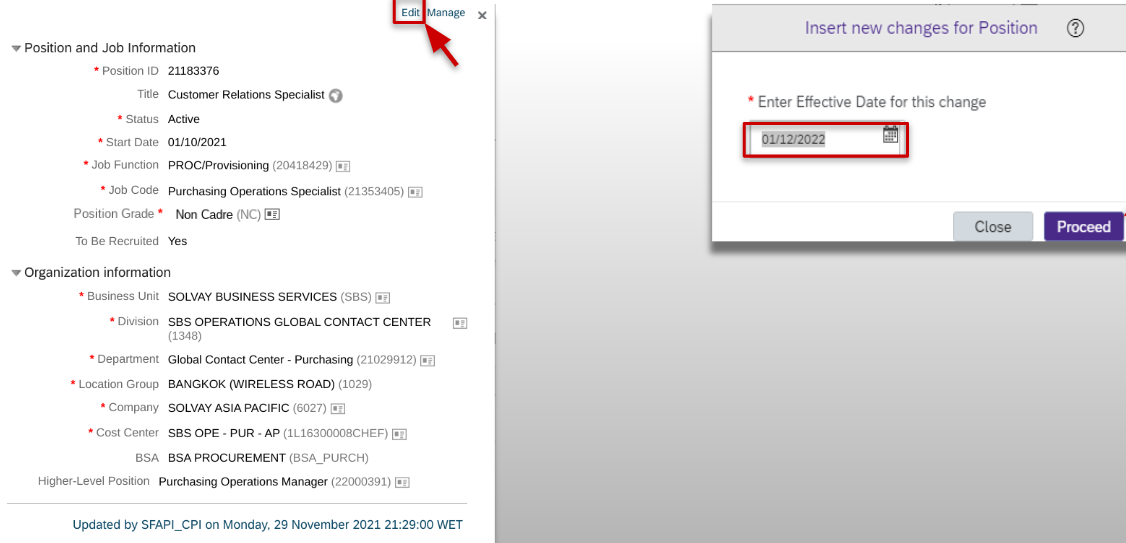
To modify a position, click on the Position and click on the card Show Position (next to as of Today)
Image Removed
Click on Edit button on the position, enter the effective date and Proceed
Image Removed
Before moving to the next step and changing the position’s details, review thechecklist to make your decision
Note: If you require an FTE (percentage/capacity of utilization) change for an employee (e.g. part-time employee that will start being full-time) please open aticket through Service ONE.
To modify a position follow the step-by-step guide below:
Expand
title
STEP TWO
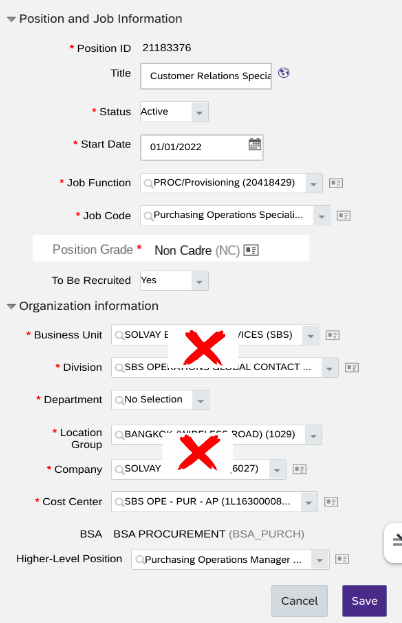
Modify the necessary details but keep in mind that
You must never change the Business Unit, Division, Company, or Location Group in the position when it’s assigned
Cost center can be changed only as of the 1st day this month or in the future. In case of doubts regarding which Cost Center to select or for New cost center to be created, please contact the Controller of your site or entity, or the Call Services
If you mark the position “To be recruited” for internal or external recruitment, you need to follow the proper steps toinitiate a recruiting process.
Image Removed
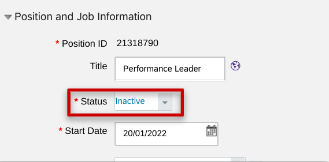
Deactivate a Position
A regular clean-up of all the positions is automatically made in the tool when a role disappears from your team (i.e., restructuring, reorganization) after the incumbent leaves the position or if it has stayed vacant for 4 months and no recruitment process is ongoing If you do not want to wait for the automatic clean-up, you can edit the position, set the Status to Inactive and Save. The position is no longer visible in the OrgChart.
Image Removed
Correct the higher-level position (hierarchy) of the position
In case the position is not assigned to the correct manager in your hierarchy, you can edit the higher-level position
Search first for the correct manager’s position ID in the OrgChart
Enter that ID in the Higher-level Position field and Save
Image Removed
Click save
Important note: If you change the “Position S-Grade” or “To be recruited”, an approval workflow is triggered.